TL6000, Users
Rev L, June 2008
Page 17 of 22
Note: If the “Serial Out” setting in your unit is set to “3 = fast continuous” then
the above read rates will be slower because of the time the scale spends
transmitting data out the serial port.
5) The scale shows ‘AZt
AZtAZt
AZt ’. Press ZERO and PEAK together to edit the Auto
Zero Tracking. Enter the AZT size (0 to 3 divisions). AZT is the number of
graduations the auto zero tracking can remove. An entry of ‘0’ disables the
feature.
6) The scale shows ‘GrAd
GrAdGrAd
GrAd’. Press ZERO and PEAK together to edit the
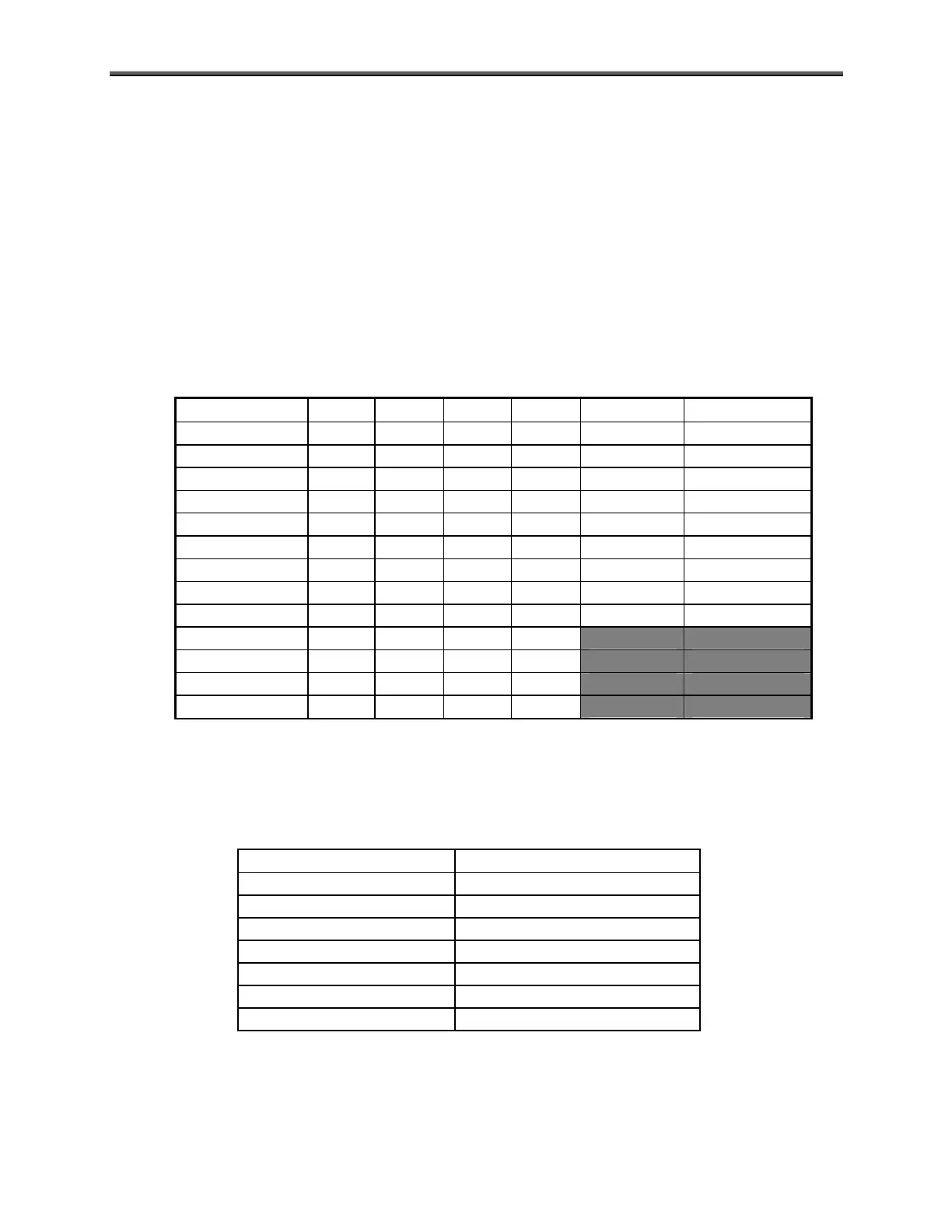
Graduations. Use the following table to select and enter a graduation value.
Graduations and Units
Grad Setting
lb Kg N daN ton kg x 1000
0 100 50 100 50 0.05 0.05
1 50 20 100 20 0.02 0.02
2 20 10 100 10 0.01 0.01
3 10 5 50 5 0.005 0.005
4 5 2 20 2 0.002 0.002
5 2 1 10 1 0.001 0.001
6 1 0.5 5 0.5 0.0005 0.0005
7 0.5 0.2 2 0.2 0.0002 0.0002
8 0.2 0.1 1 0.1 0.0001 0.0001
9 0.1 0.05 0.5 0.05
10 0.05 0.02 0.2 0.02
11 0.02 0.01 0.1 0.01
12 0.01 0.005
0.05 0.005
Note: Grads 9-12 do not exist for ton and kg x1000.
NOTE: The stated accuracy specifications are based on the graduation setting in
the table below. If the graduation setting is set other than the value in the table
below the accuracy specification remains with the graduation size listed below.
If your capacity is: Set your graduation to:
1000 lb / 500 kg 1 lb / 0.5 kg (6)
2000 lb / 1000 kg 2 lb / 1 kg (5)
5,000 lb / 2,500 kg 5 lb / 2 kg (4)
10,000 lb / 5,000 kg 10 lb / 5 kg (3)
25,000 lb / 12,500 kg 20 lb / 10 kg (2)
50,000 lb / 25,000 kg 50 lb / 20 kg (1)
100,000 lb / 50,000 kg 100 lb / 50 kg (0)
7) The scale shows ‘CAP
CAPCAP
CAP’. Press ZERO and PEAK together to edit the Capacity.
Enter the capacity. Press the ZERO and PEAK keys together to save the
data and the display will read ‘SAvE
SAvESAvE
SAvE’.



 To Next Page