Chapter 1 — About the Vehicle Mount Computer
10 CV61 Vehicle Mount Computer (Windows 7) User Guide
About the Touch Screen
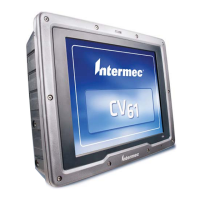
The CV61 has a 12.1” color XGA touch screen display with a resolution
of 1024 x 768 pixels. The display may also come with an optional
heated touch screen defroster to reduce condensation on the external
surface of the display when moving between sub-freezing
temperatures and normal temperatures.
If you are going to use the CV61 in extreme cold conditions for an
extended period of time, you should turn on the power at room
temperature for at least 15 minutes prior to using it. This process of
“warming up” helps preserve the lighting on the display.
Adjust the Screen Brightness
You can adjust the brightness of the screen manually or enable the
ambient-light sensor to automatically adjust the brightness of the
CV61.
1 Tap Start > Control Panel.
2 In the View by: drop-down menu, select either Large or Small
icons.
3 Double-tap CV61 Properties. The screen brightness is shown in
the Screen Control section of the CV61 Properties screen.


 To Next Page