Chapter 4 — Configure the Computer
CV61 Vehicle Mount Computer (Windows 7) User Guide 47
4 Perform one of these items based on the type of scanner you are
connecting:
• For an SR30 or SR61T scanner, tap Scanner Settings, select SR
Intermec Scanner, and then tap OK.
• For an ASCII scanner, tap Scanner Settings, select ASCII, and
then tap OK. Set up the appropriate COM port settings by
selecting Scanner Port Settings.
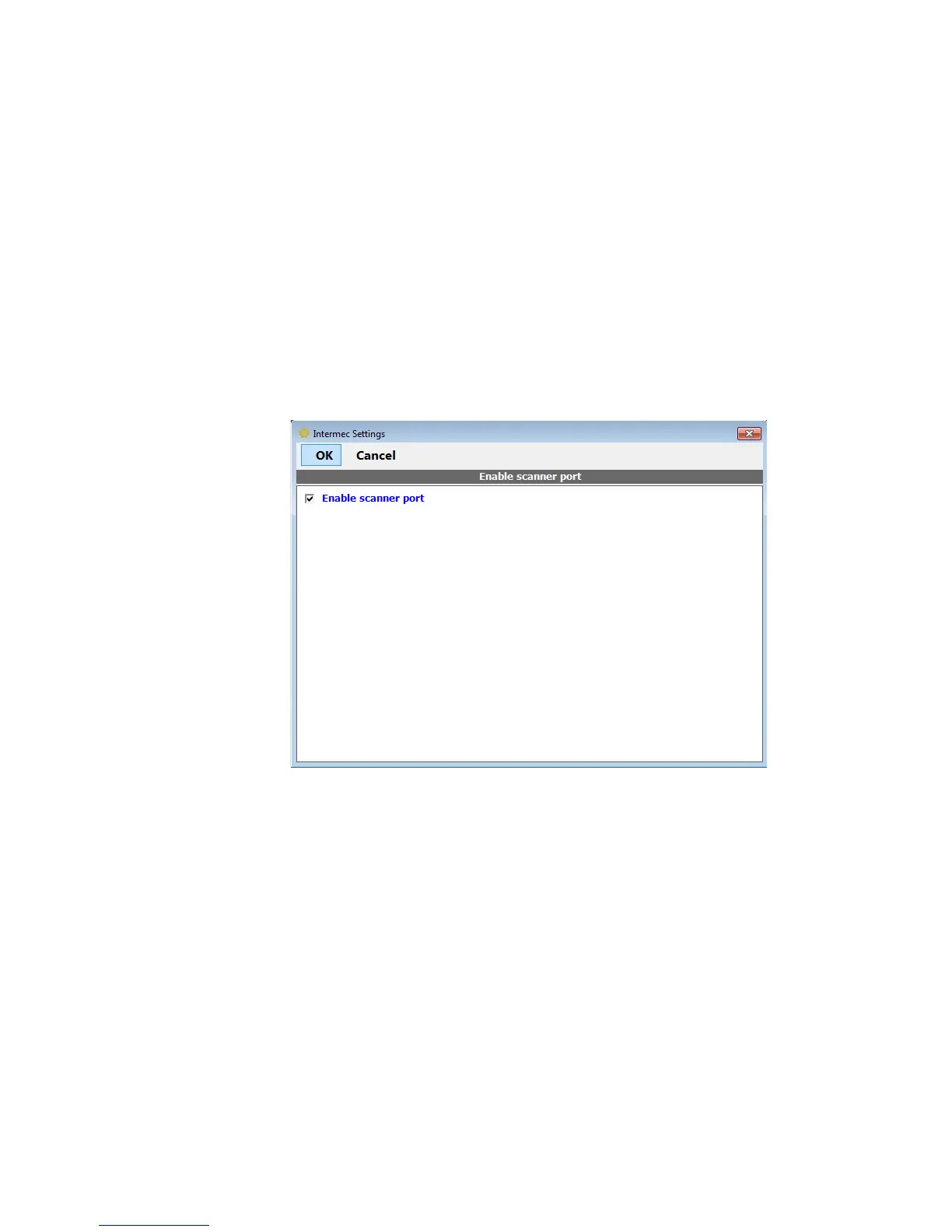
5 Tap Enable scanner port.
6 Check the Enable scanner port check box and tap OK.
Connect to a Bluetooth Scanner
You can connect the computer to an Intermec Bluetooth scanner, such
as the SF51 or SR61.
1 Enable Bluetooth communications.
2 Tap Start > Control Panel. The Control Panel appears.
3 In the View by: drop-down menu, select either Large or Small
icons.
4 Tap Bluetooth Scanning. The Bluetooth Scanning application
appears.
5 Tap Add Scanner.


 To Next Page