16
4 – Menu
IB Pulse
Settings
Sengs
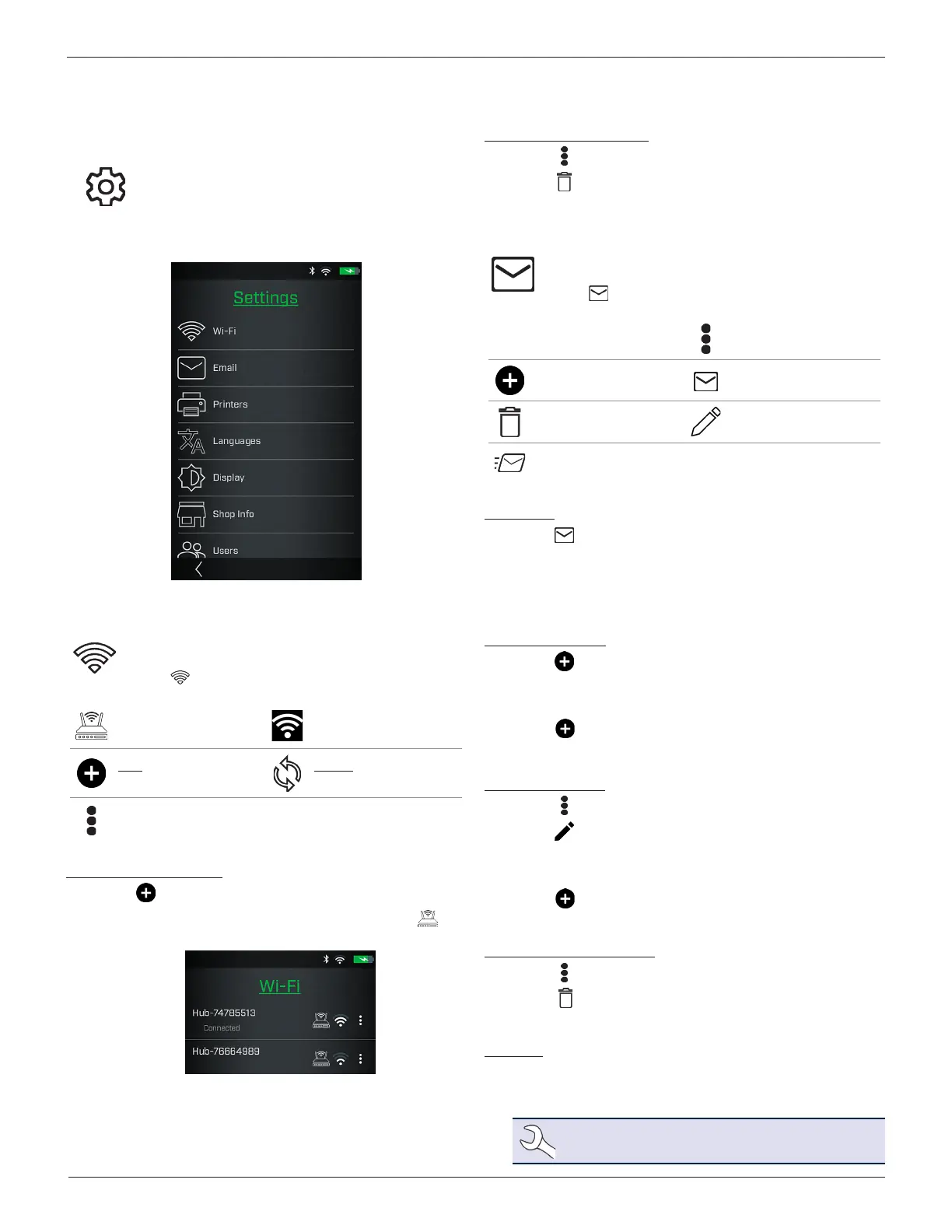
Use the Settings functions to adjust and customize
the IB Pulse to match shop requirements. Select
<
to return to the previous screen. Swipe up or
down on the screen to scroll, or use or on
the keypad.
Wi-Fi
Use Wi-Fi to view, add, and delete all available Wi-Fi
Hub connections.
Select to access Wi-Fi Hub functions.
Wi-Fi Hub Connected Wi-Fi Communicating
Add: Add a detected
Wi-Fi Hub
Reload: Re-scan for
detectable Wi-Fi Hubs
Additional Menu Options
Adding A Wi-Fi Network
1. Select to add a Wi-Fi Hub.
A list of detected wireless networks is displayed. The icon
indicates a Wi-Fi Hub.
2. Select a displayed
Wi-Fi Hub
. The IB Pulse will automatically
congure the tester to the
Wi-Fi Hub
.
3. Select Next
>
to return to the Wi-Fi screen. The selected
Wi-Fi Hub
is displayed.
Deleting A Wi-Fi Network
1. Select next to a displayed network.
2. Select to delete the network and select Yes to conrm.
Email
Add, edit, and delete email addresses used for test
results.
Select to access Email functions.
✩
Select/Deselect Favorite Additional Menu Options
Add Email Auto Email
Delete Selected Address Edit Address
Send Test Email
Auto Email
1. Select to view the list of entered email addresses.
2. Select an addresses to automatically send test results. A
green dot indicates the selected address.
3. Select X to exit and return to the email list.
Add Email Address
1. Select to add an email address.
2. Use the displayed keypad to enter the contact name and
email address.
3. Select to add the address to the email list or Cancel to
exit and return to the email list.
Edit Email Address
1. Select next to
a displayed email address.
2. Select to edit the address.
3. Use the displayed keypad to edit the contact name and
email address.
4. Select to add the address to the email list or Cancel to
exit and return to the email list.
Deleting An Email Address
1. Select next to
a displayed email address.
2. Select to delete the address and tap Yes to conrm or
Cancel to exit and return to the email list.
Favorites
1. Tap ✩ to select an email address add it as a Favorite.
2. Tap
✩✩
to deselect and remove a Favorite email address.
NOTE: A maximum of three (3) email addresses
may be selected as Favorite.
4 – Menu



 To Next Page