4
1 – Introduction
IB Pulse
Wi-Fi Hub
The Wi-Fi Hub is required at every shop using an IB Pulse battery
tester. The Hub transmits its own Wi-Fi signal and easily connects
to existing Internet hardware devices. Once paired with an
IB Pulse, it automatically downloads local shop information;
transmits test data wirelessly to a printer or via email; and allows
IB Pulse software updates.
Included Components
• IB Pulse Wi-Fi Hub
• Four (4) Antennas
• 10 ft Ethernet cable
• Power Supply
• Quick Start Guide
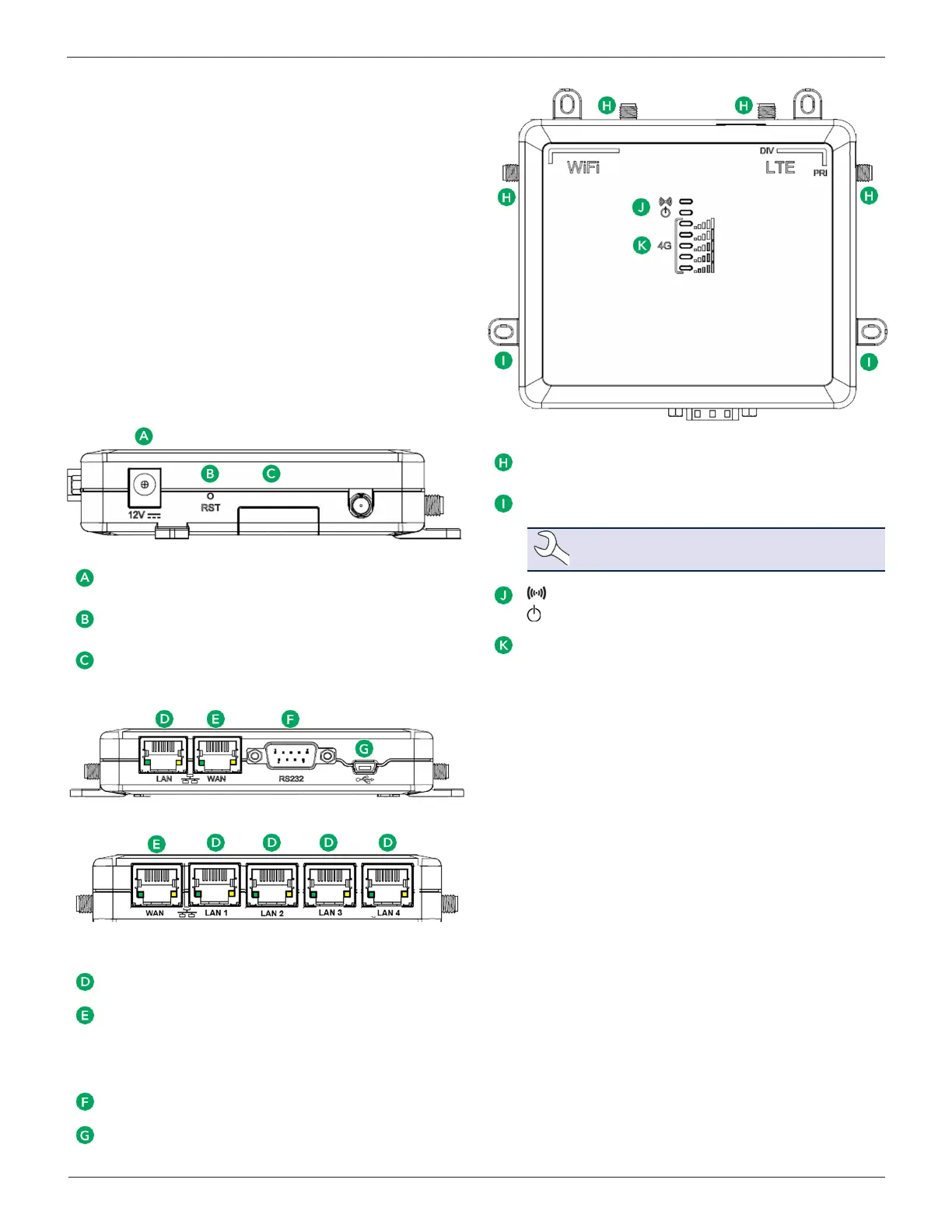
Connections
12V Power Supply: Utilize the power supply included with the Wi-
Fi Hub. Any other power supply can cause damage to the unit.
Reset Button: Push & release to reset the device. Push & hold
for 5 seconds, then release to install factory presets.
SIM Card Access: Slide the door to access the SIM holder.
Version 1
Version 2
LAN Port(s): NOT USED
WAN Port: Utilize the WAN port on the front of the Wi-Fi Hub
and connect the open WAN port on the existing shop router
using the supplied Ethernet cable. Solid Green indicates link
has been established with stores router, ashing green indicates
data is being transmitted.
RS-232 Port: NOT USED IN VERSION 2
USB Port: NOT USED IN VERSION 2
Antennas: The Hub includes easy to attach and adjust antennas
for maximum reception.
Mounting Holes: Use the mounting holes to attach the Wi-Fi
Hub to a wall or secure location.
NOTE: Screws not included.
Wi-Fi: Orange: Wi-Fi is connected / Off: No Wi-Fi
Power: Yellow: Power is connected / Off: unit is off
Signal Strength: Indicates the level of cellular signal.
• One (1) green bar: Signal is poor
• Five (5) green bars: Signal is very strong.
Wi-Fi Hub Location
• Select a central location: The Wi-Fi Hub communicates in all
directions. To optimize coverage, place the device in a cen-
tral location where the IB Pulse will be used. Avoid placing
in a closet or behind concrete walls.
• Raise the Hub: The Hub signal angles downward, so mount
the Wi-Fi Hub as high as possible to maximize coverage.
• Avoid other electronics: Select a location away from other
electronics and large metal objects.



 To Next Page