17
4 – MenuIB Pulse
Printers
The Printer Setup function detects and displays a list of
connected and available Wi-Fi and Bluetooth printers.
Select to access the Printer Setup functions.
NOTE: To connect a Wi-Fi printer, Wi-Fi network
communication must be successfully established be-
fore any printers can be detected and setup.
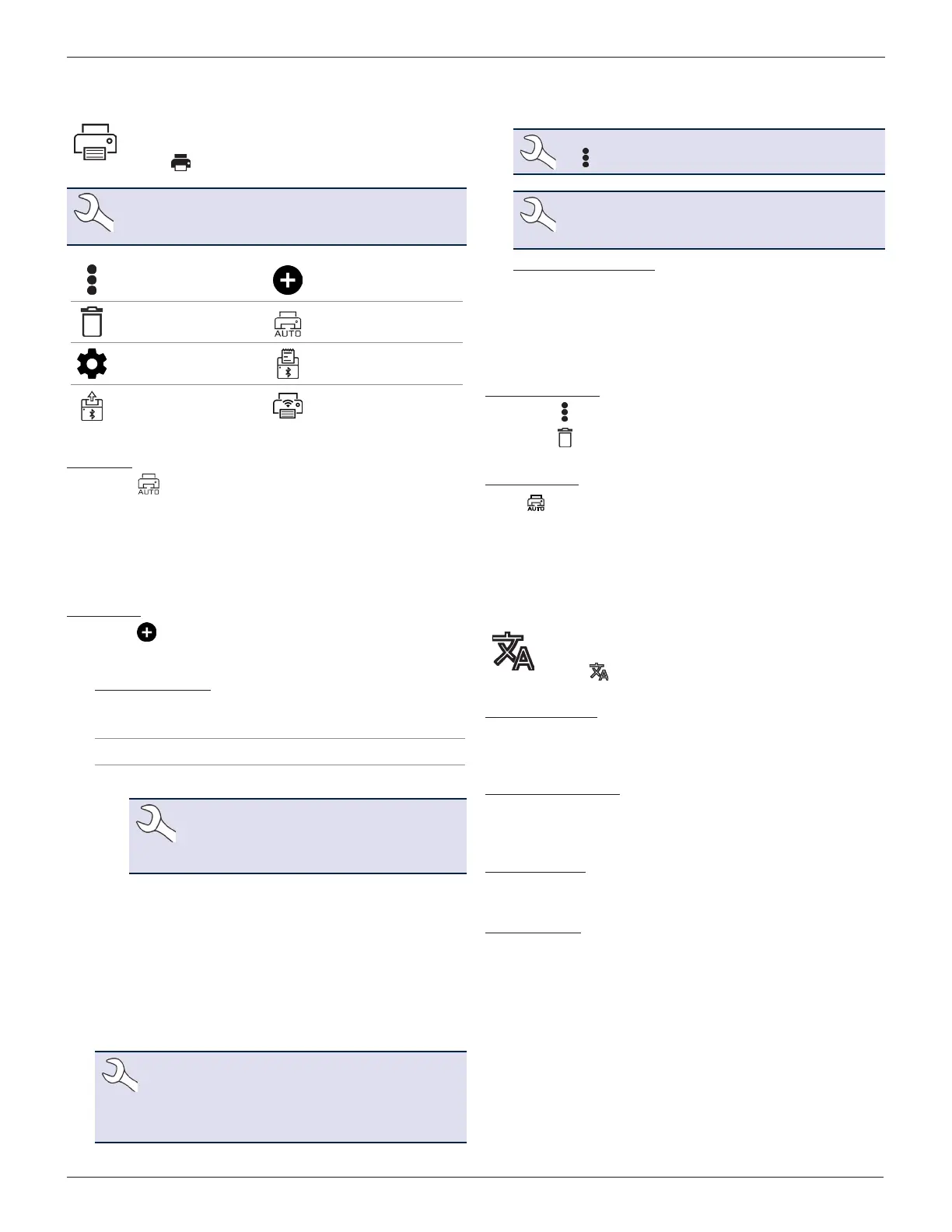
Additional Menu Options Add Printer
Delete Selected Printer Auto Print
Printer Setup Bluetooth Printer
Print Test Page Wi-Fi Printer
Auto Print
1. Select to view a list of connected printers.
2. Select one of the displayed printers to automatically print-
out test results at the conclusion of a successful test. A
green dot indicates the selected printer.
3. Select X to exit and return to the printer list.
Add Printer
1. Select to add a Wi-Fi or Bluetooth printer.
2. Select the printer type, Wi-Fi or Bluetooth.
For A Wi-Fi Printer
• The IB Pulse must be connected to the same shop
Wi-Fi network as the Printer
• The printer is Wi-Fi capable
• The printer is supported by the IB Pulse
NOTE: Not all Wi-Fi and Bluetooth printers
are supported by the IB Pulse. For a com-
plete list of supported printers, go to:
www.interstatebatteries.com/ibpulse
Select Use Email Address or Continue to Wi-Fi.
For Email Address: Enter the Name and Email Address of
the target printer and select Next to add it to the Printer list.
For Wi-Fi Printer: Conrm the following.
• The Wi-Fi printer is powered up
• The IB Pulse is connected to the same Wi-Fi network.
• The selected Wi-Fi network as internet access.
NOTE: A Warning message is displayed if no Wi-Fi
printer has been detected on the Wi-Fi Hub being
used by the IB Pulse. Tap Settings to select a dif-
ferent Wi-Fi Hub or add a new Hub. See Settings/
Wi-Fi in this chapter for additional information.
After the IB Pulse adds the printer, it will switch back to the
HUB network.
NOTE: A test print can be completed by selecting
next to the printer name in the printers list.
NOTE: Refer to the Wi-Fi Printing section in the
Appendix of this manual for additional Wi-Fi
printer connection information.
For a Bluetooth Printer: Power on the printer and make sure
it is within 10 feet of the IB Pulse tester.
3. Select Next
>
to connect to the selected printer. A mes-
sage is displayed when the conguration is successful.
4. Select Next
>
to return to the printer list.
Deleting A Printer
1. Select next to
a displayed
printer.
2. Select to delete the printer and tap Yes to conrm.
Default Printer
Select to select a default printer from the displayed list.
If any of the printers are set for Autoprint, the Battery and System
Test results are automatically printed out at the end of each
completed test.
Languages
Select the default language for System, Test Results,
Email, and Print functions.
Select to access the Language settings.
System Language
Select the technician System Language default for the IB Pulse to
display on the tool screen.
Test Result Language
Select the Test Result language default for all tests and results
displayed on the tester screen.
Email Language
Select the default language for all tests and results sent via email.
Print Language
Select the default language for all tests and results printed using
a congured printer.



 To Next Page