FALCO Instrument User Manual V1.2R
Unrivalled Gas Detection. Page 24 of 46 ionscience.com
6. Disconnect the cables from the terminal blocks and withdraw them from the Housing Module via the
cable glands.
7. Make sure that all the electrical connection is either removed or left in a safe, isolated condition.
Operating the FALCO
User Interface
The FALCO front face has:
• OLED display,
• Keypad - 5 magnetic keys,
• Status Light
Keypad
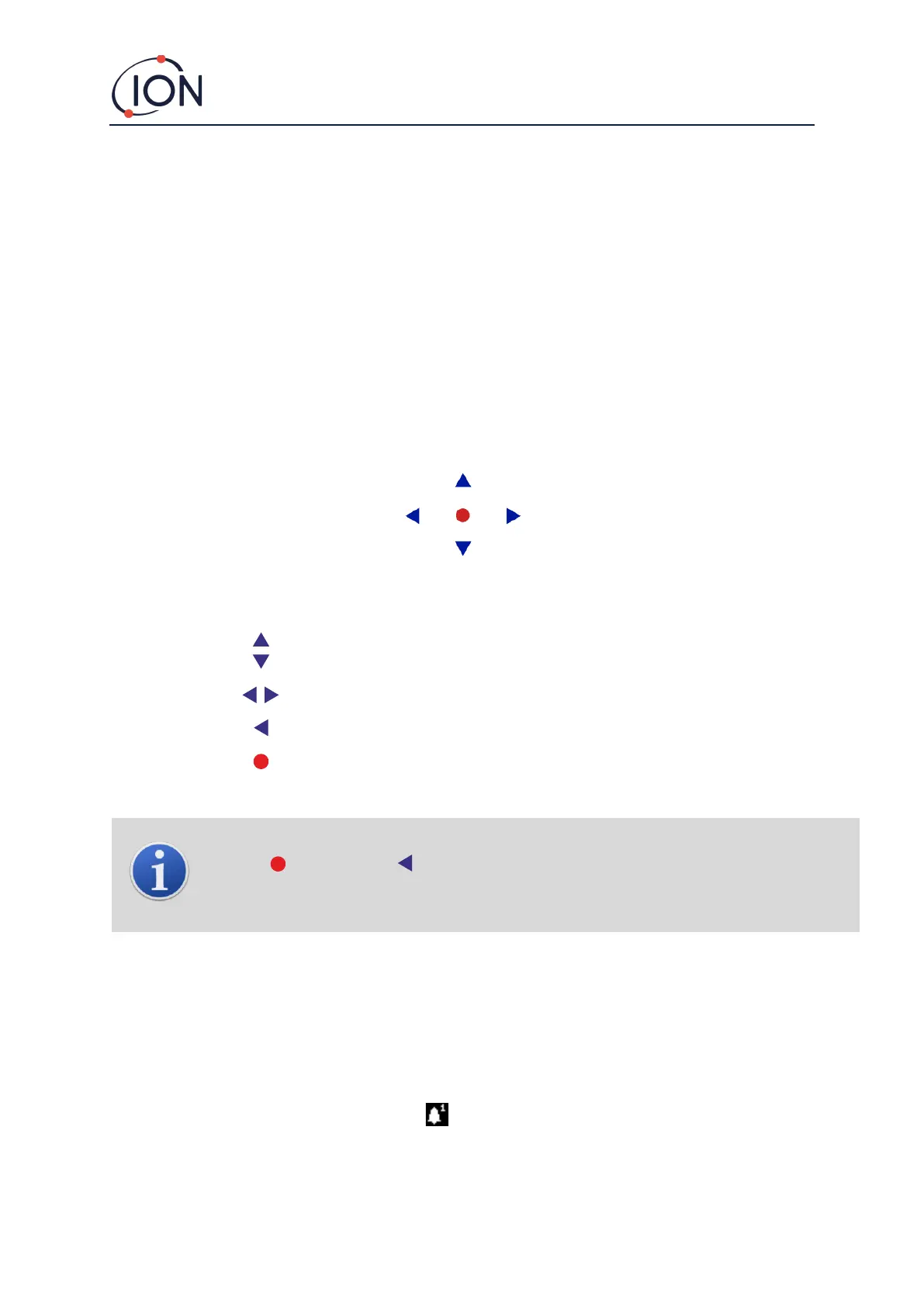
For easy menu navigation the keypad consists of five magnetic keys Up, Down, Left, Right and Enter.
Moves the cursor (indicating which screen option is currently selected) and
adjusts numeric values and settings up and down.
Moves the cursor left and right and steps between menu screens.
Left is also used to “escape” settings screens (e.g. exit a menu or sub-menu).
Used to enter features (e.g. settings screens) and to confirm specified settings.
INFORMATION
The Enter key, and the Left key when being used to escape, must be pressed and held briefly to
operate them.
The other keys, and the Left key when not been used for escape only need to be tapped.
Displayed during start-up only, when power is first applied.
Indicates that FALCO is operating correctly.
Also displayed during the start-up routine.
Flashing amber indicates Alarm 1 has been triggered i.e. the measured level of VOC is
above the alarm threshold.
Also displayed during the start-up routine.



 To Next Page