EasyManua.ls Logo

Iridium 9505A - User Manual

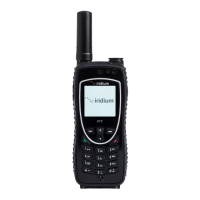
Iridium 9505A
182 pages
Print Icon
To Next Page IconTo Next Page
Loading...
iii
Contents
Safety Information. . . . . . . . . . . . . . . . . . . . . . . . .7
Overview . . . . . . . . . . . . . . . . . . . . . . . . . . . . . . .13
Guide Overview . . . . . . . . . . . . . . . . . . . . . . . . .14
Phone Overview . . . . . . . . . . . . . . . . . . . . . . . .15
Indicators. . . . . . . . . . . . . . . . . . . . . . . . . . . . . .18
Accessories . . . . . . . . . . . . . . . . . . . . . . . . . . . .21
Getting Started . . . . . . . . . . . . . . . . . . . . . . . . . .25
Attaching the Satellite Antenna . . . . . . . . . . . . .26
What Is a SIM Card? . . . . . . . . . . . . . . . . . . . . .27
Installing/Removing the SIM Card . . . . . . . . . .28
Installing the Battery . . . . . . . . . . . . . . . . . . . . .30
Removing the Battery . . . . . . . . . . . . . . . . . . . .31
Charging the Battery . . . . . . . . . . . . . . . . . . . . .33
Checking Battery Charge Level. . . . . . . . . . . . .35
Battery Information . . . . . . . . . . . . . . . . . . . . . .36
Using Your Phone . . . . . . . . . . . . . . . . . . . . . . . .37
Startup Procedures . . . . . . . . . . . . . . . . . . . . . .38
Placing a Call. . . . . . . . . . . . . . . . . . . . . . . . . . .42
Receiving a Call. . . . . . . . . . . . . . . . . . . . . . . . .45
Additional Phone Features . . . . . . . . . . . . . . . .48
Using In-Call Features . . . . . . . . . . . . . . . . . . . .51
Muting a Call . . . . . . . . . . . . . . . . . . . . . . . . . . .52
Using the Menus . . . . . . . . . . . . . . . . . . . . . . . . .53
Using the Options Menu . . . . . . . . . . . . . . . . . .54
Using the Quick Access Menu. . . . . . . . . . . . . .56
Managing the Phone Book. . . . . . . . . . . . . . . . .59
Phone Book Menu . . . . . . . . . . . . . . . . . . . . . . .60
Organizing Your Phone Book . . . . . . . . . . . . . .61
Storing Names and Numbers . . . . . . . . . . . . . .63
Entering Names. . . . . . . . . . . . . . . . . . . . . . . . .65
Using Pauses in Numbers . . . . . . . . . . . . . . . . .67
Using Phone Number Prefixes . . . . . . . . . . . . .69
Locating Entries. . . . . . . . . . . . . . . . . . . . . . . . .70
Calling, Modifying, or Erasing an Entry . . . . . . .72
Checking Phone Book Capacity . . . . . . . . . . . .73
9505A-kgTOC.fm Page iii Wednesday, November 3, 2004 9:33 PM

Table of Contents

Other manuals for Iridium 9505A

Questions and Answers

  • S
    Samuel RobinsonSep 2, 2025
    How to make international calls with Iridium Marine GPS System?
    • K
      Kerry MillerSep 2, 2025
      To make international calls, press and hold the 0 key to display the international dialing prefix (+), then enter the appropriate country code followed by the phone number.
  • M
    mdawsonAug 31, 2025
    What to do if SIM card will not work in Iridium Marine GPS System?
    • J
      Joseph GrahamAug 31, 2025
      If your SIM card isn't working, first check if it's inserted correctly. Inspect the card for visible damage or scratches; if damaged, return it to your service provider. Also, check the SIM and phone contacts, and if they are dirty, clean them with an antistatic cloth.
  • A
    Amber DanielAug 29, 2025
    Why is my Iridium 9505A battery not charging?
    • K
      Kimberly WardAug 29, 2025
      If your battery won’t charge, check the charger to ensure it is properly connected and the contacts are clean and dry. Inspect the battery contacts to make sure they are also clean and dry. If the battery is warm, allow it to cool before attempting to recharge it. Consider the battery's age, as performance declines after several years, and replacement may be necessary. Finally, ensure you are using an Iridium approved battery; if 'Invalid Batt.' is displayed, the battery cannot be charged.
  • D
    Dr. Joshua Thompson MDAug 27, 2025
    What to do if my Iridium 9505A Marine GPS System phone will not unlock?
    • A
      Angela ReyesAug 27, 2025
      If your phone won't unlock, and you've inserted a new SIM card, try entering the new PIN code. Otherwise, enter the default phone unlock code, which is 1234. If you've forgotten your unlock code, press M to change it, but you'll need your security code.
  • C
    Carol PetersonAug 26, 2025
    How to turn on Iridium Marine GPS System?
    • R
      ryansmithAug 26, 2025
      To turn your phone on, ensure you press and hold the S key for three seconds. Also, check the battery to confirm it is charged, properly fitted, and that the contacts are clean and dry.
  • D
    Dustin BlackAug 25, 2025
    Why does the battery drain so fast on my Iridium Marine GPS System?
    • R
      Robert RodriguezAug 25, 2025
      A battery might drain faster than normal due to several factors. If you're in an area with variable coverage, it consumes extra battery power. Ensure your antenna is fully rotated and extended with a clear view of the sky to minimize power usage. If it's a new battery, it needs two to three charge/discharge cycles to perform optimally. Old batteries also decline in performance over time and may need replacing. Completely discharge the battery periodically, then charge it overnight. Extreme temperatures can also significantly reduce battery performance.
  • D
    Diane HardyAug 22, 2025
    Why am I not receiving calls on my Iridium 9505A Marine GPS System?
    • K
      Kathryn PatelAug 22, 2025
      If you are not receiving calls, first ensure that your phone is powered on. Check that the antenna is fully extended and rotated, and you have a clear view of the sky. Also, check the signal strength indicator to make sure you have adequate signal. Review your 'Call Forwarding' and 'Call Barring' settings, as these may be preventing you from receiving calls. Finally, check the ringer setting to ensure it is not turned off.

Summary

Safety Information

Exposure to Radio Frequency Signals

Information on phone's RF signal emissions and international safety standards.

Specific Absorption Rate Data

Details the phone's SAR compliance with international standards for RF exposure.

Phone Operation and Safety

Guidance on correct phone usage, battery handling, and driving safety precautions.

Electronic Device Interference

Discusses potential interference with pacemakers, hearing aids, and other medical devices.

Usage Restrictions

Outlines restrictions for use in posted facilities, aircraft, blasting areas, and potentially explosive atmospheres.

Overview

Phone Overview

Identifies and illustrates the main physical components and indicators of the satellite phone.

Key Indicators and Icons

Explains the meaning of various status indicators and icons displayed on the phone screen.

Accessories

Lists and describes the available accessories for the satellite phone, such as batteries and chargers.

Getting Started

Installing and Removing SIM and Battery

Step-by-step instructions for installing and removing the SIM card and battery.

Charging the Battery

Details the process of charging the phone's battery using the internal charger.

Checking Battery Status

Explains how to view the battery charge level and understand low battery warnings.

Using Your Phone

Startup and Basic Operation

Covers powering the phone on/off, startup messages, and holding the phone for optimal signal.

Placing and Receiving Calls

Provides instructions on how to make and answer calls, including handling call connection issues.

Managing the Phone Book

Guides users on organizing, storing, finding, and managing numbers in the phone book.

Keypad and Ringer Settings

Explains how to lock/unlock the keypad and adjust earpiece and ringer volumes.

Using Calling Features

Call Forwarding Options

Details various call forwarding features like forwarding when unavailable or all calls.

Call Barring Settings

Explains how to restrict incoming and outgoing calls using call barring features.

Signal Strength and Battery Meter

Instructions on how to check signal strength and the phone's battery charge level.

Using Message Services

Checking and Managing Messages

Covers checking voicemail, managing received and outgoing messages, and reading new messages.

Message Editor Functions

Explains how to create, edit, and send messages using the phone's message editor.

Customizing Phone Features

Phone Setup Menu Overview

Lists the various settings available within the phone setup menu for customization.

Locking and Security Settings

Covers locking the phone, managing unlock codes, and protecting the SIM card with PIN codes.

Resetting Phone Options

Instructions on how to reset phone settings to factory defaults and clear stored information.

Accessing the Network

Registering With the Satellite Network

Step-by-step guide to connecting and registering the phone with the Iridium satellite network.

Timing Your Calls

Call Meters Menu

Overview of the call meters menu for tracking call duration and usage.

Showing Call Timers

Details on how to view call timers, including last call and total call time.

Customizing the Menu System

Personalizing Options Menu Features

Guidance on moving menu features between short and extended menus for easier access.

Personalizing Quick Access Menu

Instructions on how to customize the Quick Access menu by replacing default features.

Troubleshooting

Power and Call Issues

Solutions for problems related to powering on the phone and making/receiving calls.

SIM Card and Unlock Issues

Troubleshooting steps for SIM card errors, PIN/unlock code problems, and phone response issues.

Battery and Indicator Problems

Guidance on resolving issues with battery charging, battery life, and flashing message indicators.

Warranty Information

Coverage and Conditions

Details the warranty period, coverage terms, and conditions not included in the warranty.

Obtaining Warranty Service

Provides instructions on how to get warranty service and contact information for support.

Iridium 9505A Specifications

General IconGeneral
Frequency1616 to 1626.5 MHz
Battery Life (Standby)30 hours
GPS CapabilityNo
Iridium NetworkYes
SOS FunctionNo
Tracking IntervalNo
Message StorageNo
Operating Temperature-20°C to +55°C

Related product manuals