i-ALERT2 Application Guide 53 of 64
ROUTES
Route-based vibration data collection is a labor-intensive activity whereby data is gathered at multitudes of machine
collection points on regular intervals. Instead of creating reports one-by-one, the i-ALERT Route feature will help you collect
data across many pieces of equipment and then generate a single report upon completion.
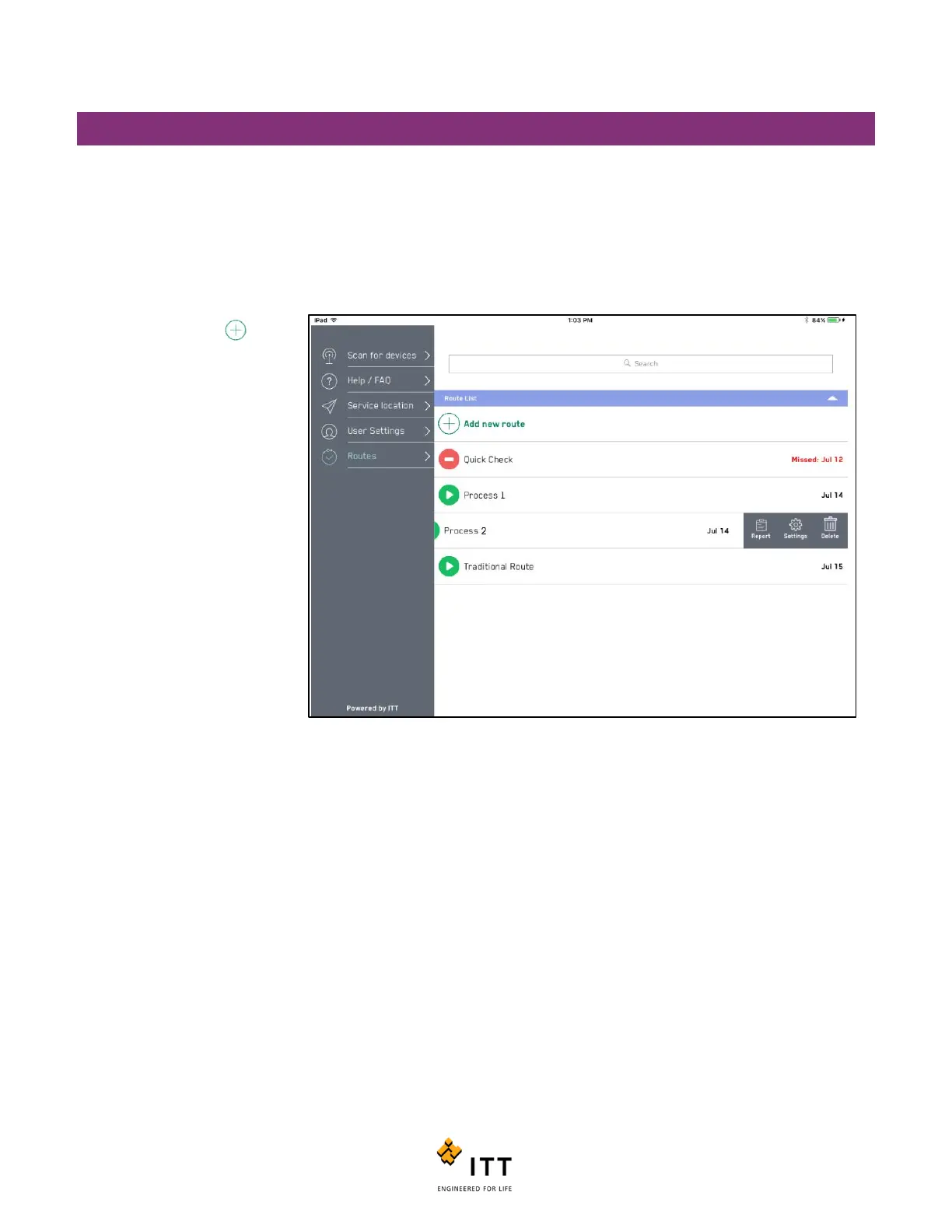
The Routes Icon is located in the Main Menu at the bottom. Selecting that icon will bring the user to the Main Route List,
where you can create, edit and manage due dates for desired routes.
To create a Route, select the
“Add new route” icon . See
detailed instructions below.
To edit a route swipe left over
the route name, and select
Settings. From here you can
change any setting including the
start and due date. Note the
other options whereby the
report icon will generate a
report from the most recent
data collected on that route. To
delete a route swipe left over
the route name and select
“Delete”. Deleting a route will
permanently remove the route
from the list. Reports will no
longer be available for the route.
To begin any route, just select it
from the route list.
To establish a new route, select “Add new Route” from main route screen. This will direct you to the route settings page
where you can name the route, select the start date, set the desired interval and route type. The reminder slider will auto-
populate the calendar with future route due dates for this route. At the bottom of the settings page you will find a field
where you can add email addresses that will automatically receive the report once completed.
The Route feature of the App allows three distinct types of routes to be executed as follows:
Quick: Only captures overall measurements
Agile: The app will selectively download data with a focus on units in alarm
Trends are downloaded for units in Alarm/Warning, or units with > 60 days since last trend download
FFTs are downloaded for units in Alarm
Traditional: Trend and FFTs are downloaded every time the route is run.
Figure 51: Main Route Screen



 To Next Page