P/N 960-000167R_Rev. 1 {EDP #214645} © 2013, Japan CashMachine Co., Limited
DT-300™ Series Download Tool Operator Integration Guide
6 INSTALLATION
Battery Installation
Perform the following steps to install Batteries into
the DT-300™ Device:
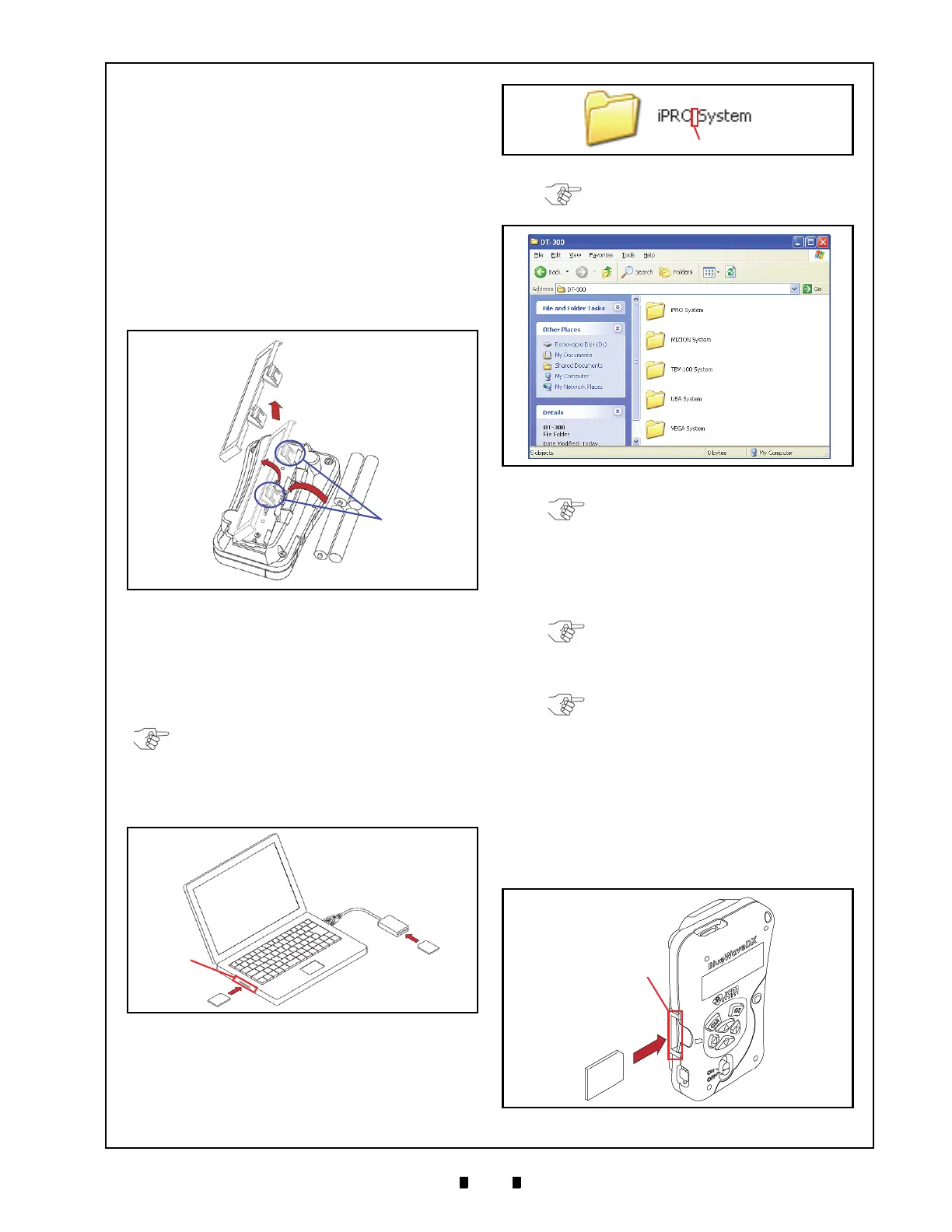
1. Push the two (2) Tabs of the Battery Cover in the
direction of the Arrow illustrated in Figure 4a and
lift the Cover off of the Device.
2. Install four (4) AAA Batteries into their correct
pol
arized position in the direction illustrated in
Figure 4.
3. Place the Battery Cover back into its original
position, and
listen for it to “Click” back into
place.
SD Card Installation
I
NSTALLATION
TO
A
PC
OR
A
C
ARD
R
EADER
Perform the following steps to install the SD Card
into a PC or an SD Card Reader:
1. Insert the SD Card into an SD Card Reader, or an
SD Card Reader Slot of the PC.
2. Create each model Folder in the first layer of the
SD Card. Each
Folder Name needs to include a
“space” before the word “System”.
3. Save the Software Data Files (xxxxxxxxx.COM)
for each Model’s Folder. Refer to the “Software
Data File” on page 13 of this Guide for more
details.
SD C
ARD
I
NSTALLATION
I
NTO
A
DT-300
Perform the following steps to install/remove the
SD Card into/from a DT-300™ Device:
1. Ensure the DT-300™ Power is OFF.
2. Slide the SD Card into the Unit in the direction
indicated
by the Red Arrow shown in Figure 8
until it “clicks” in place.
Figure 4 Type AAA Battery Installation
NOTE: When creating the storage Folder for
each Model, use the SD Card Slot of a PC or an
SD Card Reader.
SD Card
SD Card
SD Card
SD Card
Slot
Reader
Figure 5 SD Card Insertion (PC or Card Reader)
Figure 6 Model Name Creation
NOTE: Up to twenty (20) Folders can be
created on an SD Card.
Figure 7 Model Folder Creation
NOTE: Refer to “Compatibility” on
page 14 for the details regarding each
Model’s setting.
NOTE: Do NOT erase the
“BWDXCARD.INF” Card Information File!
If the Card Information is lost, Card
Reading errors may occur.
NOTE: When removing the SD Card,
follow the User Guide of the PC, or the
SD Card Reader.
Figure 8 SD Card Insertion (DT-300)



 To Next Page