P/N 960-000167R_Rev. 1 {EDP #214645} © 2013, Japan CashMachine Co., Limited
DT-300™ Series Download Tool Operator Integration Guide
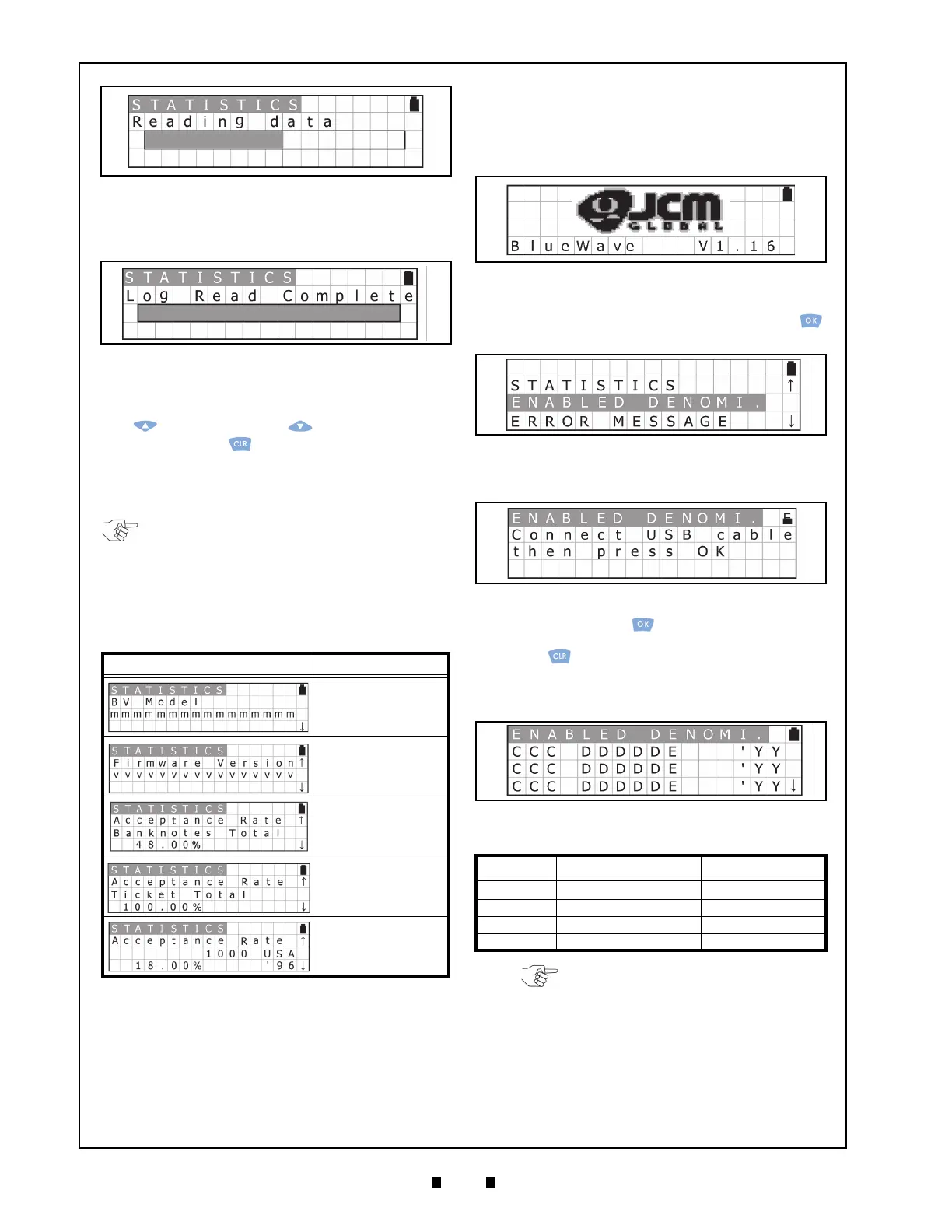
5. Once reading of the Acceptance Log is complete,
the LCD will display a “
Log Read Complete”
Screen, as shown in Figure 22.
Display the Acceptance Log
To confirm the Acceptance Log, use the UP
Key or the
DOWN Key to display the Log.
Press the
CLR Key to return to the previous
Function Selection Screen. The Acceptance Log
will be read again when re-connecting t
he USB
Cable between the Validator and the DT-300™.
Table 6 listed the available Acceptance Log Dis-
plays.
Enabling a Denomination Function
To view/display the Denomination Table, proceed
as follows:
1. Turn the DT-300™ Power Switch ON and an SD
Card check will begin (See Figure 23).
2. Select “
ENABLE DENOMI.” on the Function
Selection Screen, and then press the
OK Key
to select it (See Figure 24).
3. Ensure that the LCD Display shows the Standby
Screen shown in Figure 25.
4. Press the
OK Key to display the Denomina-
tion Table Screen (See Figure 26). Press the
CLR
Key to return to the previous Function Selec-
tion Screen.
5. Confirm that the current denomination selected
from
the Denomination Table is correct.
Table 6 Acceptance Log
Screen Description
Model Name
Version
Banknote
Acceptance Rate
Ticket
Acceptance Rate
Denomination,
Country Code, Year
and Acceptance Rate
Figure 21 Acceptance Log Reading Screen
Figure 22 Log Read Complete Screen
NOTE: The maximum number of Folders allowed
in a DT-300 Device is 20. If more than twenty (20)
Folders are saved in the SD Card Folder, their
functions may not work properly.
Table 7 Reading Denomination Table
Code Example
C
Country Code (3-digit) EUR, USA etc.
D Banknote (5-digit) 100, 200, 500 etc.
E Denomination ($ or €) $ or €
Y Issued Year (2-digit) 02
Figure 23 SD Card Confirmation Screen 3
Figure 24 Function Selection Screen 3
Figure 25 Standby Screen 1
Figure 26 Denomination Table Screen
NOTE: If the information cannot be
displayed within 3-digits, the rest of the
information can be shown by scrolling
the Display using the UP/DOWN Key.



 To Next Page