P/N 960-000167R_Rev. 1 {EDP #214645} © 2013, Japan CashMachine Co., Limited
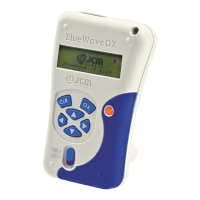
DT-300™ Series Download Tool Operator Integration Guide
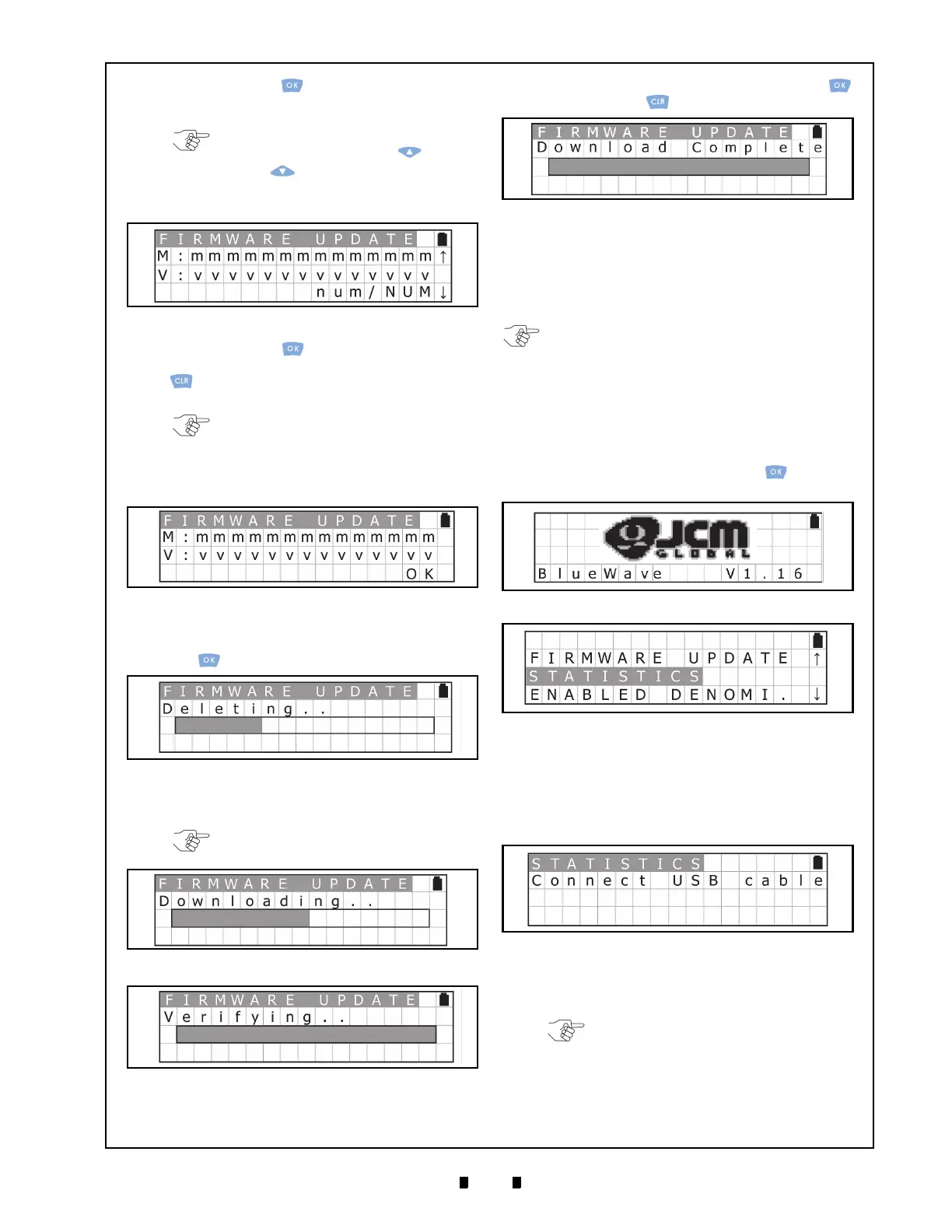
press the OK Key to select it (See Figure 12).
[“M:” indicates the “Model
Name” and “V:” indi-
cates the “Version”.]
6. Press the OK Key to begin the Software
download (See Figure 13). Press the
CLR Key
to return to the previous File Selection
Screen.
7. Ensure that the LCD Display shows the Flash
ROM is in Erase Standby after pressing the
OK
Key
.
The LCD Screen will display a Progress Bar
during the Software download (See Figure 15).
8.
After the Software Download is complete
(See Figure 17), the LCD Screen will display the
Download Complete Screen once the OK Key
or the
CLR Key is pressed.
S
TATISTICS
F
UNCTION
Reviewing an Acceptance Log (Total)
To review the total number Acceptance Log from
the a Validator, proceed as follows:
1. Turn the DT-300™ Power Switch ON, and an SD
Card check will begin (See Figure 18).
2. Select “
STATISTICS” on the Function Selection
Screen, and then press the
OK Key to accept
it (See Figure 19).
3. Connect the USB Port of the Validator to the DT-
30
0™ Device using a proper USB Cable
(See Figure 20). Once detected, the connection
between the Validator and the DT-300™ will
automatically begin
to receive the Validator’s
Acceptance Log.
4. The LCD Screen will
display a Progress Bar
while the Acceptance Log is being read
(See Figure 21).
NOTE: The DT-300 screen can display
up to (20) files using the UP or
DOWN key. [The SD card may have
additional storage, but files exceeding
twenty (20) will not display.]
Figure 12 Select the Download File
NOTE: If the connection between the
Validator and the DT-300 fails, or the
Software selected is inappropriate for the
Validator, a Software download will not
begin!
Figure 13 Download Waiting Screen
Figure 14 Flash ROM Erase Standby Screen
NOTE: While downloading Software, NO
Keyboard operations will be accepted!
Figure 15 Software Downloading Screen
Figure 16 Software Download Verifying Screen
Figure 17 Software Download Complete Screen
NOTE: The Acceptance Log File is generated on
the SD Card when it is successfully received
from the Validator. Refer to “Received Log File”
on page 13 of this Guide for details regarding the
Acceptance Log File.
Figure 18 SD Card Confirmation Screen 2
Figure 19 Function Selection Screen 2
Figure 20 Acceptance Log Standby Screen 1
NOTE: While reading the Acceptance
Log, NO Keyboard operations will be
accepted!



 To Next Page