P/N 960-000167R_Rev. 1 {EDP #214645} © 2013, Japan CashMachine Co., Limited
DT-300™ Series Download Tool Operator Integration Guide
Error Message Function
To receive/display the error condition from the
Validator, proceed as follows:
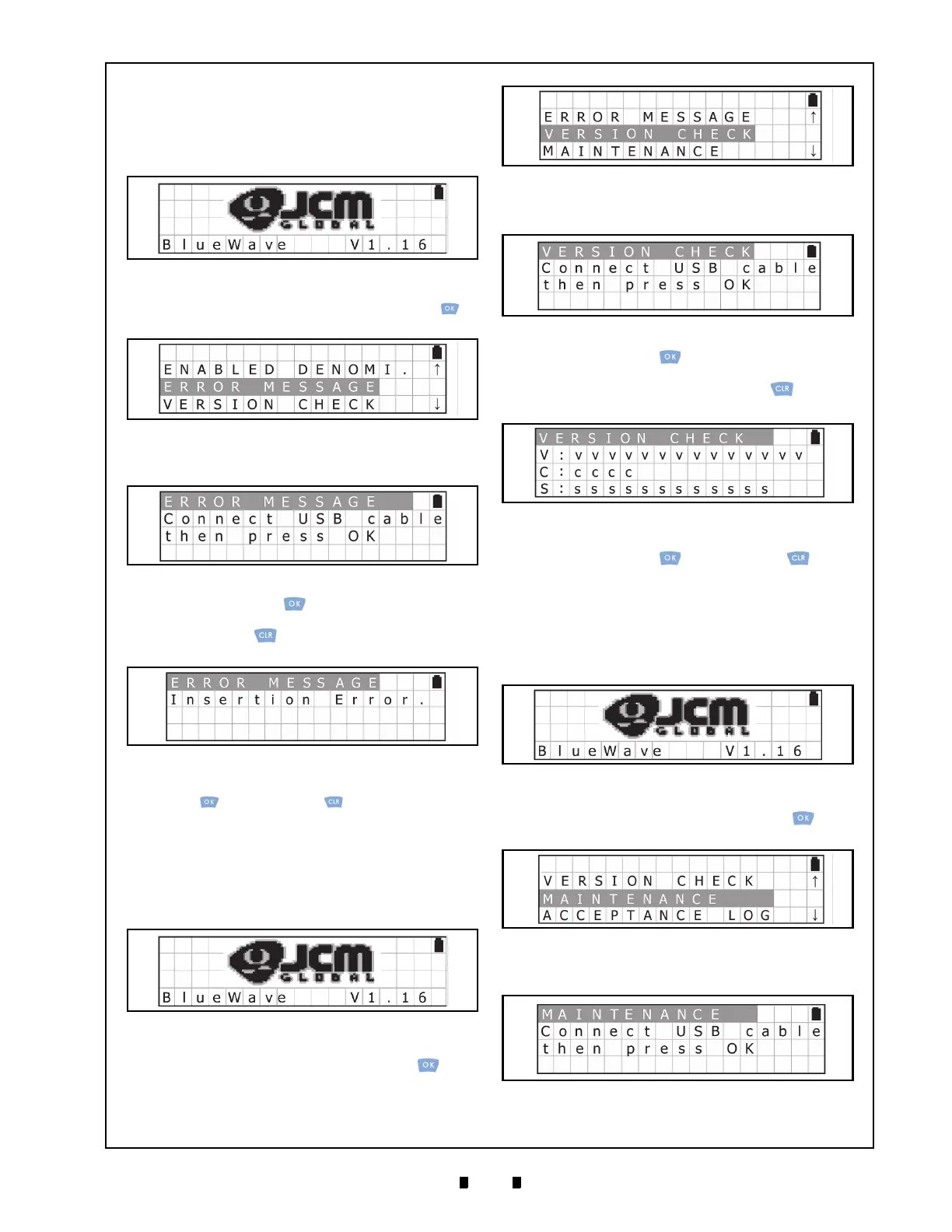
1. Turn the DT-300™ Power Switch ON, and the
SD Card check will begin (See Figure 27).
2. Select the “
ERROR MESSAGE” from the Func-
tion Selection Screen and press the
OK Key to
select it (See Figure 28).
3. Make sure that the LCD displays the Standby
Screen shown
in Figure 29.
4. Press the
OK Key to display the Active Error
Code Indication Screen shown in Figure 30. Press
the
CLR Key to return to the previous Func-
tion Selection Screen.
5. Confirm the Active Error Code. Press the
OK
Key or the
CLR Key to return to the previ-
ous Standby Screen.
Version Check Function
To obtain the Version, CRC and Serial Number
from the Validator, proceed as follows:
1. Turn the DT-300™ Power Switch ON, and the
SD Card check will begin (See Figure 31).
2. Select “
VERSION CHECK” from the Function
Selection Screen and press the
OK Key to
select it (See Figure 32).
3. Ensure that the LCD displays the Standby Screen
shown in Figure 33.
4. Press the
OK Key to display the Version,
CRC and Serial Number Indication Screen
(See Figure 34). Press the
CLR Key to return
to the previous Function Selection Screen.
5. Confirm the Version, CRC and Serial Number.
Press the
OK Key or the CLR Key to
return to the previous Standby Screen.
Maintenance Function
To review/display the Maintenance Condition
information of the Validator, proceed as follows:
1. Turn the DT-300™ Power Switch ON, and the
SD Card check will begin (See Figure 35).
2. Select “
MAINTENANCE” from the Function
Selection Screen and press the
OK Key to
select it (See Figure 36).
3. Ensure that the LCD displays the
Standby Screen
(See Figure 37).
Figure 27 SD Card Confirmation Screen 4
Figure 28 Function Selection Screen 4
Figure 29 Standby Screen 2
Figure 30 Active Error Code Indication Screen
Figure 31 SD Card Confirmation Screen 5
Figure 32 Function Selection Screen 5
Figure 33 Standby Screen 3
Figure 34 Version, CRC & Serial Number Screen
Figure 35 SD Card Confirmation Screen 6
Figure 36 Function Selection Screen 6
Figure 37 Standby Screen 4



 To Next Page