P/N 960-000167R_Rev. 1 {EDP #214645} © 2013, Japan CashMachine Co., Limited
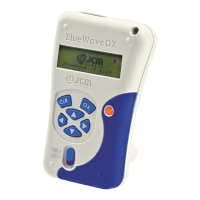
DT-300™ Series Download Tool Operator Integration Guide
4. Press the OK Key to display the Maintenance
Request Indication Screen. Press the
CLR Key
to return to the previous Function Selection
Screen.
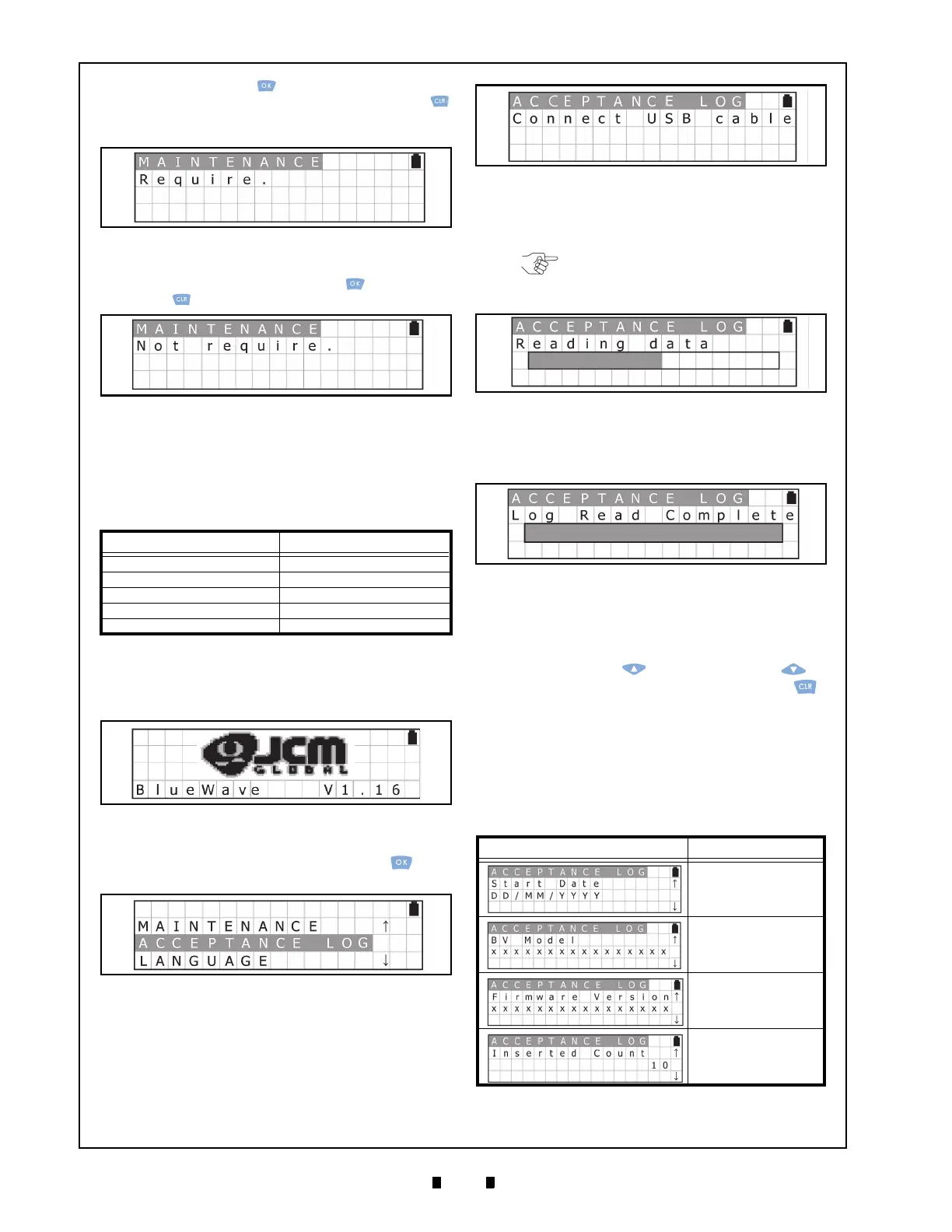
5. Confirm the Maintenance Request (See Figure 38
& Figure 39). Press the
OK Key or the CLR
Key to return to the previous Standby Screen.
Acceptance Log Function (Limited)
The possible storage amount for Banknote Log
Data is limited for each Validator Type. Table 8 lists
each Validator Type’s Log Storage limitation.
To view/display the Banknote Log Data limit of the
V
alidator being tested, proceed as follows:
1. Turn the DT-300™ Power Switch ON, and the
SD Card check will begin (See Figure 40).
2. Select “
ACCEPTANCE LOG” from the Function
Selection Screen and press the
OK Key to
select it (See Figure 41).
3. Connect a proper USB Cable between the Valida-
tor and the DT-300™ Device. When the connec-
tion is detected, the reload operation will begin
automatically (See Figure 42).
4. The LCD Screen will display a Progress Bar
during the Acceptance Log reading process as
show
n in Figure 43.
5. Once reading of the Acceptanc
e Log is complete,
the LCD will display the Log Read Complete
Screen shown in Figure 44.
Display the Number of the Banknote
Acceptance Log
To confirm the amount in the Banknote Acceptance
Log, use the
UP Key or the DOWN Key to
display the record desired. Press the
CLR Key
to return to the previous Function Select
ion Screen.
The Banknote Acceptance Log value will be read
again when re-connecting a USB Cable between
the Validator and the DT-300™ Device.
Table 9 lists the various Acceptance Log Displays
available.
Table 8 Log Storage Limit
Model Series Storage Limit
UBA Series 50 Notes
iVIZION Series 1000 Notes
VEGA Series N/A
TBV-100 Series N/A
iPRO Series 50 Notes
Figure 38 Maintenance Request Screen
Figure 39 Maintenance Non-Request Screen
Figure 40 SD Card Confirmation Screen 7
Figure 41 Function Selection Screen 7
Table 9 Acceptance Logs Available
Screen Description
Record Start Date
Model Name
Version
Total Number of the
Banknote Insertions
Figure 42 Standby Screen 5
NOTE: While reading the Acceptance
Log, NO Keyboard operations will be
accepted!
Figure 43 Acceptance Log Reading Screen
Figure 44 Log Read Complete Screen



 To Next Page