@~
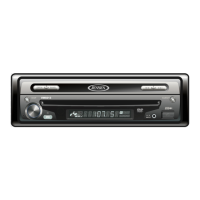
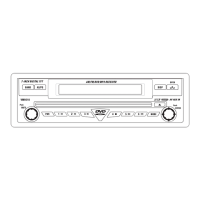
VM9313
Dialed Calls
The Dialed Calls list retrieves the list
of
dialed numbers from
your phone. The last dialed number is the first number on the
list. Touch the Dialed Calls menu option to view the list.
To
make a call from the Dialed Calls list, touch the number and
then touch the
~
button. The TFT will display "Cannot get
dialed record" when the feature is not available.
Received Calls
Use the Received Calls list to view the last 10 received
numbers stored on your phone.
To
access the Received list,
touch the Received Calls menu option. The last received
number is the first number on the list.
To
make a call from the
Received Calls list, touch the number and then touch the
~
button. The TFT will display "Cannot get received record"
when the feature is not available.
Phone Book
1.
Touch the Phone Book menu option to display the
phone book stored on your mobile phone, if compatible.
The screen will display "Ready
..
." while the phone book
is downloading.
2.
Once the download is completed, you can use the arrow
buttons and scroll bar on the right side
of
the window to
navigate the list. Since the unit downloads one page
of
entries at a time, there may be a slight delay while the
next page
of
numbers is downloaded.
3.
Touch to highlight the number you want to dial and then
touch the
~
button.
NOTE: Some mobile phones do
not
supportPhone
Book
upload through Bluetooth. This Is a limitation
of
the
phone,
not
the
VM9313.
Bluetooth
Setup
Auto
Answer
You
can choose to have the VM9313 automatically answer
incoming calls to your paired Bluetooth phone.
To
turn "Auto
answer" on:
1.
Touch the
~
button to view the SETUP menu.
2.
Select the "Bluetooth" sub-menu.
3.
Touch the area to the right
of
"Auto answer" to select
"Auto".
Auto
Connect
The auto Connect option will allow the VM9313 to
automatically connect to your previously paired Bluetooth
when it is
in
range. When the Connect option is set to
"Manual", you must press the
~
button to re-establish a
connection with your phone.
To
turn auto "Connect" on:
1.
Touch the
~
button to view the SETUP menu.
2. Select the "Bluetooth" sub-menu.
3.
Touch the area to the right
of
"Connect" to select "Auto".
Advanced Audio Distribution Profile
(A2DP)
The VM9313 allows you to play back audio files from your
phone, PDA or personal music player using a Bluetooth
connection.
Before using an audio player, it may be necessary to enter a
PIN code into the unit. Enter the PIN code referring to
"Bluetooth Sub-menu Features" on page
11.
NOTE: Please
quit
A2DP mode before attempting to
make
a phone call, as unexpected results
may
occur
depending on
your
mobile phone model.
The VM9313 can control a Bluetooth audio player via
Advanced Audio Distribution Profile (A2DP)
or
AudioNideo
Remote Control Profile (AVRCP). Bluetooth audio players (or
Bluetooth adapters) compatible with these profiles can be
connected to this unit. Functionality varies depending on the
profile used.
27





 To Next Page