SSG 5 Hardware Installation and Configuration Guide
20 Connecting the Power
Connecting the Power
To connect the power to a device, perform the following steps:
1. Plug the DC-connector end of the power cable into the DC-power receptacle on
the back of the device.
2. Plug the AC-adapter end of the power cable into an AC-power source.
Connecting a Device to a Network
The SSG 5 devices provide firewall and general security for networks when it is
placed between internal networks and the untrusted network. This section
describes the following:
Connecting a Device to an Untrusted Network
Connecting a Device to an Internal Network or Workstation
Connecting a Device to an Untrusted Network
You can connect your SSG 5 device to an untrusted network in one of the following
ways:
Ethernet Ports
Serial (AUX/Console) Ports
WAN Por ts
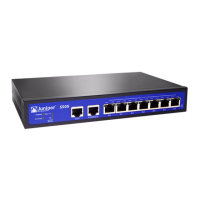
Figure 8 shows the SSG 5 with basic network cabling connections with the 10/100
Ethernet ports cabled as follows:
The port labeled 0/0 (ethernet0/0 interface) is connected to the untrust
network.
The port labeled 0/1 (ethernet0/1 interface) is connected to a workstation in the
DMZ security zone.
The port labeled 0/2 (bgroup0 interface) is connected to a workstation in the
Trust security zone.
The Console port is connected to a serial terminal for management access.
WARNING: We recommend using a surge protector for the power connection.



 To Next Page