Settings Settings
Selecting a preset sound mode
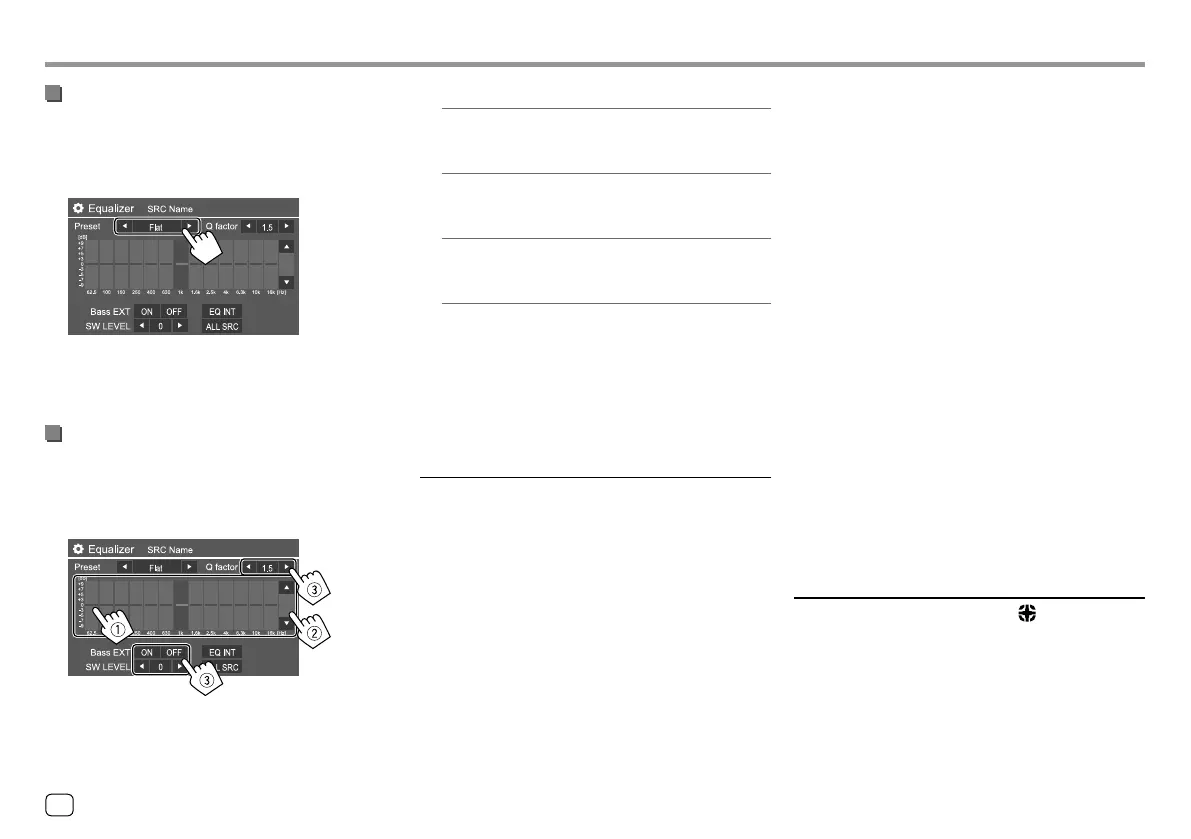
Select a preset sound mode on the <Equalizer>
screen.
• Flat (Initial)/Hard Rock/Pop/Hip Hop/R&B/Jazz/
Classical/drvn 3/drvn 2/drvn 1/User
• To apply the adjusted equalizer to all playback
sources, touch [ALL SRC], then touch [OK] to
confirm.
Store your own sound adjustments
1 Select a preset sound mode.
2 Select a band (1) and adjust the level (2),
then adjust the sound (
3).
Adjust the sound as follows:
<Q factor>
Adjusts the width of the frequency.
• 1.35/1.5 (Initial)/2.0
<Bass EXT>
Activates/deactivates bass.
• ON/OFF (Initial)
<SW LEVEL>
Adjusts the subwoofer level.*
• –50 to +10 (Initial: 0)
• To clear the adjustment, touch [EQ INIT].
3 Repeat step 2 to adjust the level of other
bands.
* Not adjustable when <None> is selected for subwoofer on the
<Speaker Select> screen. (Page 33)
<Sound Effect>
Adjust the sound effect.
<Loudness>
Adjusts loudness.
• OFF (Initial)/Low/High
<Bass Boost>
Selects the bass boost level.
• OFF (Initial)/Level 1/Level 2/Level 3/Level 4/
Level5
<Volume Link EQ>
Reduces the driving noise by raising the bandwidth.
• OFF (Initial)/ON
<Space Enhancement>*1
Virtually enhances the sound space using the Digital
Signal Processor (DSP) system. Select the enhance
level.
• OFF (Initial)/Small/Medium/Large
<K2>*2
Restores the sound lost due to audio compression to a
realistic sound.
• OFF/ON (Initial)
<Sound Response>
Virtually makes the sound more realistic using the
Digital Signal Processor (DSP) system. Select the sound
level.
• OFF (Initial)/Level 1/Level 2/Level 3
<Sound Lift>
Moves the center of the sound to the lower or higher
point. Select the height.
• OFF (Initial)/Low/Middle/High
*1 You cannot change the setting when “Tuner” is selected as the
source.
*2 This function works only when “DISC”/ “USB”/ “iPod”/
“Android™” is selected as the source.
<Fader/Balance>
Touch [J]/[K]/[H]/[I] or drag the mark to adjust.
<Fader>
Adjusts the front and rear speaker output balance.
When using a two-speaker system, set the fader to the
center (0).
• F15 to R15 (Initial: 0)
32
ENGLISH
00_KW-V2018ST_M_ENG.indb 3200_KW-V2018ST_M_ENG.indb 32 17/6/2017 7:35:51 AM17/6/2017 7:35:51 AM


 To Next Page