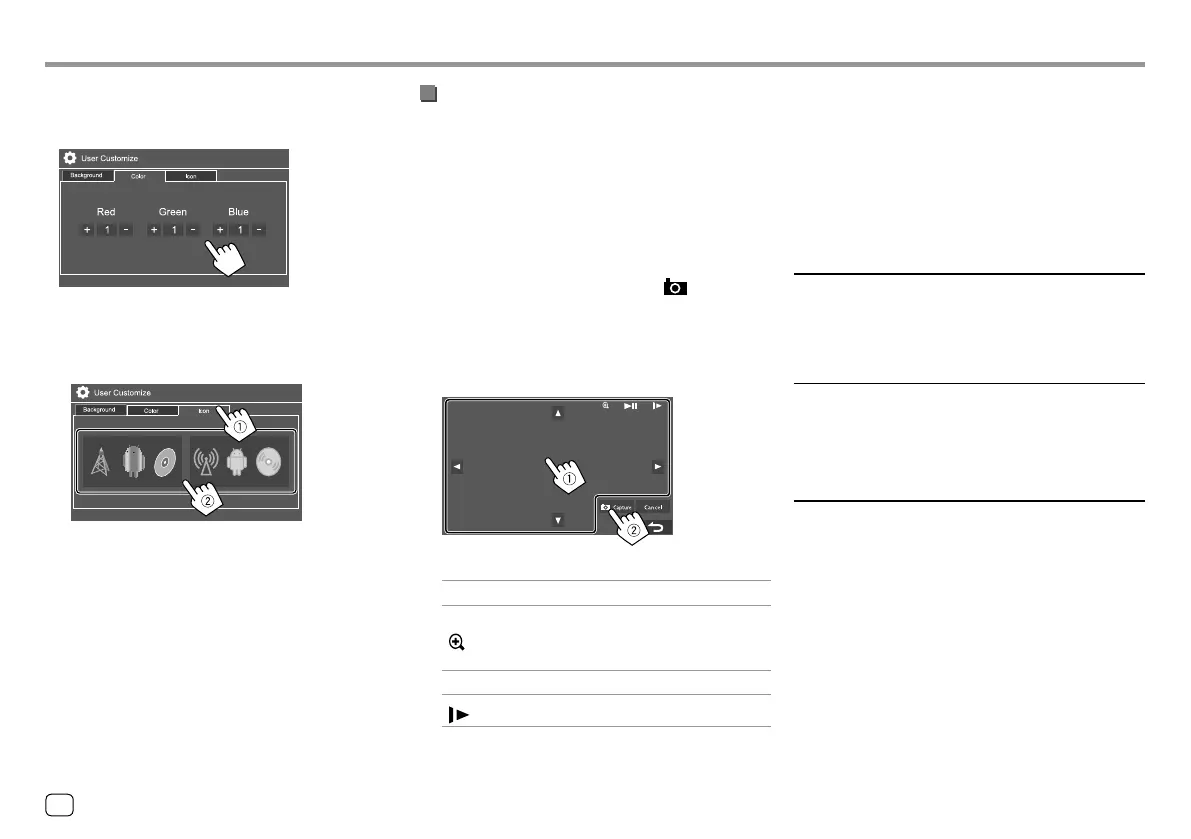
• You can also adjust the color yourself. Press [Adjust]
to display the color adjustment screen, then adjust
the color. The adjustment is saved on [User].
3 Change the source icon design
Display the icon style selection screen (1), then select
the icon design (2).
Storing your own scene for the background
image
1 While playing a video or picture, display
the <User Customize> screen.
On the <Display> screen, touch as follows:
<User Customize>: [Enter]
2 Display the background design selection
screen, then touch the following:
• For KW-V340BT/KW-V340BTM: [ Capture]
• For KW-V440BT/KW-V440BTM: [User1 Select] or
[User2 Select]
3 Adjust the image (1), then capture the
image (
2).
E.g. Image adjustment screen for KW-V440BT
[J][K][H][I]
Moves the zooming frame.
[
]
Magnifies the scene.
• <OFF>/<Zoom1>/<Zoom2>/
<Zoom3>
[
IW]*
Starts/pauses playback.
[
]*
Advances scenes frame by frame.
A confirmation message appears. Touch [Yes]
to store the newly captured image. (The existing
image is replaced with the new one.)
• To return to the previous screen, touch [No].
• To cancel the capture, touch [Cancel].
* Not displayed when playing an external component connected to
the AV-IN input terminal.
<OSD Clock>
• ON: Displays the clock while a video source is
playing.
• OFF (Initial): Cancels.
<Demonstration>
• ON (Initial)*: Activates the display demonstration.
• OFF: Deactivates the display demonstration.
* For Indonesian models, the initial is <OFF>.
<Scroll>
• ON: Scrolls the displayed information repeatedly.
• Once (Initial): Scrolls the displayed information once.
• OFF: Cancels.
Touching [H] scrolls the text regardless of this setting.
SettingsSettings
36
ENGLISH
00_KW-V2018ST_M_ENG.indb 3600_KW-V2018ST_M_ENG.indb 36 17/6/2017 7:35:52 AM17/6/2017 7:35:52 AM



 To Next Page