Chapter 11 >> Recording
Editing Recorded Programmes
You can edit the information of the recorded programme.
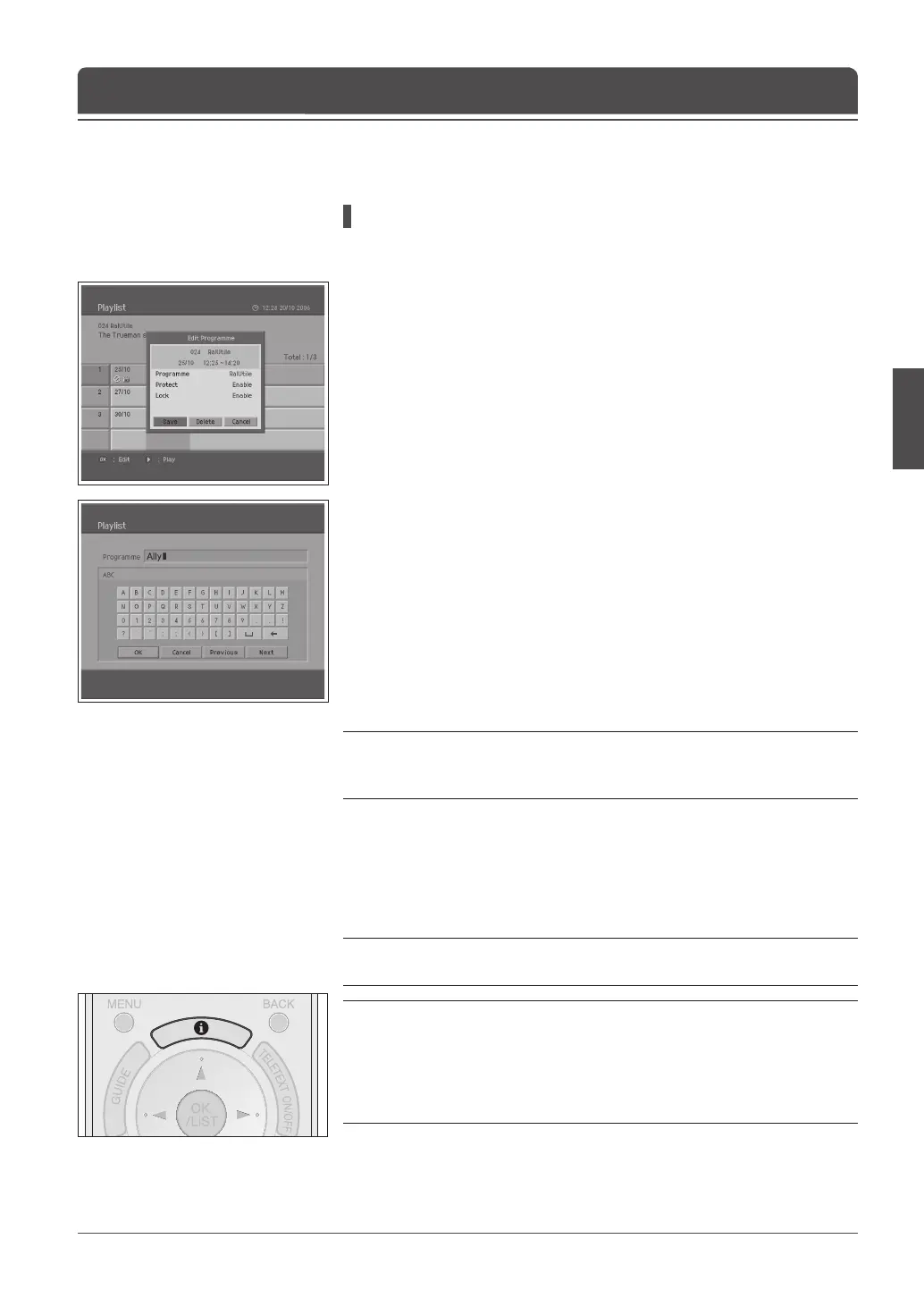
1 In Playlist, select a desired programme using the ▲/▼ button and press the
OK button to display the edit screen.
Deleting a Recorded Programme
1 Select Delete in the edit screen using the ▲/▼/◄/► button and press the
OK button.
Changing the Name of a Recorded Programme
1 Select Programme in the edit screen and press the OK or ► button to
display a keyboard on the screen.
2 Enter the desired programme name on the screen keyboard using the
▲/▼/◄/► button.
3 Select OK and press the OK button to complete.
Protecting Recorded Programmes from Deletion
1 Select Protect in the edit screen and press the OK or ► button to change
Enable or Disable.
2 You have to enter a password to change the status from Enable to Disable.
Note: If the protect option of the programme is congured to Enable, you cannot
delete the programme. Therefore, you have to change the protect option to
Disable to delete a protected programme.
Locking a Recorded programme
1 Select Lock in the edit screen and press the OK or ► button to change
Enable or Disable.
2 You have to enter a password to change the status from Enable to Disable.
Note: If the Lock option of a programme is congured to Enable, you have to
enter a password to playback the programme.
Notes:
1. During recording, you can’t playback the recorded programme.
2. During recording or playing the recorded programmes, you can access only
to the Picture, Sound and a part of Feature in menus.
3. If you press the
INFO button while playing a programme, a screen appears
showing the information on the recorded programme.


 To Next Page
 Loading...