English
English-65
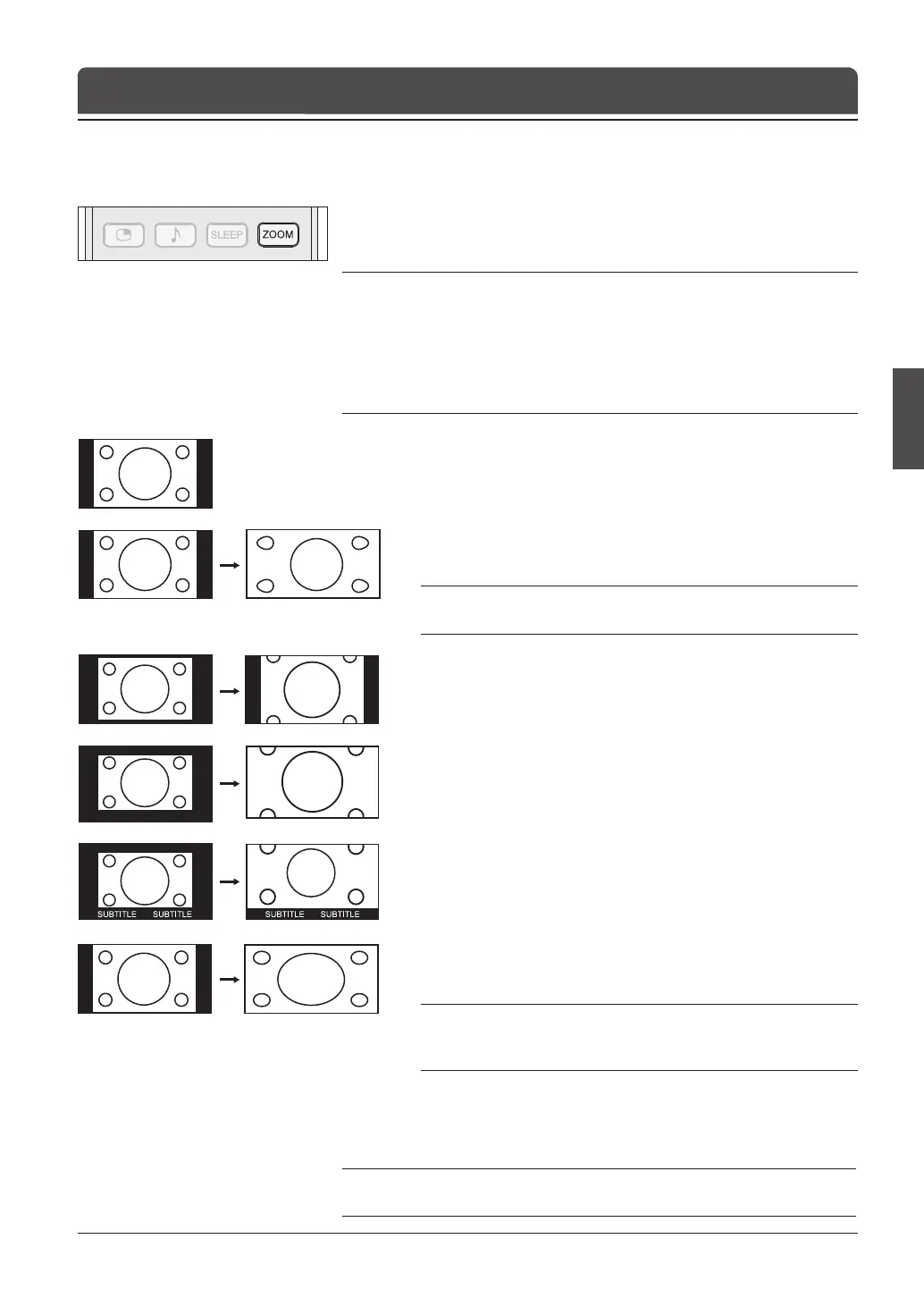
You can select an aspect ratio mode by pressing the ZOOM button repeatedly
on the remote control.
Auto > Regular > Panoramic > 14:9 Zoom > 16:9 Zoom > 16:9 Zoom Subtitle > Full
Notes:
1.
When the EXT-3, EXT-5 or EXT-6 input mode, you can select only the Auto,
Regular, 14:9 or Full.
2. It is not available in the PC input mode.
3.
If the aspect ratio is set to Auto and the WSS(Wide Screen Signalling) data is
incoming in the Analog TV, EXT-1, EXT-2, EXT-4 or EXT-4S input mode, the
aspect ratio can be changed to Panoramic.
Setting the Aspect Ratio
Chapter 12 >> Setting the Aspect Ratio
Regular
Use to view a normal picture (4:3 aspect ratio) unchanged.
Panoramic
Stretches the left and right sides of a normal picture to ll the
screen, in a way that does not appear unnatural.
Note: In Panoramic mode, the top, bottom, left and right of the
picture are slightly cut off.
14:9 Zoom
Use to expand a picture with a 14:9 aspect ratio.
16:9 Zoom
Use to expand a wide picture (16:9 aspect ratio).
16:9 Zoom Subtitle
Use to expand a picture with a 16:9 aspect ratio having subtitles at
the bottom of the screen.
Full
Uniformly stretches the left and right sides of a normal picture (4:3
aspect ratio) to ll the wide TV screen.
Note: For pictures with a 16:9 aspect ratio that have been squeezed
into a normal picture (4:3 aspect ratio), select Full mode to restore
their original dimensions.
To mode the picture vertically:
If you cannot see subtitles at the bottom of the screen, or if the top or bottom
is cut off, move the picture vertically using the ▲/▼ button before the
display disappears.
Note: If you change the aspect ratio mode, the picture returns to its default
position.


 To Next Page
 Loading...