3130
CROSSTALK ONLINE SOFTWARE
WIRELESS CONNECTION
Your Cross Talk Account is setup and ready to use upon arrival of your unit. To start using
the CrossTalk online options, access the login page located at:
http://www.kkCrossTalk.com/
In the main menu of the website you will see six quick link tabs including the login tab on
the right side. These tabs have detailed information on how the CrossTalk operates and how
it communicates through both internet (long range) and radio (short range).
Upon accessing the login tab, you will be taken to a new screen that prompts you to enter a
username and password that is provided by K&K Systems. Below is the link to quickly access
the login screen without going through the homepage.
http://www.kkCrossTalk.com/XTLOGIN.php
LOCATIONS
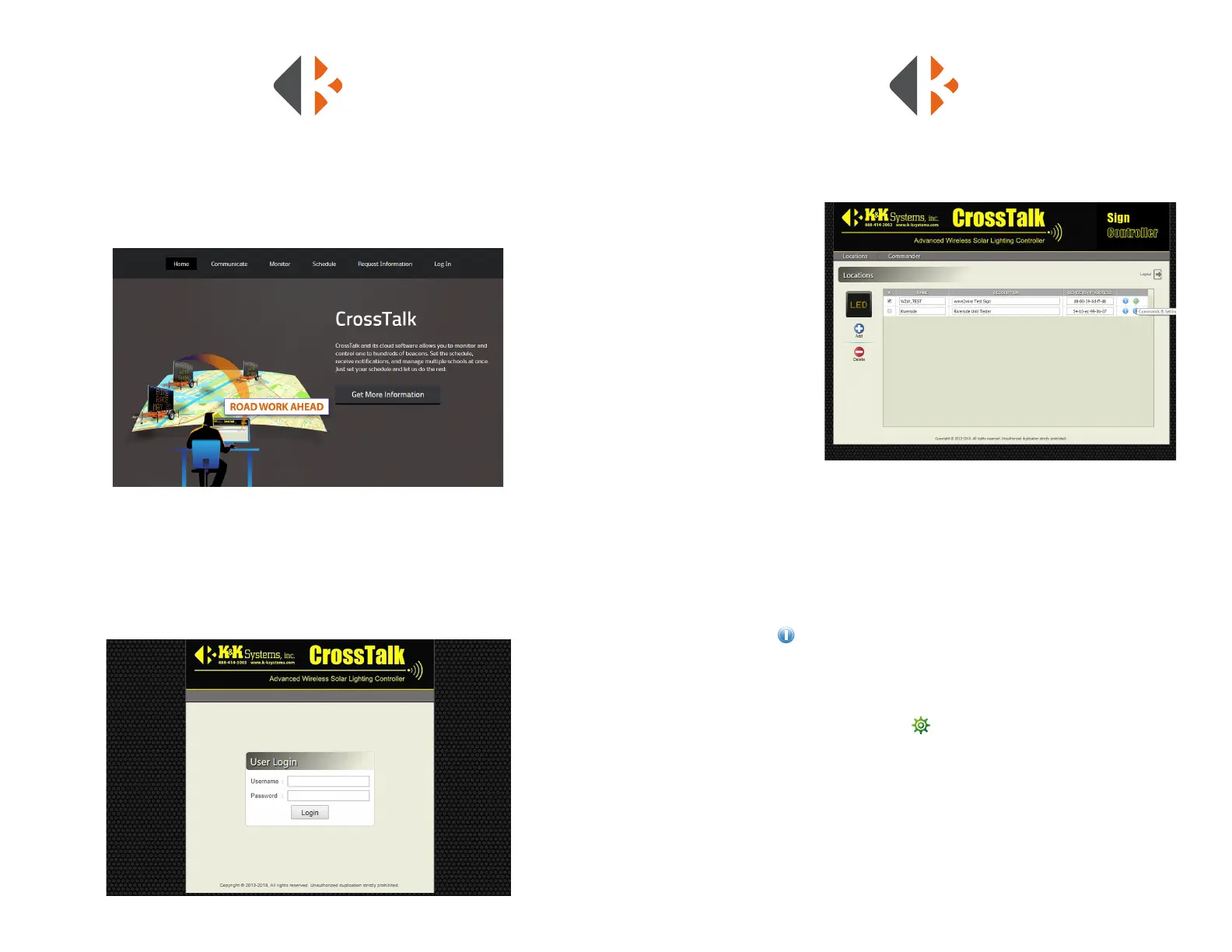
The Locations menu is the default page upon login. The available units are listed in the
window.
NAME
The Name of each unit
will be displayed in the
rst column. The default
names can be changed at
any time to specify units
or to better locate them.
DESCRIPTION
In the Description
column the information
can be edited for details
that will dierentiate that
device from others in the
same area.
K&K uses the last 4 digits of the VIN number as the default upon delivery.
DEVICE ID/IP/PORT
The Device ID/IP/Port column displays the information used to communicate to the device
via the online server. Although the information can be edited, it should not be changed
unless needed for changing units or IP settings. Please contact of a K&K Systems Customer
Representative to assist in the event changes need to be made.
STATUS ICON
The Status icon provides a quick link to see the condition of each unit’s components
functioning status. Click the icon to inspect Lights/Beacons, Battery Voltage, Solar Voltage,
Date, Time, Current Message, Output 4, Status ON or OFF, and GPS coordinates.
COMMANDS & SETTINGS ICON
The Commands & Settings icon links to the unit’s messaging controls. Enter Custom
Messages, select Preset Messages, Edit Messages, or select Arrow Modes that will display on
your Message Signs.



 To Next Page