4140
TABLET PROGRAMMING
CONNECTING TO
MESSAGE SIGN
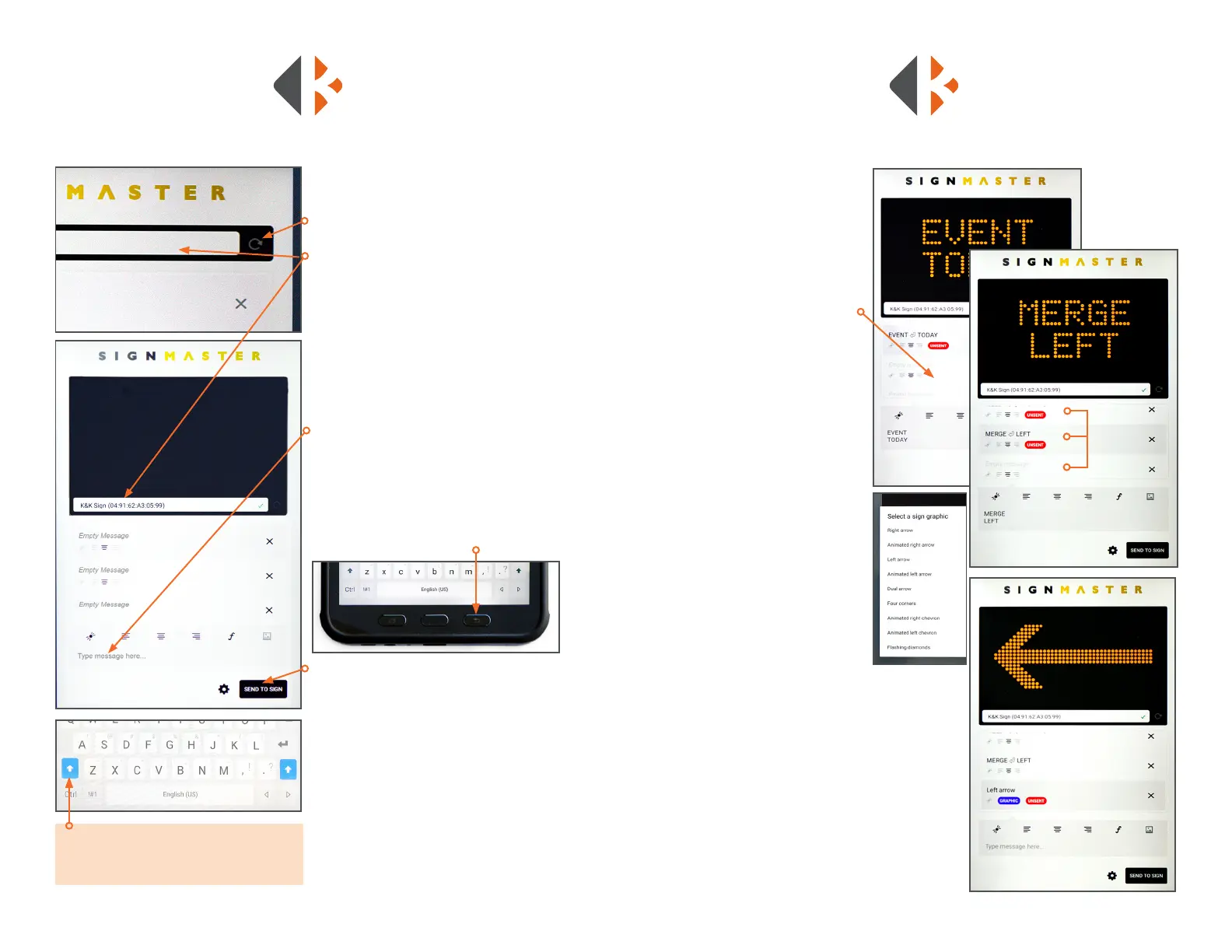
Tap the Refresh button to activate the
search for the message sign associated with
this tablet. The Unit ID will appear in the box
when connected. (To conrm Unit ID, see the
ID label on the inside of the control cabinet
door.) Before starting a new session, close the
app if it has been running in the background
and restart.
CREATE A MESSAGE
Once connected a blank preview screen will
appear.
1) Tap the “Type message here...” area at the
bottom.
2) Type your message with a maximum of
8 characters per line. Tap the return key to go
to the next line.
3) Press the tablet’s back button to remove
the keyboard and to see the whole preview
window.
4) Tap the SEND TO SIGN button to display
when nished.
Tip: Double tap the Shift key for all caps.
The key will turn blue to indicate caps lock
is on.
SignMaster allows 4 pages of
messages to be displayed in a
sequence.
1) Tap “Type message here...”
By default the message will be applied
to the First Page.
2) Type the rst page message.
3) Tap on the second page space.
4) Type the second page message.
5) Repeat steps 3 and 4 for
additional pages.
6) Scroll pages by swiping up or
down.
7) Press the tablet’s back button to
remove the keyboard and to see the
whole preview window.
8) Tap the SEND TO SIGN button to
display when nished.
USING GRAPHICS
1) Tap the X on right side of the
page to add a graphic.
2) Tap the picture icon in the format
menu.
3) Choose the graphic or animated
graphic by tapping on it.
EDIT A MESSAGE
1) Double tap the page you wish to change.
2) Tap the X on right side of the page.
3) Use the keyboard to edit the text or graphic.
4) Press the back button to preview changes.
5) Tap the SEND TO SIGN button to display when
nished.
CREATE A SEQUENCE/MULTI-PAGE MESSAGE
Message
Pages



 To Next Page