3332
MESSAGE EDITOR
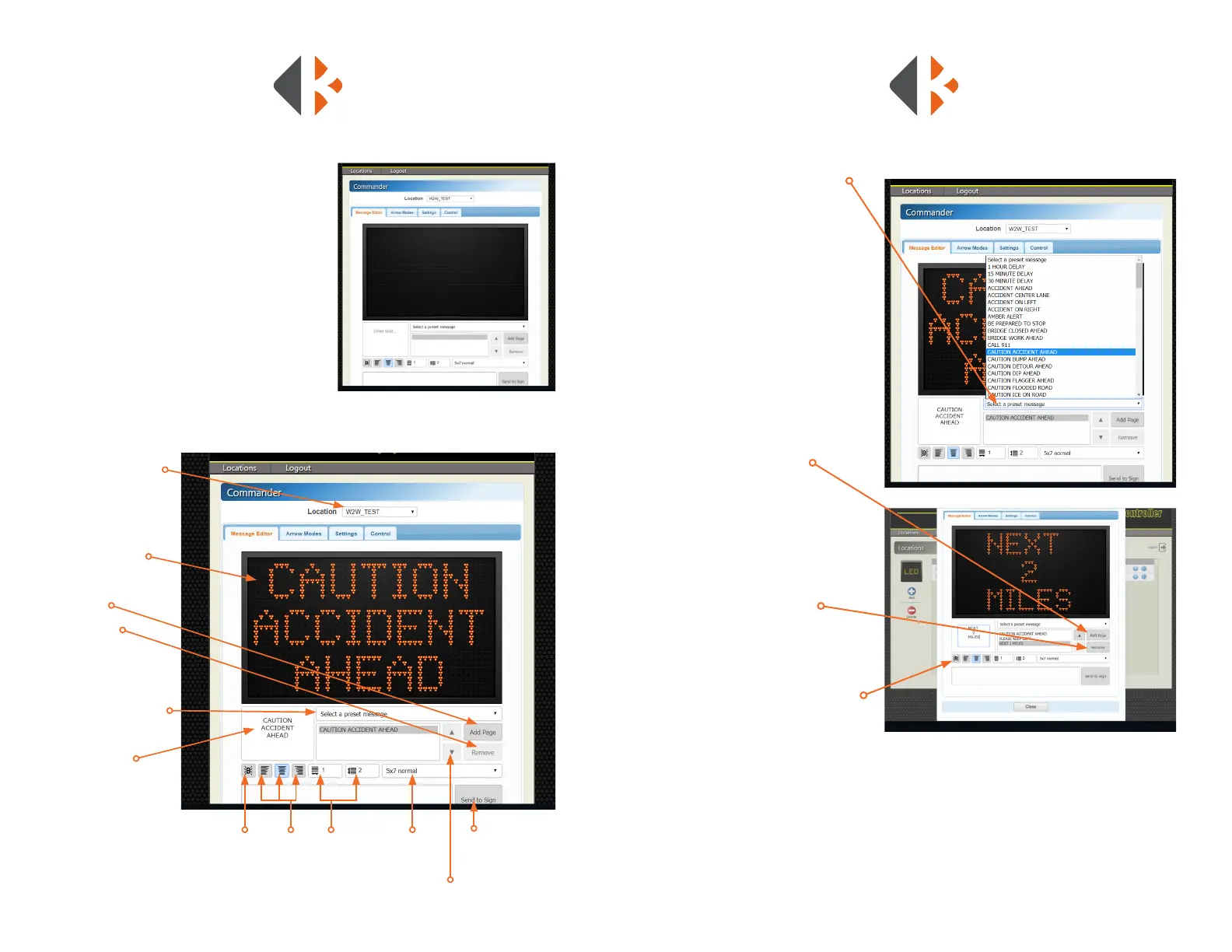
Once logged in the Commander window
will open a blank sign. Select the Message
Editor tab to enter new messages, edit
messages, or select a Preset Message. Send
your message to units in your network.
COMMANDER
Select to
make page
ash. Must
be selected
on each page
separately.
Font
Style/
Size
Send
Message
to Sign for
Display
Moves Page
up and down in the sequence
Text
Justication
• Flush Left
• Centered
• Flush Right
Text Spacing
• Horizontal
• Vertical
Message Sign Unit
Selection from the
drop down menu.
Message Preview
will display exactly as it
is seen here.
Add Page
Delete Page
Preset Message Menu
Message Entry
Type new message in
window. A maximum of
8 characters per line.
The box will ash red when
number of characters per line
is exceeded. Press ENTER to go
to the next line.
DESCRIPTION OF
MESSAGE EDITOR
CONTROLS
PRESET MESSAGES
SELECTING MESSAGE
Locate the Preset Message drop
down menu below the preview
window. This window will display
all of the available messages.
Select the desired message.
Preset Messages can be edited
in the Message Entry window
to customize for exact situation.
(Example: Preset Message is “15
Minute Delay,” however, the delay is
actually 20 minutes. Simply change
the time in the Message Entry window
by deleting “15” and replace with
“20.”)
ADDING A PAGE
To display multiple pages on
your message sign, simply click the
“Add Page” button and select your
message. The message will appear
on the message sign exactly the
way it looks in the preview window.
DELETING A PAGE
To delete a page from your message
sign, select the page and then click
the “Remove” button.
MAKING A PAGE BLINK
Click the blink button on the
bottom of each page.



 To Next Page