1514
MESSAGE DISPLAY CAPABILITIES
Your Message Sign provides messaging functionality to display predened and custom
messages in alphanumeric text. Full Matrix Message Signs can also display MUTCD graphics
and animations. To catch motorists’ attention we include an option to make the message
ash. Programming can be accomplished with an on-board keyboard, a on-board Bluetooth
tablet, or wirelessly with an internet connected device. On-board devices are conveniently
located in the locking, weather-tight control cabinet on the backside of the sign.
TERMINOLOGY
CHANGEABLE MESSAGE
A Changeable Message is one that you create for your specic need. These messages can
be input and saved for a later time or displayed immediately. You can edit changeable
messages or delete them. K&K Message Signs allow for 2, 3, and 4 lines of text with varying
number of characters per line depending on the font style. (See page 16 for font styles.)
Follow the steps on page 15 of this manual to create or edit a Changeable Message.
PERMANENT MESSAGE
Permanent Messages are predened into your system. A full list of text messages, graphics,
and animated graphics is located on pages 21-27 of this manual. Simply type the number
directly relating to the text or graphic message you want to display and activate. Permanent
Messages cannot be modied or deleted. Follow the steps on page 17 to display a
Permanent Message.
MESSAGE SEQUENCE
A Message Sequence is a message that spans multiple pages that are seen sequentially. A
Sequence can be created from Changeable or Permanent Messages or a combination of
the two. For example, page 1 might display “LEFT LANE CLOSED.” Page 2 might then display
“MERGE RIGHT.” Use the steps on pages 18-19 of this manual to create and save the Message
Sequences that you most commonly use.
QUICK SELECTION THUMB WHEEL
The Quick Selection Thumb Wheel located on the top left corner of the on-board controller
keyboard allows access to the16 most used messages without having to login. Create your
list using the steps to Create/Edit a
Changeable Message and assign a
number 1-16. Automatically display
the desired message by rolling
the Thumb Wheel to that number.
Record your Quick Message list on
page 61 of this manual for reference.
PROGRAMMING INTRODUCTION
Quick Selection Thumb Wheel for
Trailer Mount Keyboard Models
Quick Selection Thumb Wheel for
Vehicle Models
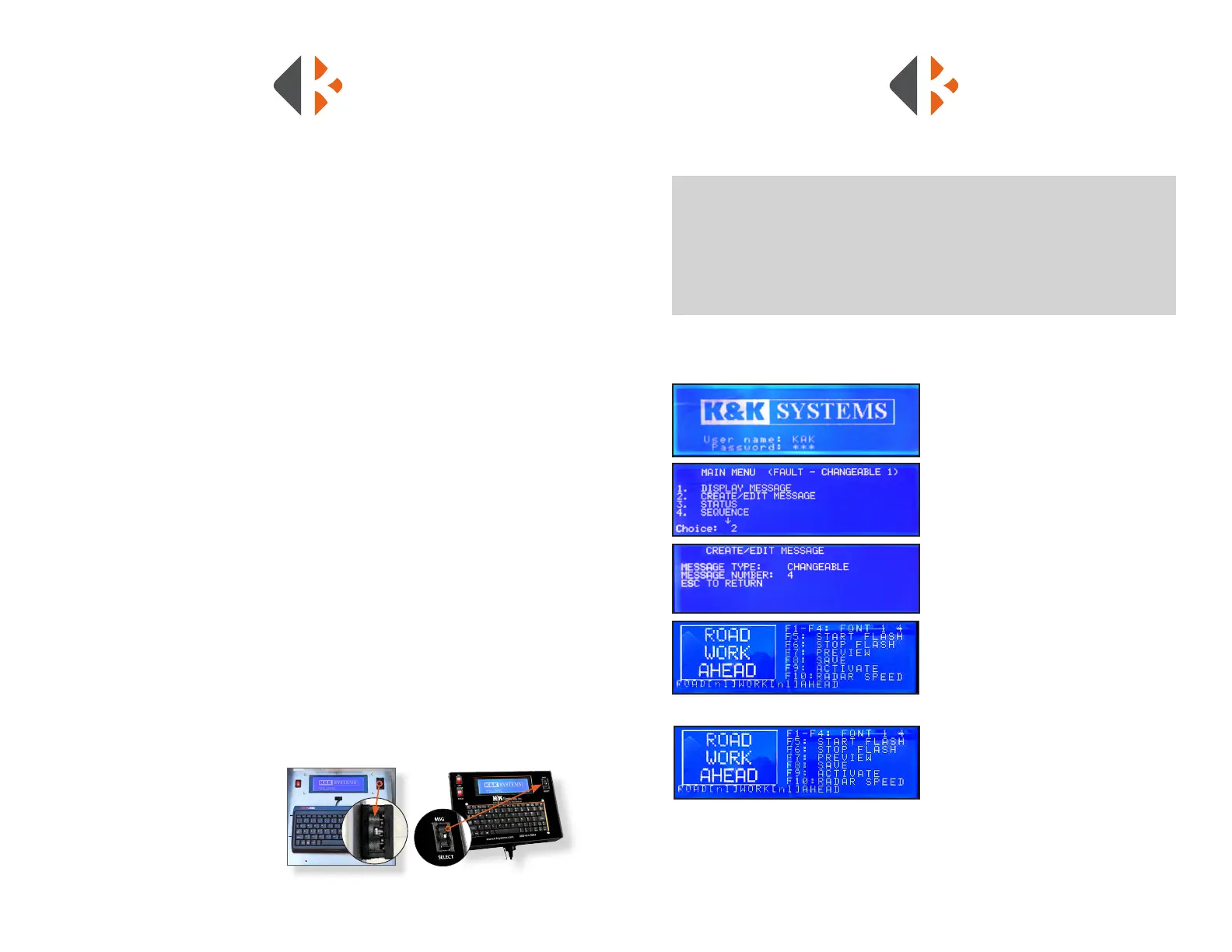
CREATE A CHANGEABLE MESSAGE
To enter and display a custom message follow the steps below.
KEYBOARD PROGRAMMING
1) Login: Enter username: KAK
*NOTE: username is case sensitive - use ALL CAPS
Press Enter
Enter Password: 123
Press Enter
2) Press #2 (CREATE/EDIT MESSAGE)
Press Enter
3) Enter the next available number
(1-99) One not already assigned to a
message on the list of changeable messages
Press Enter
4) Enter your message Example:
1. Type “ROAD” Press Enter
2. Type “WORK” Press Enter
3. Type “AHEAD”
*REMEMBER: Each line can only contain 8 characters,
including spaces and punctuation.* Press Enter to
move the next line
5) Press F9 (ACTIVATE) when nished
creating your message.
* NOTE: This will SAVE and DISPLAY your message.
If you do not want to display the message
immediately, Press F8 to SAVE only.
6) Record your message on the
corresponding line in the log on
pages 61-62 for later reference.
Tips
* Use the Fn+PgUp or PgDn keys to adjust the contrast of the LCD Screen.
* Press the ESC key at any time to go back.
* Permanent Messages cannot be deleted or modied.
* There is a list of Permanent Messages starting on page 21 of this manual.
* Graphics are only for Full Matrix Message signs.



 To Next Page