21
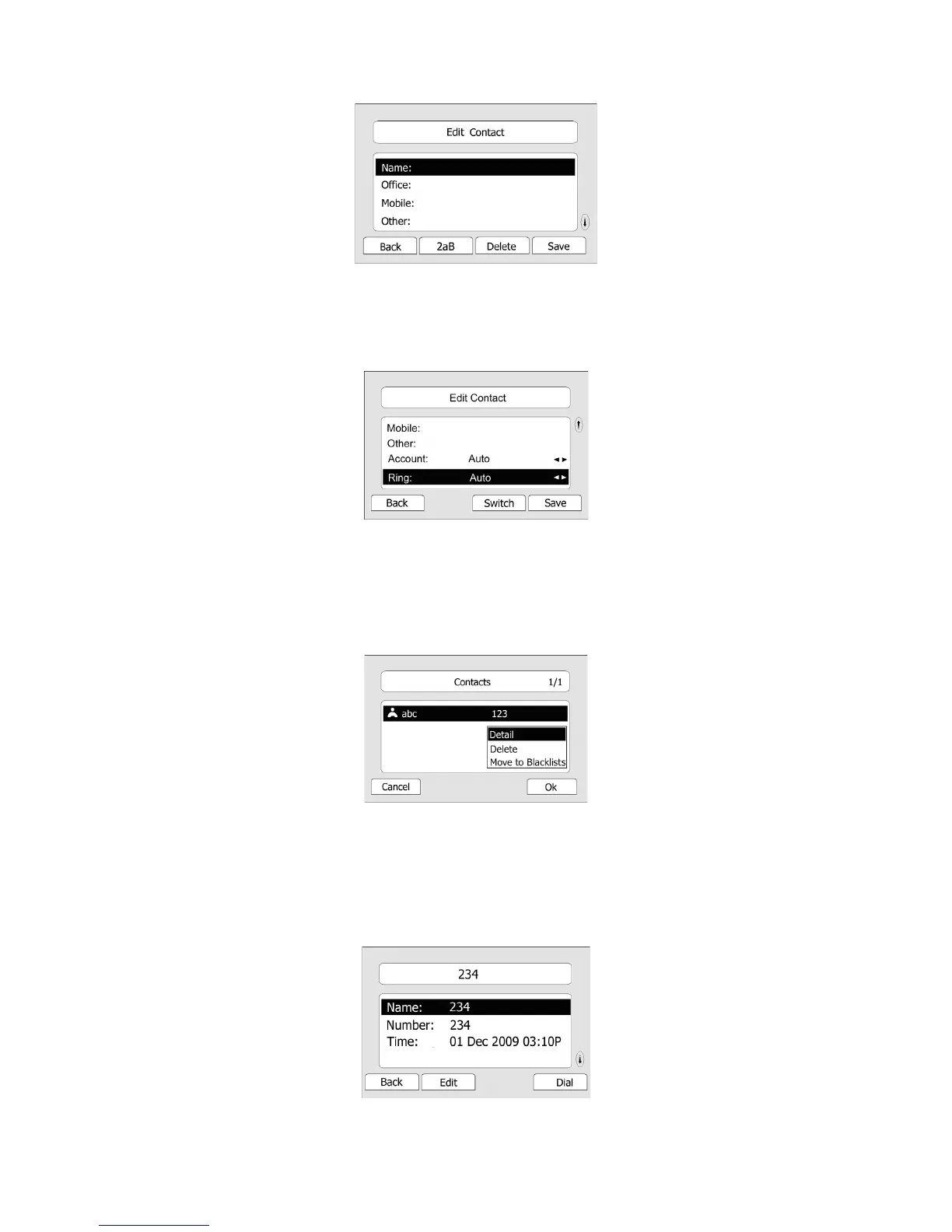
3) Use the navigation keys to select the desired account as Line if you want to assign the
contact to a specific account.
4) Choose and set a special ring tone for the contact.
5) Press Save hot key to add the record to contacts or Back hot key to cancel.
To edit/delete a contact via Phone interface:
1) Press Directory->Contacts->Enter.
2) Use the navigation key to highlight the one you want to delete, press Option hot key, and
scroll to Detail/Delete, press OK hot key.
3) Make the desired changes, press OK hot key. Or Cancel hot key to return to the directory.
To edit a contact record in History via Phone interface:
1) Press History hot key to enter the call history list.
2) Choose a record, press the Option hot key, and choose Detail option.
3) Press the Edit hot key to edit the number and call out.


 To Next Page