44
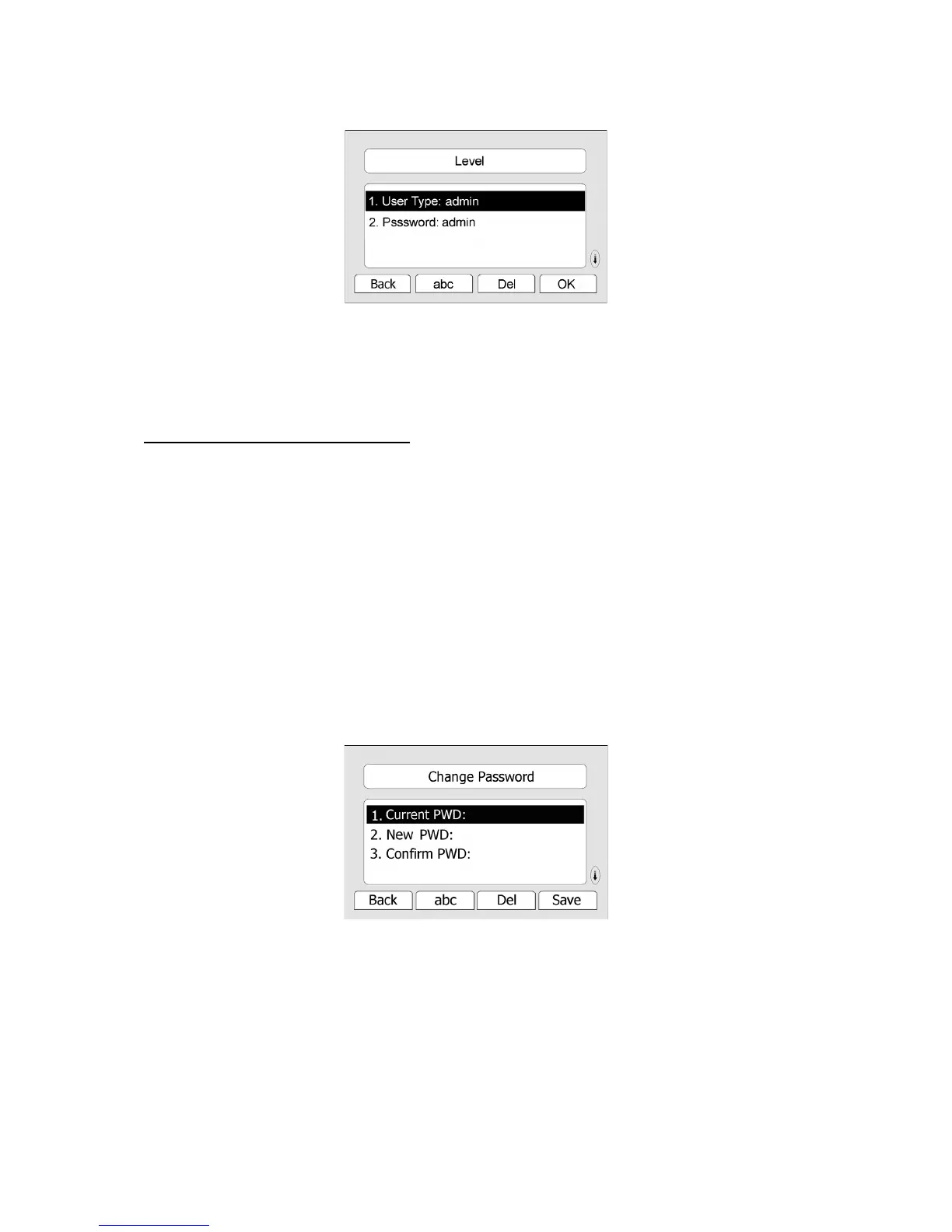
2) Enter the User Type and Password you want to switch to.
3) Press the OK soft key to save your changes.
4) Go to MENU->Settings page, you will find the type you just added in the list.
Administrator/User Password
Administrator mode grants unlimited access to the phone configuration on both web and
phone user interface. The administrator/user password is used to access:
- Web interface along with user name.
- the advance settings of the phone such as Network, Account, Reset to Factory Settings via
the Phone interface.
The default password of User and Admin is user and admin in sequence.
To change the administrator password via Phone interface:
1) Press the Menu hot key, scroll to Settings, press Enter hot key, use the navigation keys to
highlight Advance Settings.
2) You are prompted to enter the required password, the default one is admin.
3) Scroll to Set admin password, press Enter hot key.
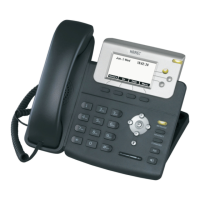
4) You are prompted to enter the current password, new password and the confirm
password, press abc hot key to change the input method.
5) Press OK hot key to confirm the change, press Cancel hot key to return to previous menu.
To change the password via Web interface:
Choose Security, choose User Type, enter the Current Password, New Password and
Confirm Password, then click the Confirm button to save the changes, or Cancel button to
cancel the changes.


 To Next Page