22
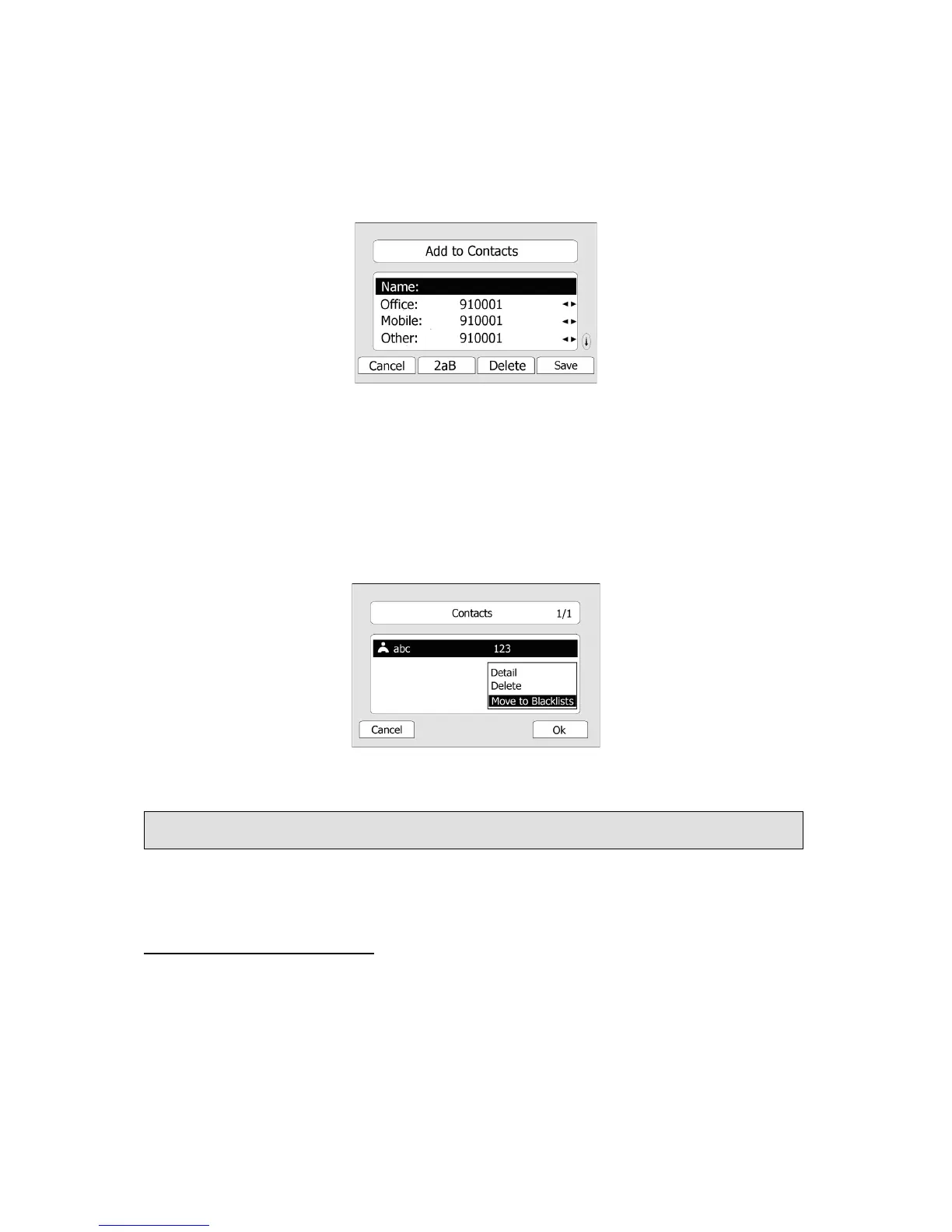
To move a contact in History to Contacts via Phone interface:
1) Press History hot key to enter the call history list.
2) Use the navigation keys to highlight a record, and then press the Option hot key to pop up
the frame, highlight Add to Contacts option, then press the OK hot key to enter the edit
interface.
3) Press the 2aB hot key to switch the input mode.
4) After the edition, press the Save hot key to save the change. Then you can go to Contacts
interface to check the record.
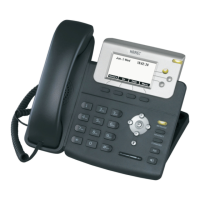
To move a contact to the blacklist via Phone interface:
1) Press Directory->Contacts->Enter.
2) Use the navigation key to highlight the one you want to move, press Option hot key, scroll
to move to Blacklists, press OK hot key twice to confirm the change, or press Cancel hot key
to return to the Directory interface.
3) You can check the blacklist by pressing Directory->Blacklist->Enter to enter the
configuration interface to do the desired changes.
Note:
If a contact is moved to the blacklist, then the call from this contact can not get through.
To add/delete/edit the contacts & blacklist via the Web interface:
Enter the Contacts interface to do the relating changes. Please refer to the instruction above
for the parameters’ detail.
Import/Export Contact list
Import/Export Contact List via Web interface:
1) Choose Contacts->Local Phone Book.
2) Browse the specific contact list file in .XML format, and then click Import button. The
imported contact lists will be shown in the directory.
3) You can also click the blue number displayed on the web page to dial out via web
interface directly, and click the Hangup button to hang up the current call.


 To Next Page