7 Remote Interface Configurations
82 Keysight J7201A/B/C Operating and Service Manual
Connecting the Remote Interface
– You can find information and install this application via the Web at
www.keysight.com/find/iolib.
Connecting over GPIB
1 Make sure you have installed the required I/O software on your computer.
2 Follow the instructions included with your GPIB interface card to install the GPIB hardware in
your computer.
3 Connect the GPIB cable (not provided) between the computer and the J7201A/B/C.
4 Make sure power is applied to your computer and verify that the operating system is fully
booted. Then, apply power to J7201A/B/C.
5 Configure your GPIB hardware as instructed by the documentation provided by the hardware
vendor.
6 Use the Connection Expert utility of the Keysight IO Libraries Suite to add the J7201A/B/C and
verify a connection.
7 The J7201A/B/C is shipped from factory with a default GPIB address of 28.
To change GPIB address
Changing GPIB address (integer between 0 to 30):
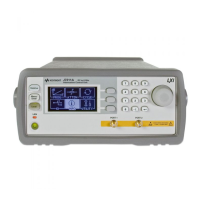
1 Navigate using rotary knob to IO icon as illustrated and press once on Menu/Enter button to
select.
2 Default address of 28 appears once you are at GPIB ADDRESS screen.
To easily connect the J7201A/B/C to your PC, configure and verify your connection, you can use
the Keysight IO Libraries Suite, the Keysight IO Libraries for Windows, or and equivalent.
The procedures in this section is referring to the Keysight Technologies USB/LAN/GPIB Interfaces
Connectivity Guide. If you have installed the IO Libraries Suite, you can access the Connectivity
Guide via the Keysight IO Libraries Control icon. Alternatively, you can access the Connectivity
Guide via the Web at www.keysight.com/find/connectivity.
If you have installed any other I/O software, refer to documentation included with that software.


 To Next Page