9 / 10 © 2016 Spectrum Brands, Inc.Kwikset: 1-800-327-5625 • www.kwikset.com
How to add a one-time User Code
A one-time user code may be used only once, and
then it will be deleted immediately after use.
1. Enter your existing PC.
2. Press
9
3. Enter a new User Code. It must be between 4 and 10 digits.
4. Press
How to enable/disable User Codes
If User Codes are disabled (example: when you go
on vacation), the lock can only be operated by the
key and turnpiece until they are enabled again.
1. Enter your PC.
2. Press
8
3. Repeat steps 1 and 2 to enable or disable the codes again.
How to delete all User Codes
If all User Codes are deleted, the lock can only be operated
by the key and turnpiece until a new User Code is added.
1. Enter your existing PC.
2. Press
3
How to enable/disable Auto-Lock
The Auto-Lock feature automatically re-locks your door 30
seconds after unlocking. This feature is o by default.
1. Enter your existing PC.
2. Press
5
3. Repeat steps 1 and 2 to enable or disable Auto-Lock again.
How to change Auto-Lock time delay
You can set the Auto-Lock time delay between 10 and 99 seconds.
1. Enter your PC.
2. Press
6
3. Enter time between 10 and 99 seconds.
4. Press
How to mute/unmute lock
If the lock is muted, you will not hear beeping
during programming, normal operation, low
battery indicators or system alerts.
1. Enter your existing PC.
2. Press
7
3. Repeat steps 1 and 2 to mute or unmute the lock again.
This procedure will delete all User Codes associated with the
lock, and the default PC and User Code will be restored.
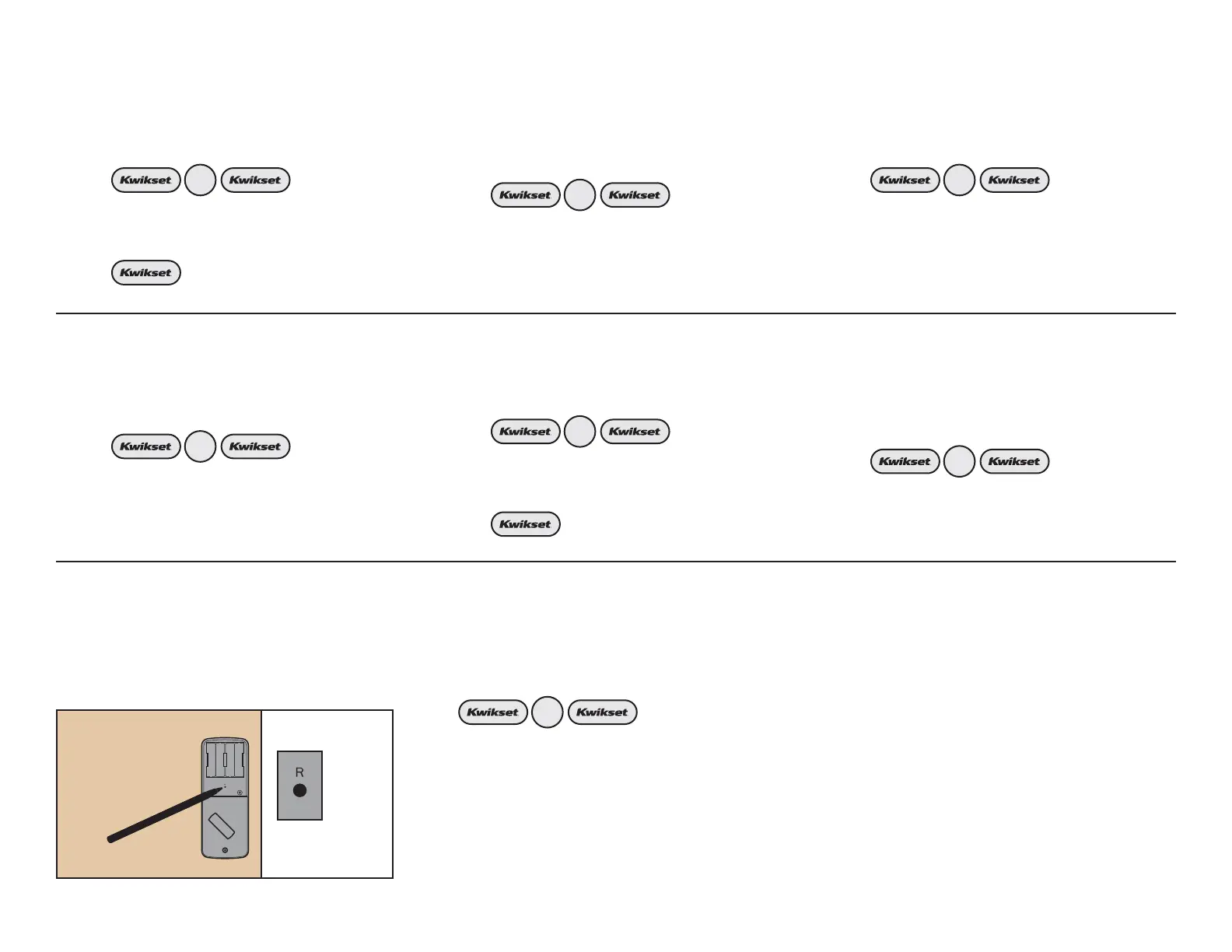
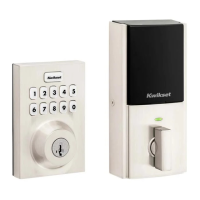
1. Press and hold the Reset button for 5 seconds, until you hear
3 beeps and see the Kwikset button lash amber 3 times.
2. Enter the default PC (OOO0).
3. Enter the door handing code to re-teach the lock the
orientation of the door:
0
4. Test the lock: WIth the door open and unlocked, press
the Kwikset button to make sure it locks the door.
5. Test the default User Code: Enter the default User
Code (1234), and make sure it unlocks the door.
How to restore default settings


 To Next Page