EasyManua.ls Logo

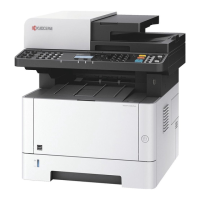
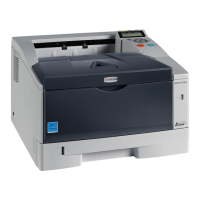
Kyocera ECOSYS P2135dn - User Manual

Kyocera ECOSYS P2135dn
221 pages
Print Icon
To Next Page IconTo Next Page
Loading...
OPERATION GUIDE
q
PRINT
ECOSYS P2135dn

Table of Contents

Questions and Answers

  • A
    Angela CarterSep 2, 2025
    What to do if my Kyocera ECOSYS P2135dn displays 'Memory overflow Press GO'?
    • N
      Natalie KiddSep 2, 2025
      The total amount of data received by the printer exceeds the printer’s internal memory. Try adding more memory. Press [GO] to resume printing.
  • S
    Sean PhillipsAug 25, 2025
    What to do if Kyocera Printer won't turn on?
    • S
      srichardAug 25, 2025
      The message 'Nothing lights on the operation panel even when power is turned on and the fan makes no noise' means that you should check the power cord is property plugged into power outlet, connect both ends of the power cord securely, and try replacing the power cord. Also check the power switch is in the On ( | ) position.
  • G
    garythompsonSep 23, 2025
    How to remove dirt on the top edge or back of the paper from Kyocera All in One Printer?
    • B
      Brenda LloydSep 23, 2025
      Refer to Cleaning the Printer on page 5-6. If the problem is not solved after cleaning, call for service representative.
  • D
    David AdamsSep 7, 2025
    Why is my Kyocera Printer printing incomplete or out of position?
    • A
      ashley55Sep 7, 2025
      The message 'Printing incomplete or out of position' can be resolved by checking that the printing settings are correct in the application software and the printer driver, or checking whether the problem is being caused by a PRESCRIBE command error. If the problem occurs only with a specific file or program, the most likely cause is an error in a parameter to a command or command syntax.
  • D
    Denise JonesSep 13, 2025
    Why is there text missing on the Windows test page from my Kyocera Printer?
    • M
      Mary BarnesSep 13, 2025
      This issue is specific to the Windows OS and not a printer problem, so it does not affect print quality.
  • J
    James StevensSep 4, 2025
    How to resolve faint or blurred printing on Kyocera ECOSYS P2135dn?
    • R
      rhonda14Sep 5, 2025
      Refer to Toner Container Replacement on page 5-2. Clean the charger wire. Refer to Cleaning the Printer on page 5-6.
  • J
    johnsonjoannaAug 30, 2025
    How to resolve 'Add paper MP Tray' message on Kyocera ECOSYS P2135dn?
    • K
      Kathryn IbarraAug 30, 2025
      The paper has run out in the paper source displayed. Supply paper according to the paper source displayed (paper cassettes, MP tray, or optional paper feeders). This message is displayed alternately with messages indicating the printer status, such as, Ready, Please wait, and Processing.
  • Z
    Zachary WarnerSep 16, 2025
    What does 'Load Cassette # (A4)/(PLAIN)' mean on Kyocera Printer?
    • S
      Sarah RomeroSep 16, 2025
      Load paper into the paper cassette as displayed in place of #. Press [GO] to resume printing. If you want to print from a different paper source, press U or V to display Use alternative? and you can change the source for paper feeding. After selecting a paper source and pressing [MENU], Paper Settings > appears. By pressing the U, the paper type settings menu appears. After setting the correct paper type, press [OK] and printing starts.
  • D
    Dustin WoodardSep 10, 2025
    What does 'Toner low' mean on my Kyocera Printer and what should I do?
    • A
      Anne DavisSep 12, 2025
      When your printer displays 'Toner low', it means you should replace the toner container with a new toner kit.
  • D
    Dr. Jerry JonesAug 27, 2025
    How to fix 'Close top cover' message on Kyocera Printer?
    • K
      Kaylee MurrayAug 27, 2025
      The message 'Close top cover' appears when the top cover of the printer is open. To resolve this, close the printer top cover.

Summary

Machine Parts

Components at the Front of the Printer

Identifies physical components located on the front of the printer.

Components at the Rear of the Printer

Identifies physical components located on the rear of the printer.

Operation Panel

Details the printer's control panel, including displays, buttons, and indicators.

Paper Handling

General Guidelines

Provides advice on selecting and using paper for optimal printer performance and longevity.

Selecting the Right Paper

Offers guidelines on paper condition, composition, sizes, smoothness, weight, and thickness.

Paper Type

Lists supported paper types and their compatibility with different paper sources.

Loading Paper

Preparing the Paper

Instructions on fanning and straightening paper before loading to prevent jams.

Loading Paper into Cassette

Step-by-step guide for inserting paper into the printer's paper cassette.

Loading Paper into MP (Multi-Purpose) Tray

Instructions for loading paper into the printer's multi-purpose tray.

Connecting and Printing

Connections

Details on connecting the printer via USB, network, and power cord.

Changing Network Interface Parameters

Configuration of network settings like TCP/IP, security, and protocols.

Installing the Printer Driver

Guide for installing printer drivers on Windows and Macintosh systems.

Printing

Explains the printing procedure using application software and KX Driver.

Printing by AirPrint

Information on printing from iOS and Mac OS devices without drivers.

Status Monitor

How to monitor printer status, view jobs, and check toner/paper levels.

Energy Saver Function

Details on Low Power Mode and Sleep Mode for reducing energy consumption.

Maintenance

General Information

Overview of basic maintenance tasks like toner replacement and periodic cleaning.

Toner Container Replacement

Instructions on how to replace the toner container and check toner status.

Cleaning the Printer

Procedures for cleaning the printer's interior, drum, and charger wire.

Prolonged Non-Use and Moving of the Printer

Guidelines for storing and safely moving the printer.

Troubleshooting

General Guidelines

Basic troubleshooting steps for common printer issues like poor print quality or missing text.

Print Quality Problems

Identifies print quality issues and provides corrective actions.

Error Messages

Lists common error messages and their corrective actions.

Clearing Paper Jams

Detailed instructions for removing paper jams from various printer locations.

Using the Operation Panel

General Information

Overview of configuring the printer using the operation panel and other utilities.

Understanding the Operation Panel

Explanation of the operation panel's display, keys, and indicators.

Using the Menu Selection System

Guide on navigating and using the printer's menu system for settings.

Report Print

How to print various reports like menu maps, status pages, and font lists.

USB Memory (USB Memory Selection)

Settings for using USB memory, including printing files and removing the device.

Counter (Viewing the Counter Value)

How to view the printer's page count.

Paper Settings

Configuration of paper size and type for MP tray and cassettes.

Print Settings

Adjusting print parameters like paper source, quality, orientation, and duplex printing.

Network (Network Settings)

Configuration of network protocols like TCP/IP (IPv4/IPv6) and related settings.

Security

Setting up security functions to protect printer operation and print data.

Administrator (Administrator Settings)

Managing administrator ID, password, and user settings for security.

Adjust;Maintenance (Adjust;Maintenance Selection;Setting)

Procedures for restarting the printer and accessing maintenance menus.

Option

General Information

Overview of available optional accessories for the printer.

Expansion Memory Modules

Details on installing expansion memory modules to increase printer performance.

Paper Feeder (PF-100)

Information about the optional paper feeder that adds more paper cassettes.

Network Interface Kit (IB-50)

Details on the high-speed network interface kit for connectivity.

Wireless Network Interface Kit (IB-51)

Information on the wireless network interface kit for Wi-Fi connectivity.

Computer Interface

General Information

Explains USB and network interface connector specifications.

USB Interface

Details on USB interface specifications, connectors, and signals.

Network Interface

Features and specifications of the printer's network interface, protocols, and OS support.

Appendix

Specifications

Lists detailed technical specifications of the printer, including paper handling and performance.

Environmental Standard Requirements

Details the printer's compliance with environmental standards and energy saving features.

Kyocera ECOSYS P2135dn Specifications

General IconGeneral
ColorNo
Duplex printingYes
Print technologyLaser
Maximum resolution1200 x 1200 DPI
Duplex printing modeAuto
Time to first page (black, normal)8 s
Print speed (black, normal quality, A4/US Letter)35 ppm
Printing colorsBlack
Maximum duty cycle2800 pages per month
Number of print cartridges1
Page description languagesEpson LQ, IBM ProPrinter, Microsoft XPS, PCL 5c, PCL 6, PCL XL, PDF 1.7, PostScript 3
Paper input typeCassette, Paper tray
Total input capacity300 sheets
Total output capacity- sheets
Maximum input capacity800 sheets
Total number of input trays2
Maximum number of input trays4
Multi-Purpose tray input capacity50 sheets
Custom media width70 - 216 mm
Maximum print size216 x 356 mm
Custom media length148 - 356 mm
Duplex media weight60 - 105 g/m²
Paper tray media typesPlain paper
Paper tray media weight60 - 120 g/m²
Non-ISO print media sizesFolio (media size), Letter (media size)
ISO A-series sizes (A0...A9)A4, A5, A6
ISO B-series sizes (B0...B9)B5
Maximum ISO A-series paper sizeA4
Multi-Purpose Tray media weight60 - 220 g/m²
Mobile printing technologies-
Standard interfacesEthernet, USB 2.0
Optional connectivityWireless LAN
Processor familyPowerPC
Maximum internal memory1280 MB
Sound power level (standby)34.2 dB
Sound pressure level (printing)53.5 dB
Sound pressure level (quiet mode)50.2 dB
DisplayLCD
CertificationTÜV/GS, CE
Product colorBlack, White
Display number of lines2 lines
AC input voltage220 - 240 V
AC input frequency50 - 60 Hz
Power consumption (standby)11 W
Power consumption (printing)499 W
Power consumption (PowerSave)2.5 W
Mac operating systems supportedMac OS X 10.5 Leopard, Mac OS X 10.6 Snow Leopard, Mac OS X 10.7 Lion, Mac OS X 10.8 Mountain Lion, Mac OS X 10.9 Mavericks
Sustainability certificatesBlue Angel, ENERGY STAR
Weight and Dimensions IconWeight and Dimensions
Depth393 mm
Width375 mm
Height267 mm

Related product manuals