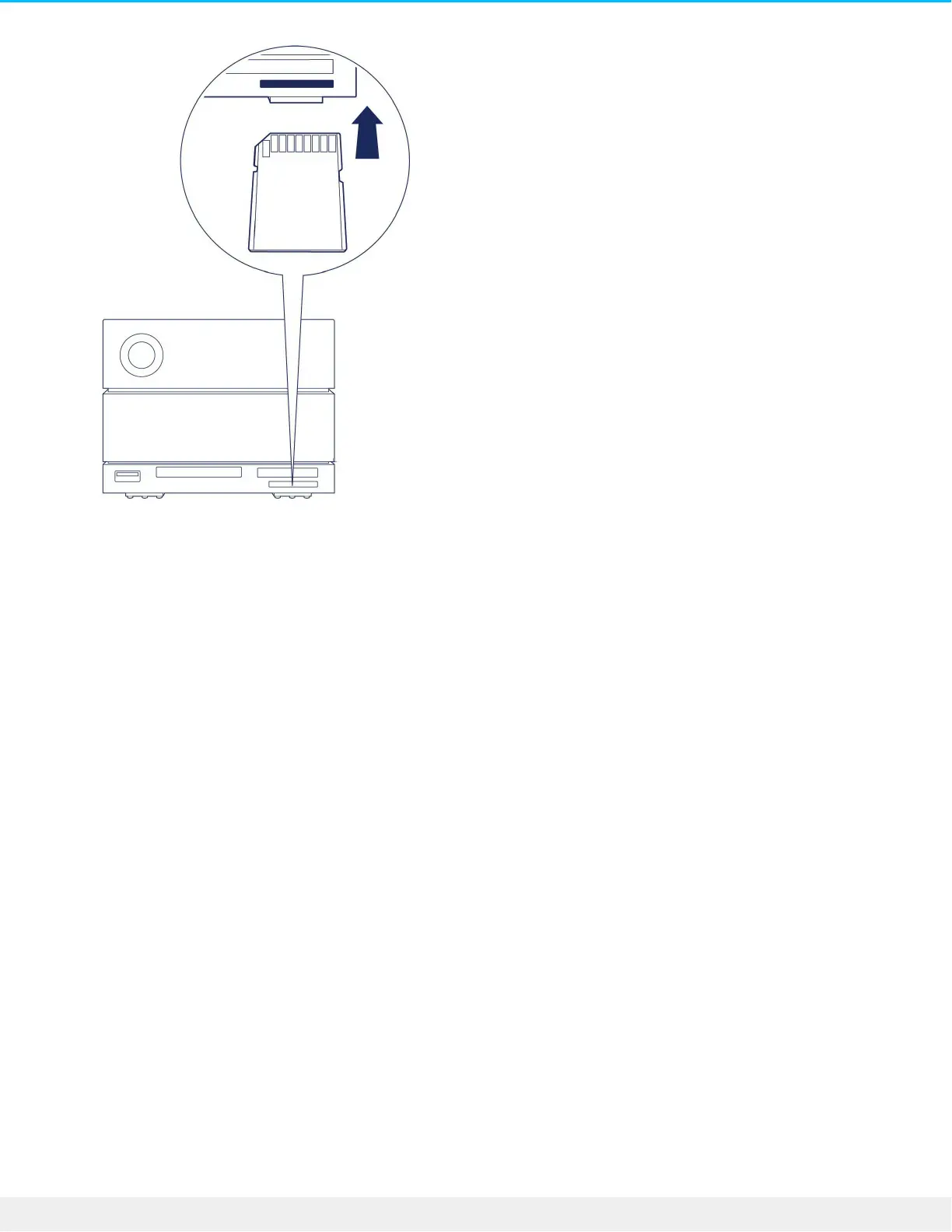
3. Open a Finder or File Explorer window to browse and manage the contents of the SD card.
Safely ejecng and removing an SD memory card
Toolkit
1. Make sure that the SD memory card is not being accessed.
2. Open Toolkit.
3. On the Home screen, click on the Eject icon for the SD card slot.
4. Push the card into the SD slot on the front of the device as far as it will go (you may hear an audible
‘click’), and then release. The card is ejected.
5. Remove the card from the slot.
macOS
1. Make sure that the SD memory card is not being accessed.
2. Using a Finder window, eject the SD card volume.
3. Push the card into the SD slot on the front of the device as far as it will go (you may hear an audible
‘click’), and then release. The card is ejected.
4. Remove the card from the slot.
Windows
1. Click the Safely Remove icon in your Windows System Tray to view the devices you can eject. If you
don't see the Safely Remove Hardware icon, click the Show Hidden Icons arrow in the system tray to
display all icons in the notification area.
2. In the list of devices, choose the SD card volume you want to eject. Windows displays a notification



 To Next Page