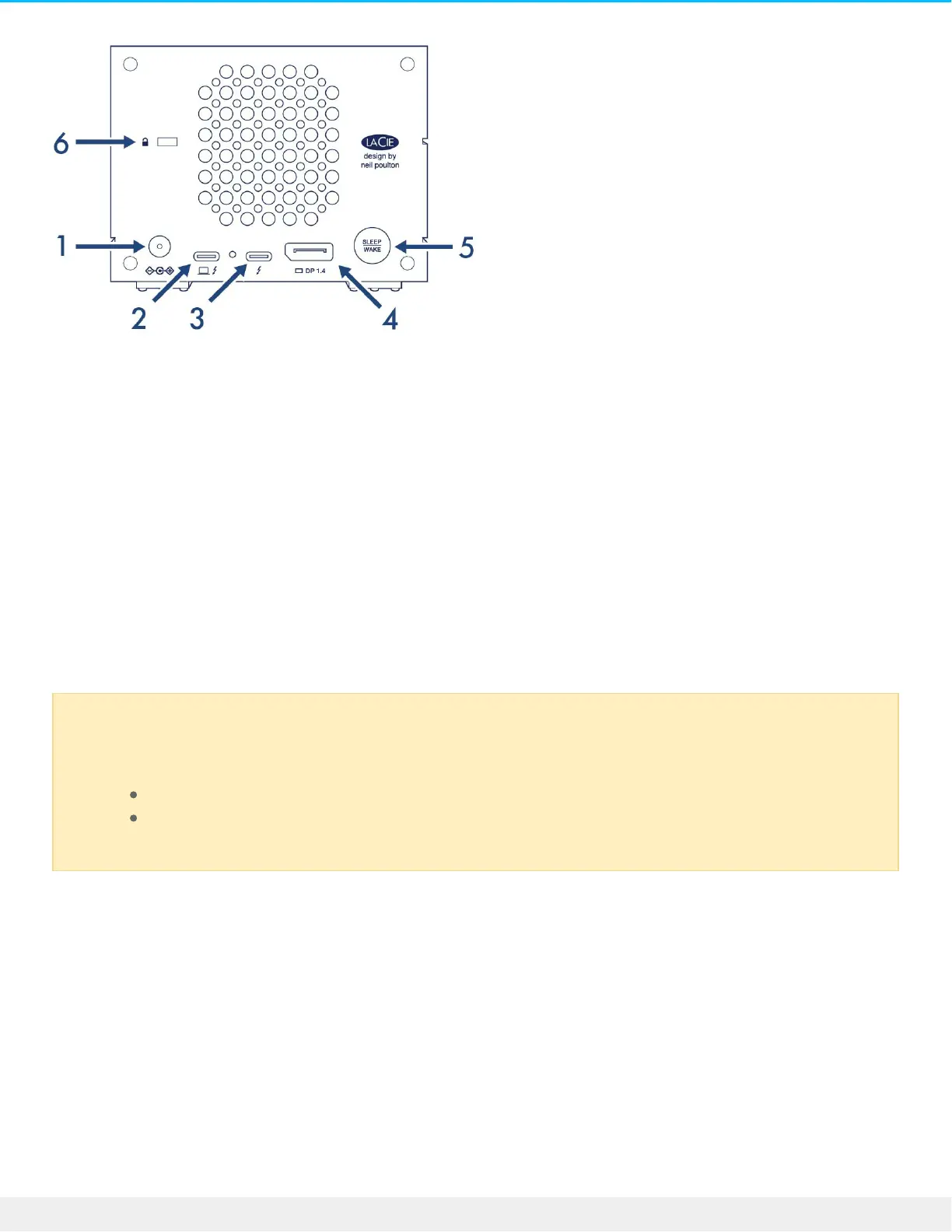
1. Power input—Connect the power cable to the power input port. Only use the power cable included with
your LaCie 2big Dock. Attaching third-party or other LaCie power cables with incorrect voltage can
damage the device. See Operation.
2. Thunderbolt 3 (host) port—Use the provided Thunderbolt 3 cable to connect the host Thunderbolt 3
port to a Thunderbolt 3 or USB-C port on the host computer. See Connect Your LaCie 2big Dock.
3. Thunderbolt 3 (peripheral/daisy chain) port—Connect compatible devices and displays to the
peripheral/daisy chain port. You can connect a single USB device or daisy-chain multiple Thunderbolt
devices. See Daisy Chain and Power Delivery.
4. DisplayPort 1.4—Use this port to send the video signal from your computer to a monitor. You can
connect a display to the DisplayPort when using the Thunderbolt 3 or USB 3.1 ports. See Expansion Port.
5. Sleep/Wake button—Use this button to power the device off and on. The button is also used confirm
key actions during RAID configuration. See Operation.
6. Kensington™ lock port—Use this port to physically lock the 2big Dock to a desk or rack.
Storage management
LaCie 2big Dock storage is managed by the LaCie RAID Manager software utility. See Manage RAID for more
information.
Important info regarding the ports—The LaCie 2big Dock can be connected to one computer
using the host Thunderbolt 3 port. Do not do any of the following:
Connect both Thunderbolt 3 ports to a single computer.
Connect a Thunderbolt 3 port to one computer and the other Thunderbolt 3 port to another
computer.



 To Next Page