1. Make sure that the CFexpress B memory card is not being accessed.
2. Open Toolkit.
3. On the Home screen, click on the Eject icon for the CFexpress B card slot.
4. Remove the card from the slot.
macOS
1. Make sure that the CFexpress B memory card is not being accessed.
2. Using a Finder window, eject the CFexpress B card volume.
3. Remove the card from the slot.
Windows
In order to maximize copy performance, Windows treats a card inserted in the CFexpress B slot as a non-
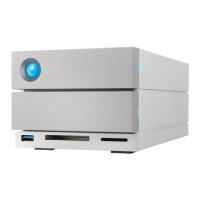
removable drive. To safely remove a CFexpress B card with reduced risk of data loss, eject LaCie 2big Dock
from your computer before physically withdrawing the card from the slot.
1. Make sure that inserted memory cards are not being accessed.
2. Make sure that LaCie 2big Dock is not being accessed.
3. Click the Safely Remove icon in your Windows System Tray to view the devices you can eject. If you
don't see the Safely Remove Hardware icon, click the Show Hidden Icons arrow in the system tray to
display all icons in the notification area.
4. In the list of devices, choose LaCie 2big Dock to eject. Windows displays a notification when it is safe to
disconnect the device.
5. Disconnect the Thunderbolt cable from the PC and wait for 2big Dock to power down.
6. Remove the CFexpress B card from the slot.
7. Reconnect the Thunderbolt cable to power on 2big Dock.



 To Next Page