Windows
1. Click the Safely Remove icon in your Windows System Tray to view the devices you can eject. If you
don't see the Safely Remove Hardware icon, click the Show Hidden Icons arrow in the system tray to
display all icons in the notification area.
2. In the list of devices, choose the CFast 2.0 card volume you want to eject. Windows displays a
notification when it is safe to remove the device.
3. Remove the card from the slot.
CFexpress B memory card reader
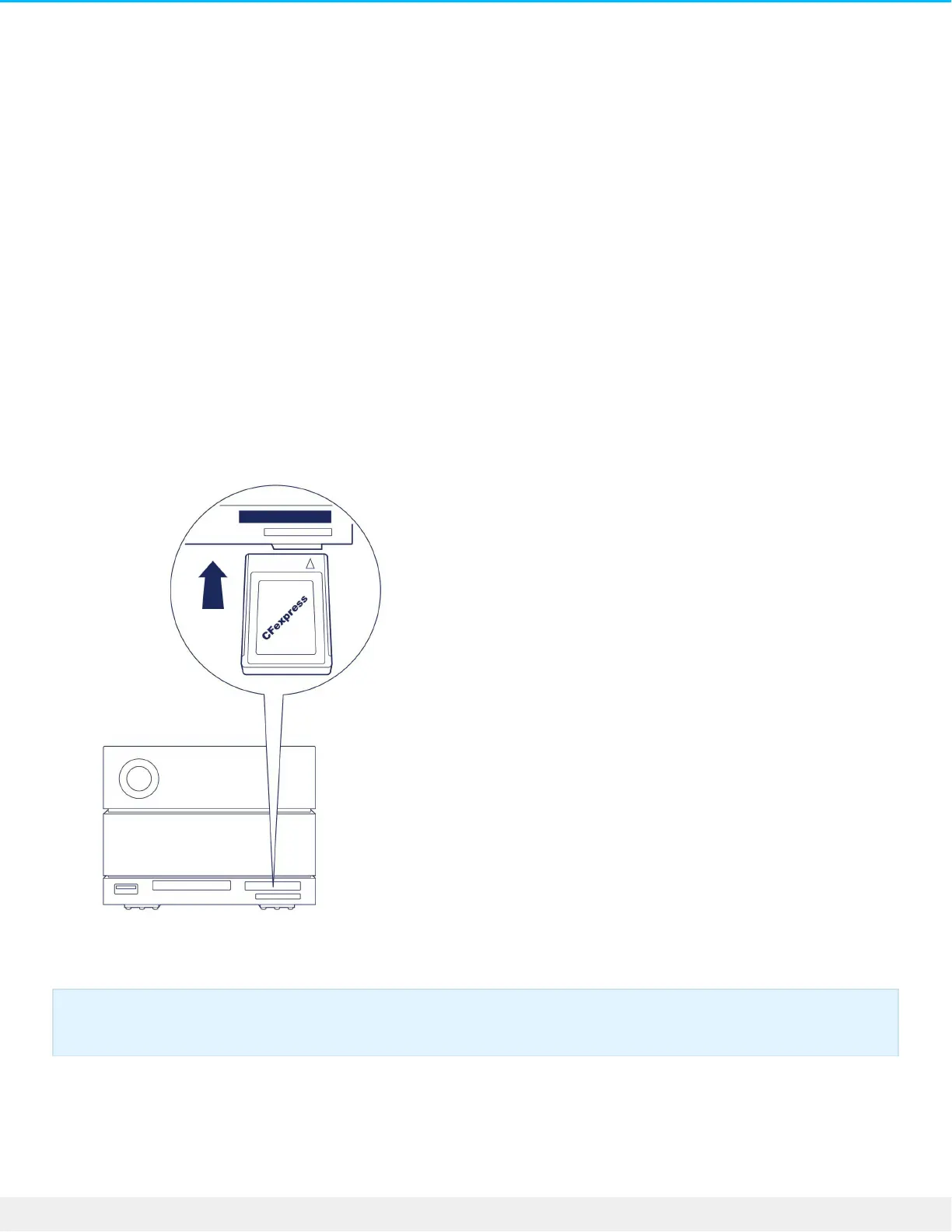
Reading a CFexpress B memory card
1. Hold your CFexpress B memory card upright with the label on top.
2. Insert the card into the CFexpress B slot on the front of the device and gently push it in until it’s seated
in the slot.
3. Open a Finder or File Explorer window to browse and manage the contents of the CFexpress B card.
Safely ejecng and removing a CFexpress B memory card
Toolkit (macOS only)
Important—LaCie 2big Dock supports CFexpress B but not XQD media card format.



 To Next Page