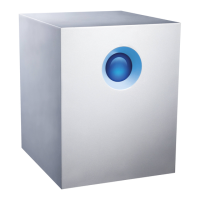
LaCie 5big Network Setting Up Your LaCie 5big Network
User Manual page 14
Launch the Administration Page
Windows Users
1. Select LaCie Network Assistant in Start/Programs. A Network As-
sistant icon will appear in the system tray and Network Assistant will
automatically detect your LaCie 5big Network and any other LaCie
storage devices on your network.
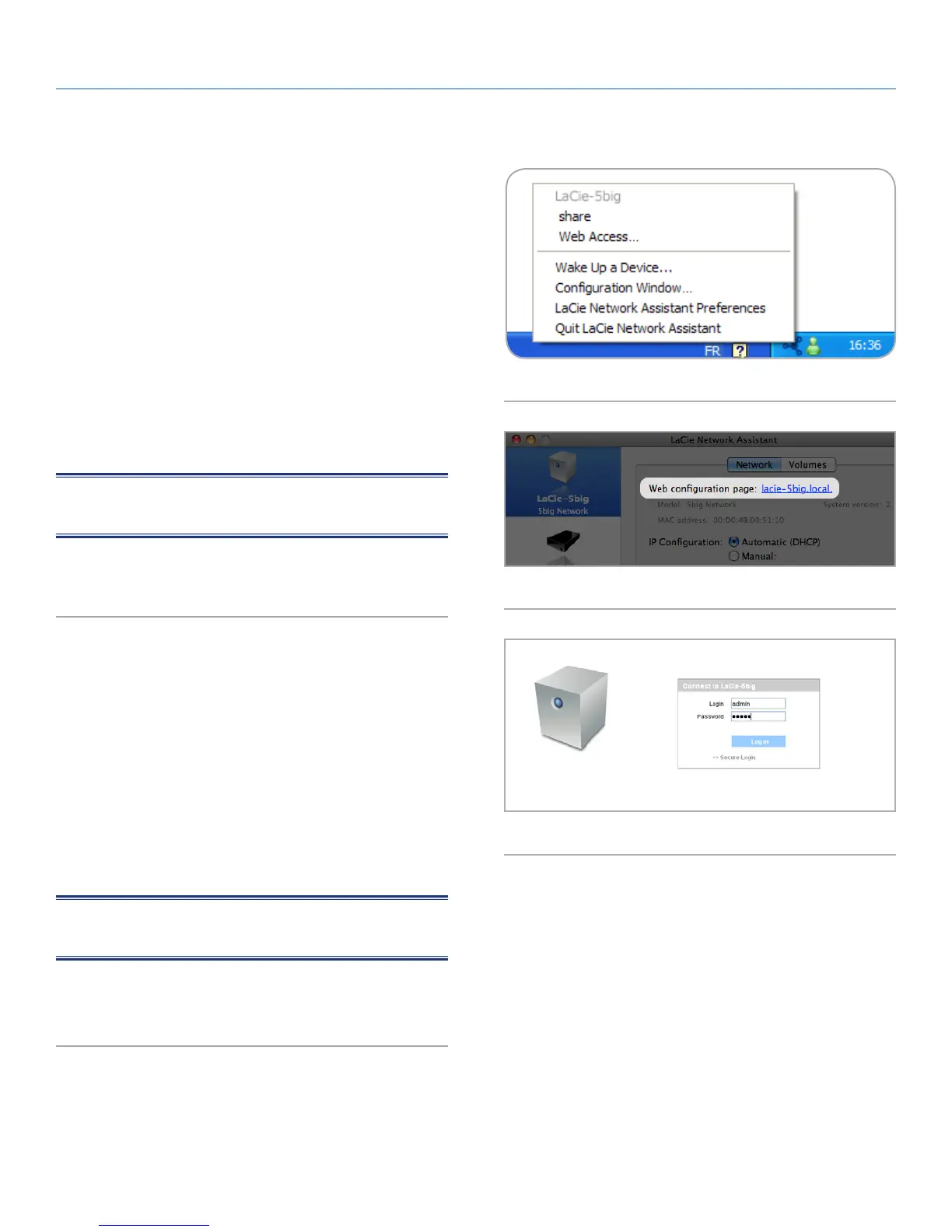
2. Click on the icon in the system tray and select Configuration Win-
dow... from the LaCie 5big Network sub-menu (Fig. 09). The LaCie
Network Assistant page will open.
3. Under the Network tab, click the Web configuration page
link (Fig. 10).
4. To log in to LaCie 5big Network administration (Fig. 11), enter:
Login: admin
Password: admin
NOTE: This password can be changed from the Administration
Page (refer to 4.2. Users).
5. Click Log on.
Continue to section 4. Administering Your LaCie 5big Network.
Mac Users
1. Double click LaCie Network Assistant in your Applications folder.
An Network Assistant icon will appear in the menu bar and the As-
sistant will automatically detect your LaCie 5big Network and any
other LaCie storage devices on your network.
2. Click on the icon in the menu bar and select Configuration Win-
dow.... The LaCie Network Assistant page will open.
3. On the Network tab, click the Web configuration page link
(Fig. 10).
4. To log in to LaCie 5big Network administration (Fig. 11), enter:
Login: admin
Password: admin
NOTE: This password can be changed from the Administration
Page (refer to 4.2. Users).
5. Click Log on.
Continue to section 4. Administering Your LaCie 5big Network.
Fig. 09
Fig. 10
Fig. 11


 To Next Page