LaCie 5big Network Accessing & Managing Files
User Manual page 18
3.1.1. Other Connection Methods
Vista/XP/2000 Users – My Network Places
IMPORTANT INFO: If you have just turned on the LaCie 5big
Network, it may take a few moments for it to appear on the network.
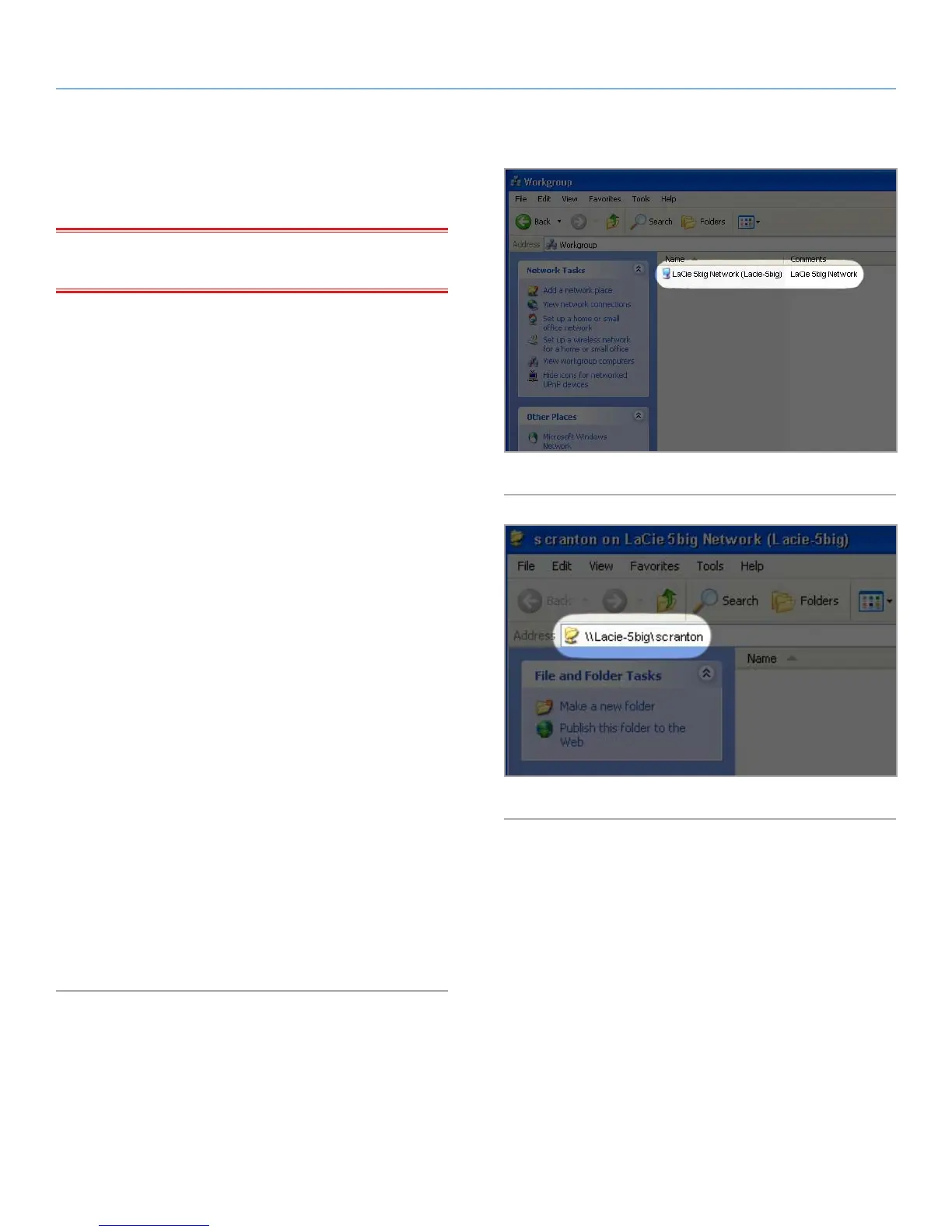
To access the share in Windows, look in My Network Places, and
select Microsoft Windows Workgroup. By default, the 5big Net-
work will be named LaCie 5big Network (Lacie-5big Network)
(Fig. 17).
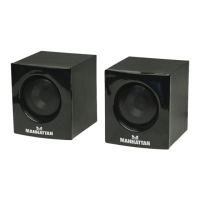
Alternatively, you can access the share by typing the following in a
Windows explorer address field (Fig. 18.):
\\LaCie-5big\[share name]
\\[IP address]\[share name] Find the IP address by running the
LaCie Network Assistant (section 2.3. Connecting Using LaCie
Network Assistant).
For FTP access, type:
ftp://LaCie-5big or ftp://[IP address]
In the logon window that opens, type:
Login: admin
Password: admin
(This user name and password is the factory default; if you have
already created a user, input your user name and password.)
The LaCie 5big Network will appear as a drive with one share folder
on the network.
Windows Me/2000
For Windows Me and Windows 2000 users, if you cannot find the
LaCie 5big Network from your workstation, try using the Windows
search tool.
From the Start menu, select Search, and then click on For Files or
Folders. In the Search Results window, select Computers.
In the Search for Computers dialog box, enter the server name
and click the Search Now button. By default, the LaCie 5big Net-
work will be named “LaCie-5big” , and the share “SHARE”.
Fig. 17
Fig. 18


 To Next Page