LaCie Wireless Space • DESIGN BY NEIL POULTON Accessing & Transferring Files
User Manual page 38
3.5.5. Accessing Shares Using File Browser
The Dashboard features an interactive file browser that allows you
to manage and transfer files. Follow these steps to open the file
browser:
1. Log in to the Dashboard (see section 3.6.1. Dashboard: Access-
ing for details).
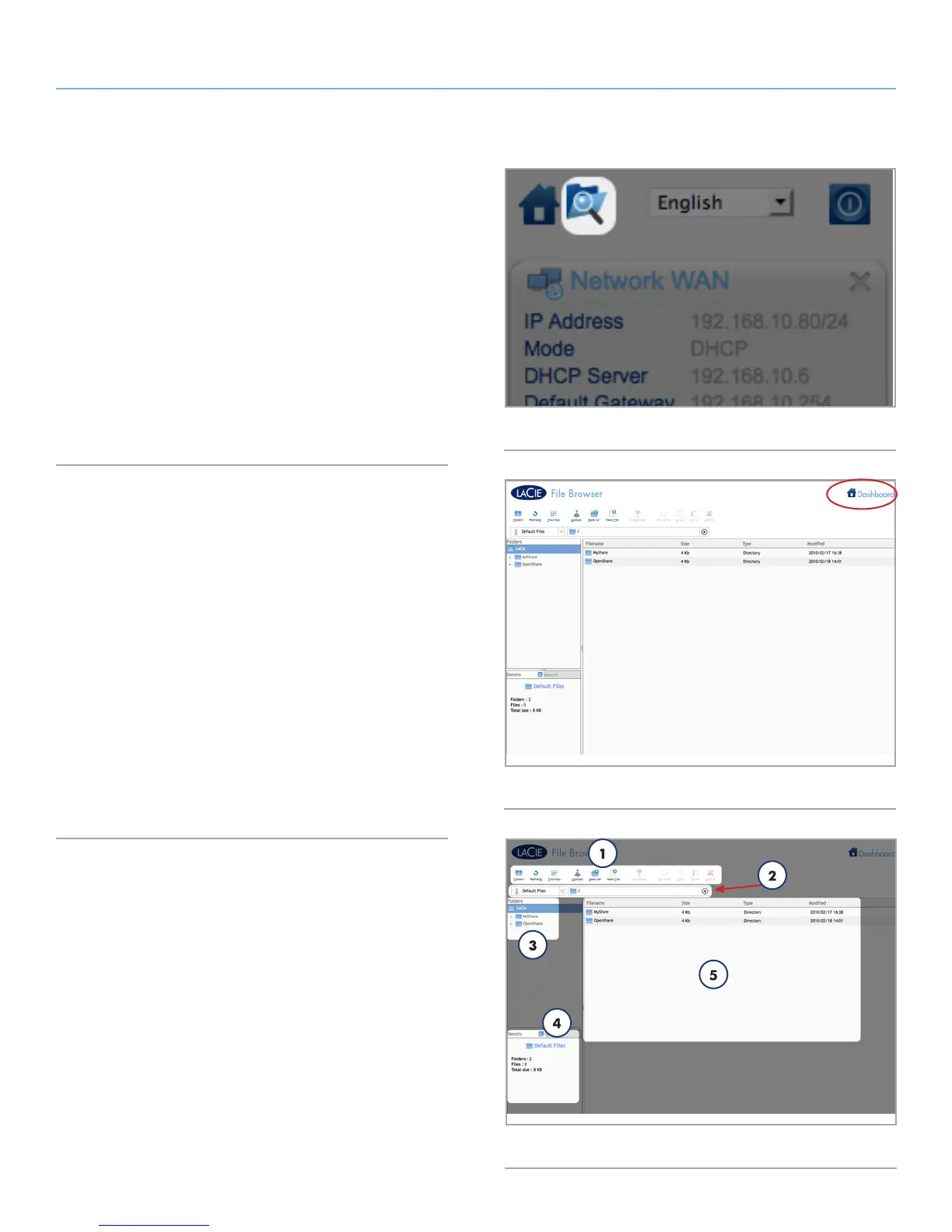
2. Click the File Browser button (Fig. 49) on the upper right of the
Dashboard.
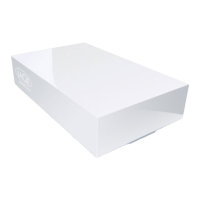
3. The File Browser (Fig. 50) will launch.
4. To return to the Dashboard, click on the word Dashboard (Fig.
50) on the upper right of the File Browser window.
3.5.5.1. About the File Browser
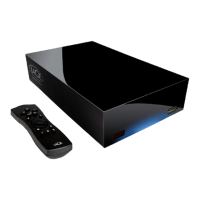
The File Browser is composed of five parts (Fig. 51):
1. Tool bar allows you to perform a range of functions, such as
changing the way files are displayed and uploading files to the
Wireless Space from your computer.
2. Share selection lets you choose the share you wish to access
from the drop-down menu.
3. Share folders shows the folder structure on the selected share.
4. File info displays information on a selected file, such as name,
file type, dimensions (photos), or duration (videos).
5. Folder contents displays the files contained in a selected
folder. To view the files as thumbnails, click Thumbs in the
Tool bar.
Fig. 49
Fig. 50
Fig. 51













 To Next Page