LaCie Wireless Space • DESIGN BY NEIL POULTON Administering The LaCie Wireless Space
User Manual page 43
3.6.1. Dashboard: Accessing
There are two ways to access the Dashboard, using the hyperlink
in LaCie Network Assistant (3.4.1. Connect to the LaCie Wireless
Space Dashboard using LaCie Network Assistant) and entering infor-
mation manually in a browser (3.4.2. Connect to the LaCie Wireless
Space Dashboard directly from the browser).
3.6.1.1. Use LaCie Network Assistant
1. From the system tray (Windows users) or menu bar (Mac users),
select LaCie Network Assistant>Web Access…
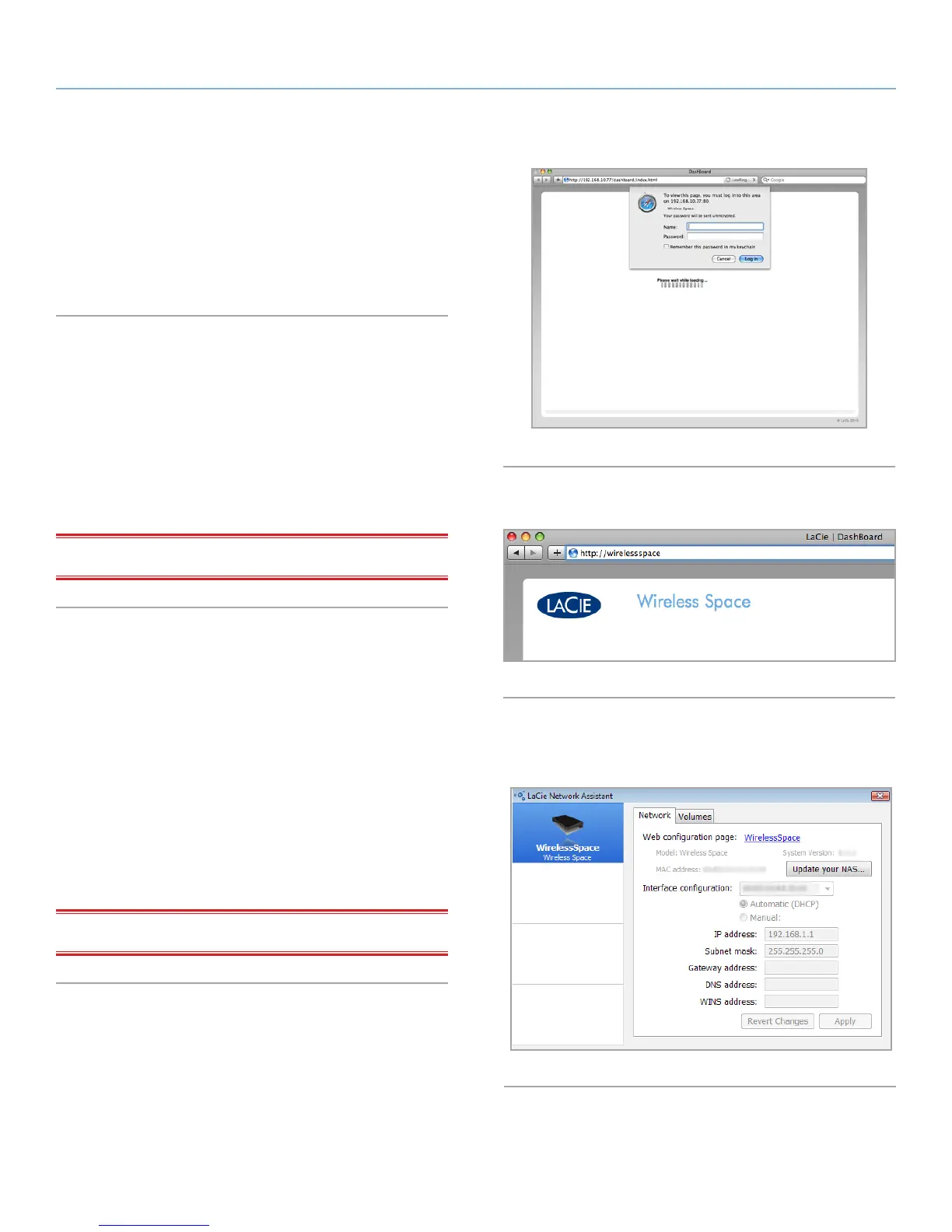
The LaCie Wireless Space login page will launch in a new
browser window or tab (Fig. 58). If your browser is not open,
LaCie Network Assistant will open it for you.
2. Enter the Name and Password created during Setup.
IMPORTANT NOTE: The login and password are case-sensitive.
3.6.1.2. Use a Browser
1. Open a preferred Internet browser (see 1.2. Minimum Com-
puter and Network Requirements for supported browsers).
2. Type the Wireless Space’s IP address or machine name in the
URL (web address) field (Fig. 59).
✦ The IP address may be found in LaCie Network Assistant (Fig.
60).
✦ You may have named the device during the Setup. If not, the
default is WirelessSpace.
✦ Examples: http://192.168.1.1 and http://WirelessSpace
3. Enter the Name and Password created during setup.
IMPORTANT NOTE: The login and password are case-sensitive.
Fig. 58
Fig. 59
Fig. 60













 To Next Page