LaCie Wireless Space • DESIGN BY NEIL POULTON Administering the LaCie Wireless Space: Beyond Basic
User Manual page 81
4.5.1. Dashboard: Wireless AP
The widget for Wireless AP will appear with Beyond Basic configura-
tions NAS Ethernet - Wireless Access Point and NAS Router - Wire-
less Access Point. Additionally, the light will remain blue during stan-
dard operation (see 1.8. Light Behavior).
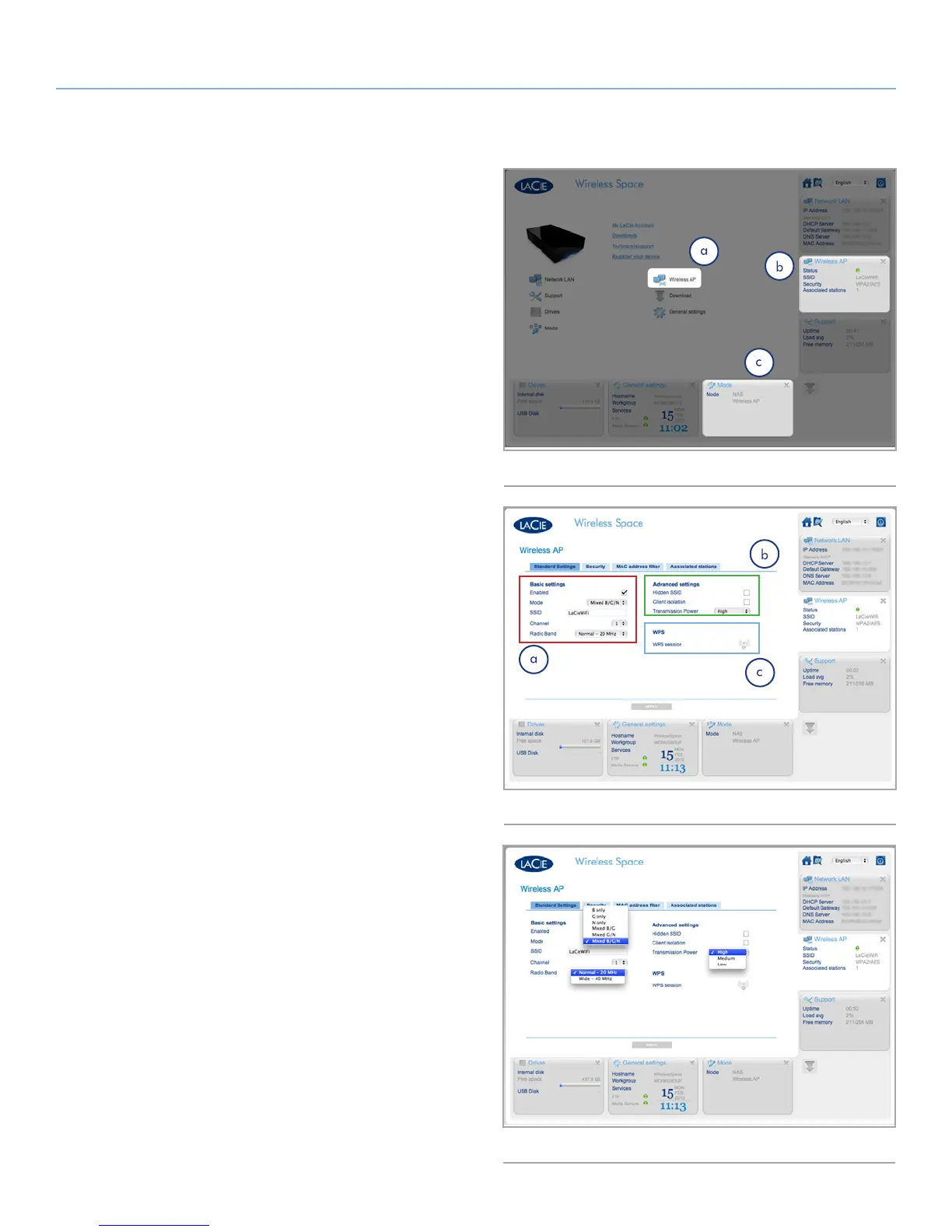
The Dashboard welcome page for NAS Ethernet - Wireless Access
Point is pictured in Fig. 131:
a. Click on the name of the page to view all of the Wi-Fi access
point settings
b. The widget displays the basic Wi-Fi access point settings
c. The Mode widget indicates the current configuration
The Wireless AP page has four tabs that provide detailed informa-
tion on the Wireless Space Wi-Fi. It is a great resource to confirm
settings or to make changes.
4.5.1.1. Wireless AP - Standard Settings
The first tab is Standard Settings (Fig. 132), which is broken into
three categories:
a. Basic settings
✦ Enabled - This box will be checked by default with a Wi-Fi
network. Deselect the check box to turn the Wi-Fi off. When
turned off, the Dashboard will close and the light will turn
green.
✦ Mode, Channel, and Radio Band - Pulldown menus (Fig. 133)
to change the speed, channel, or band of the Wi-Fi. Make
adjustments based upon the needs of the devices (speed or
802.11b/g/n compatibility) on the Wi-Fi network and the
area (i.e. a different channel if the default is creating or expe-
riencing interference).
✦ SSID - The name given to the Wi-Fi for devices to recognize
and join.
b. Advanced settings
✦ Hidden SSID - Disabled as a default, this feature allows you to
keep the SSID hidden from public viewing. It is an extra layer
of security for those who prefer to keep the Wireless Space
Wi-Fi unknown to others.
✦ Client isolation - Disabled as a default, this feature prevents
communication between each device connected to the Wi-Fi.
✦ Transmission Power - High by default, a smaller range may be
selected if desired (Fig. 133).
c. WPS - Clicking on the WPS icon allows other WPS devices to
join the Wireless Space Wi-Fi. It offers the same function as
physically pushing the WPS button on the face of the device.
continued on the next page>>
Fig. 131
Fig. 132
Fig. 133













 To Next Page