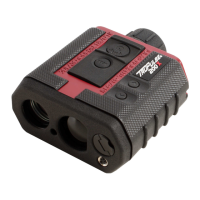
Laser Technology Inc. - TruPoint
i
Bluetooth
®
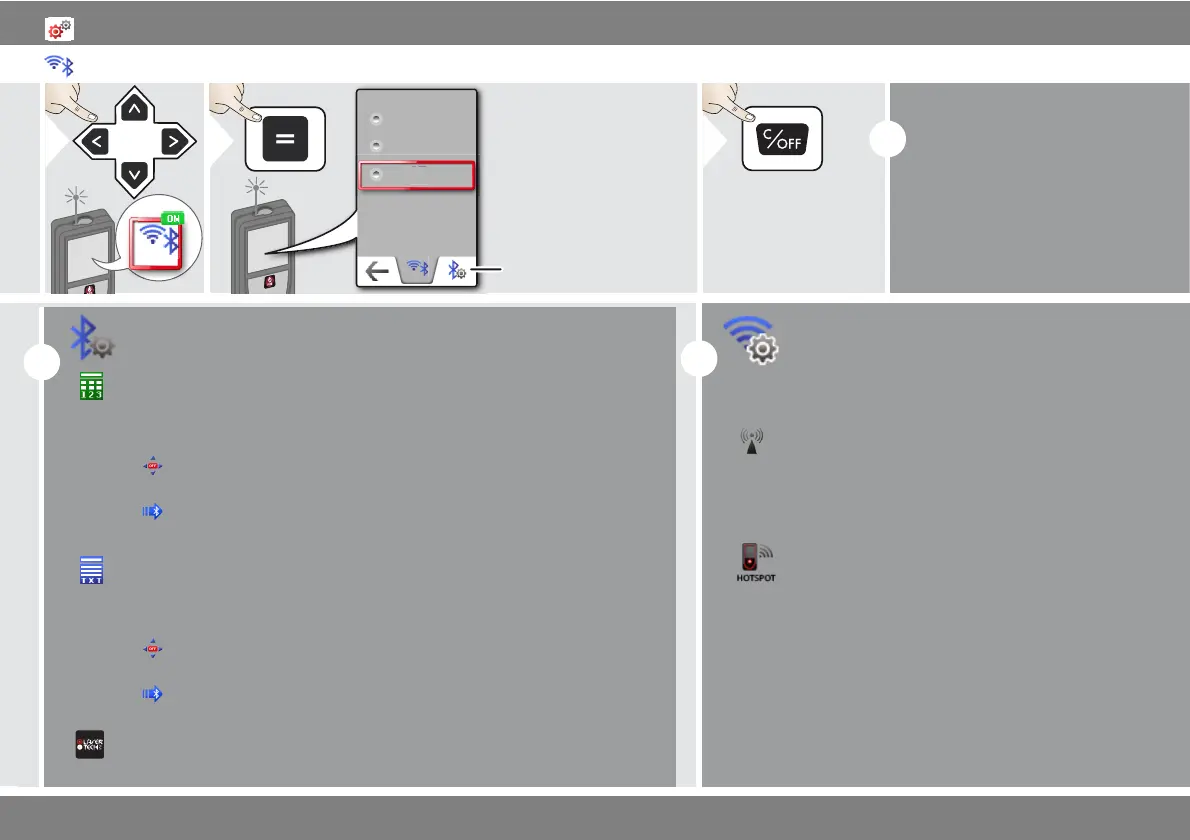
/WLAN is switched
on and black Bluetooth
®
/WLAN
icon is displayed in status bar.
If connection is established the
color of the icon changes to blue.
Special Bluetooth
®
Settings
Figure Mode: Use this mode if the data needs to be transferred in
figures, e.g. working with spread sheets. Ft/in fractional is converted
into ft/in decimal. An additional press on the Bluetooth
®
Settings Icon
allows further adjustments for data transfer.
Text Mode: Use this mode if the data needs to be transferred as text,
e.g. working with word processing programs.
App Mode: Use this mode to transfer the data using an App.
Special properties: ENCRYPTED is the default setting. In case of trou-
ble with data transfer, select mode UNENCRYPTED.
Allows the arrow keys to move the cursor on your computer.
sends the value of the main line to the computer.
Allows the arrow keys to move the cursor on your computer.
sends the value of the main line to the computer.
Device is connected. Favorites disappear and two softkeys appear:
Device is connected. Favorites disappear and two softkeys appear:
i
Special WLAN Settings
Available WLAN network can be choosen with
the possibility to enter a password.
Recommended for GIS applications.
WLAN: TRUPOINT 300 acts as hotspot.
Data transfer unsecured or secured with serial
number as password. Recommended for stand-
ard use.




 To Next Page