MP4-T10 USER MANUAL
13
3. Add Tag: [Common information. Please refer to previous sections for instruction]
4. Screen size: Choose between Full Screen, Original Size and Scale
5. Resume: Continue watching the previously exited file.
6. Delete: Delete the currently viewed video. A confirmation window will then appear asking
you to confirm your selection
7. Information: Shows file information such as name, resolution and bit rate
STILL CAMERA OPERATIONS MENU – THE MAIN SCREEN
Select the camera icon from the main menu screen.
Note 1: The toggle switch will show an image of the device you can toggle to. Eg. If a still camera
image is present, press it to change to still camera and vice versa with an image of a video camera.
Note 2: Once a selection has been made the user icons on the screen will change. Of most
significance is the take picture / shutter button.
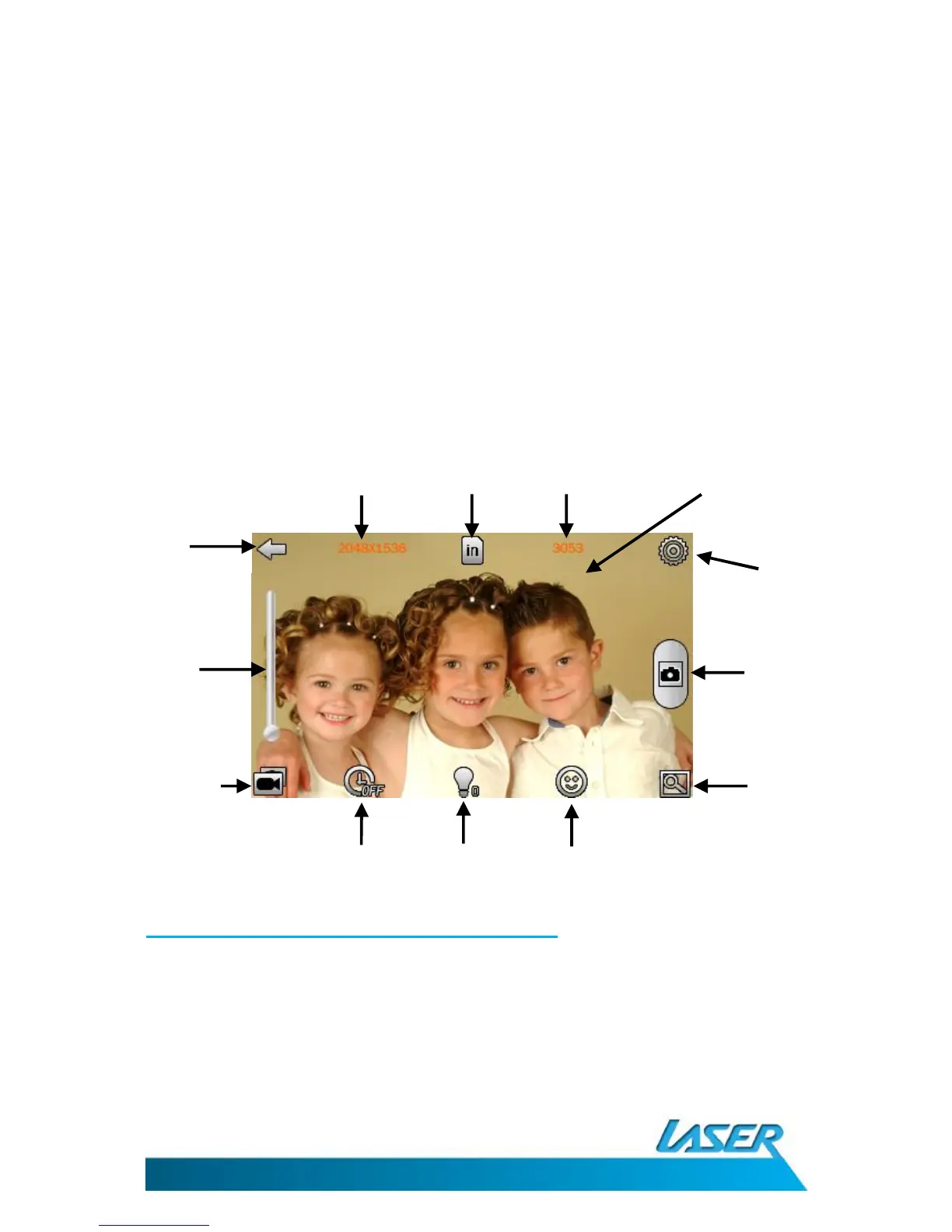
Still camera operation – on-screen options
This screen shows a summary of currently chosen settings in the form of icons. There are
two types of icons: 1) read-out icons, and 2) user short cut keys
1. Read-out icons: These icons are a static display of previously set options from the
settings screen (Note: Settings are discussed in the next section) in a clockwise
orientation, these are: files save location, shots remaining and timer (Timer: once



 To Next Page