MP4-T10 USER MANUAL
15
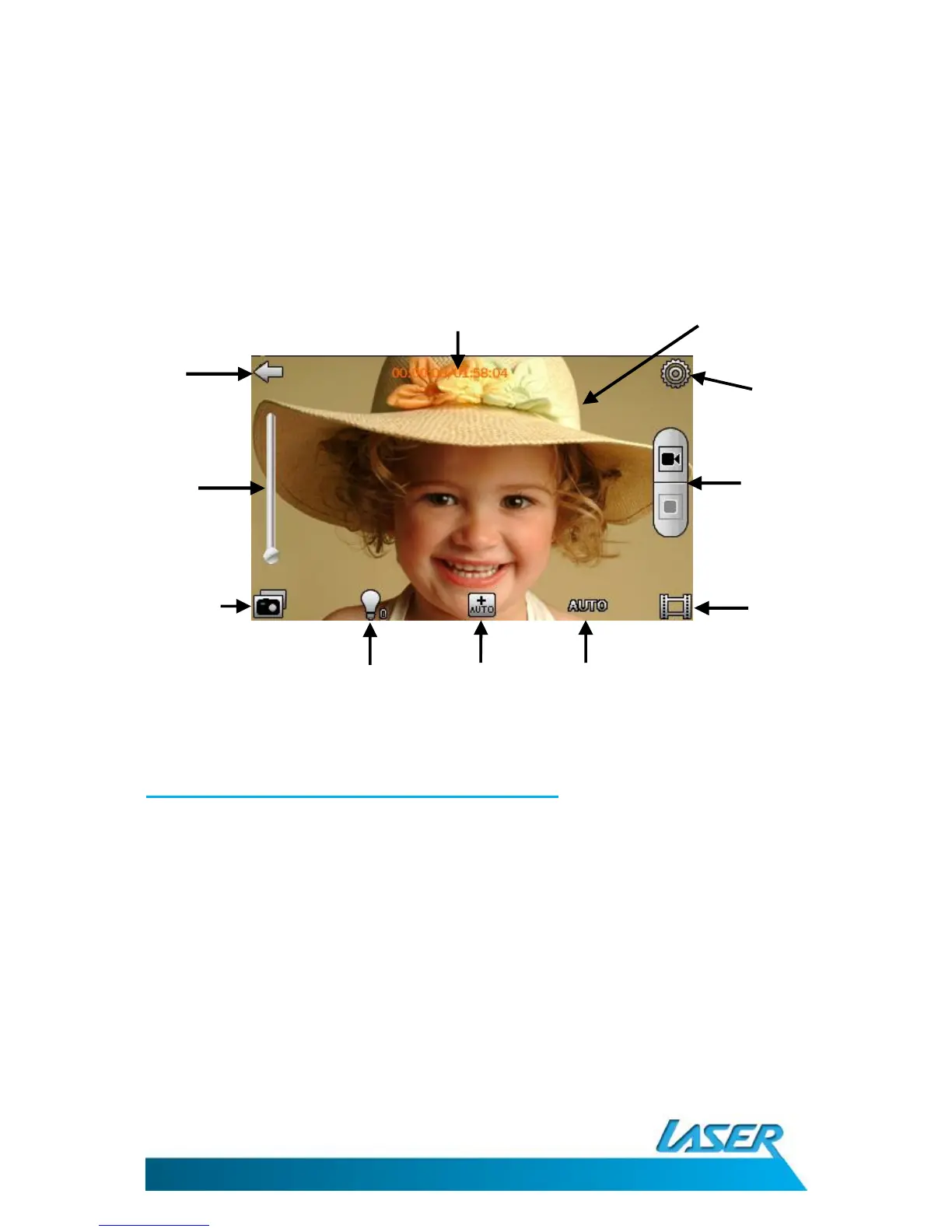
VIDEO CAMERA OPERATIONS MENU– THE MAIN SCREEN
From the main screen, select the camera icon, then use the toggle between the still camera and
video camera functions.
Note 1: The toggle switch will show an image of the device you can toggle to. Eg. If a still camera
image is present, press it to change to still camera and vice versa with an image of a video
camera.
Note 2: Once a selection has been made the user icons on the screen will change. Of most
significance is the take picture / shutter button.
Video camera operation - the settings icon
Click the settings icon from the main menu screen. Options include special effect, save path,
resolution, memory free space, record quality and record gain.
Note. Use the BACK button at the bottom of each list to return back to the previous menu.
1. Special Effect: Choose between Black & White, Sepia and Negative.
Note: By default this option is switched off.
2. Save Path: Choose between Internal Memory and Micro SD Card. By default files are saved
to the internal memory.
3. Resolution: Choose between 320 x 240 and 640 x 480 (default)
4. Memory Free Space: space available for storing video
Note. Hold the button down for scrolling read out information
5. Record Quality: Choose between High, Medium, Low and Auto



 To Next Page