MP4-T10 USER MANUAL
22
Browser operation – on-screen options
The browser feature allows you to navigate and explore all the files stored on your T10 device. Use
the previous screen button to move back one screen / folder, or to exit this feature. The process of
navigating internal and external memory is the same.
Note: If no external Micro SD card is in use, no external Memory section will be shown (this
includes related sub-folders such as EBOOK, FLASH, MUSIC, PICTURES etc)
Memory source: Switch between Internal Memory and External card memory.
Select all: (Note: Use this feature in combination with the copy feature described below) To
move folders or files, click this button once to select all files or folders under the current
directory view. A tick icon with then appear next to all files and folders. Manually un-tick
each unwanted file or folder that does not need to be moved, by clicking each individual
tick icon. The tick icon will then return to the folder icon . If required, click the Select
all icon at the bottom of the screen again, to remove all ticks (and start again if needed).
Copy a file or folder to external memory: Once all files and folders have been marked
correctly click the copy icon to copy the selected files to your external memory. Note:
External memory must be inserted for this function to operate correctly.
Delete a file or folder: Used in the same manner as the select all and copy feature
described above, but instead of highlighting files and folder and then using the copy icon,
click the delete icon instead. Confirm your choice ion the dialogue box to complete this
step.
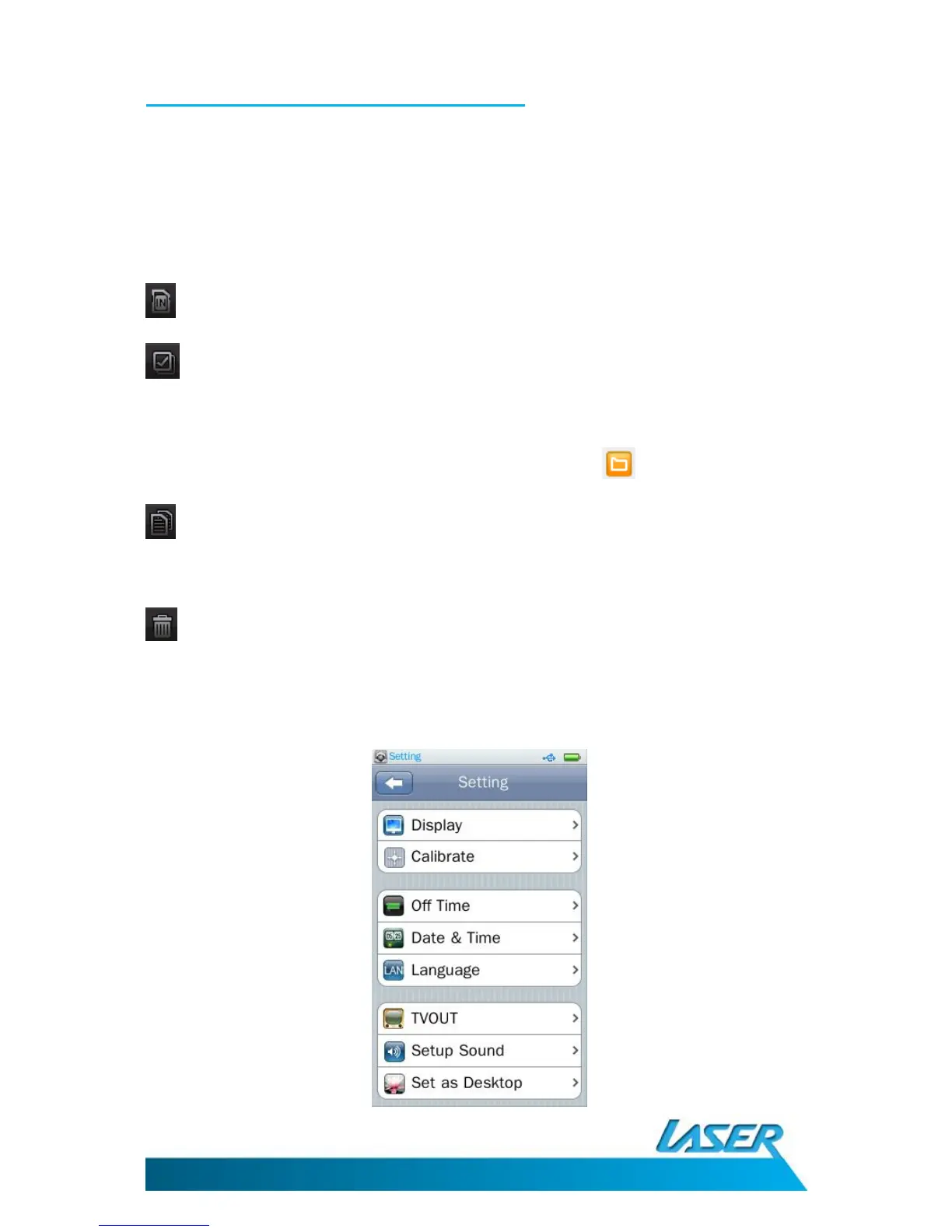
SETTING



 To Next Page