Press the shortcut button "PA", the access control for users with level 2 will appear (see
2.3). To return, press the "BACK" button. Once passed the access control, the level of access
authorization, will change to "Level 2" and access the menu, which contains the options: Zone
volume setting, routing of audio sources and advanced.
3.5.1 ZONE VOLUME SETTING
The equipment/ system, allows adjustment of volumes for each zone. This setting can
be independent from the zone volume adjustment made to broadcast the voice message in
emergency state, if it has been previously configured (see 3.2.1). The adjustment of the zones
is relative to the adjustment of the output gain or audio outputs grouped in the zone (see
3.5.5).
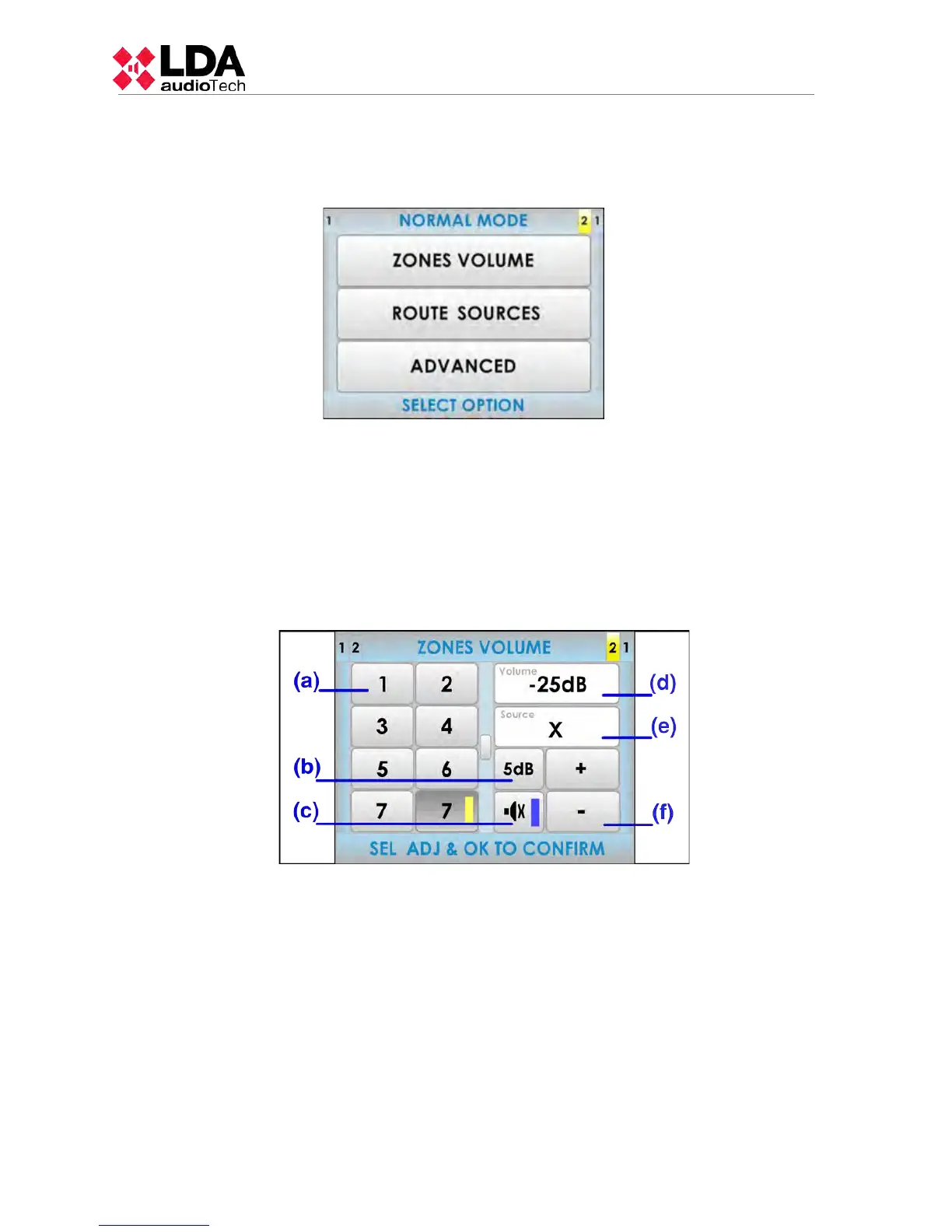
To make this setting, from the PA menu window, click on the zone volume setting
button "ZONES VOLUME", the following window will appear:
(a) ZONES BUTTONS
In the left half of the screen, the zones can be found. Press on the zones in which you want to
set the volume. If the progress indicator appears (see 2.2.6) use the scroll control to display
the other zones. If there is no selection, the setting is made on all zones of the system.
(b) GAIN STEP SETTING BUTTON
The step setting button, allows the selection of the step increment / decrement to be
performed when you press on the volume adjustment buttons. You can select from the
following values, pressing consecutively: 1dB , 5dB , 10dB.
(c) MUTE BUTTON
The mute button allows a radical decrease of the volume of the zone / zones to a minimum.
When the mute is disabled, the zones will recover the volume they had before being silenced.
If you turn the mute button on a zone / zones which was not selected , there will be no setting
on it.
22
www.lda-audiotech.com



 To Next Page