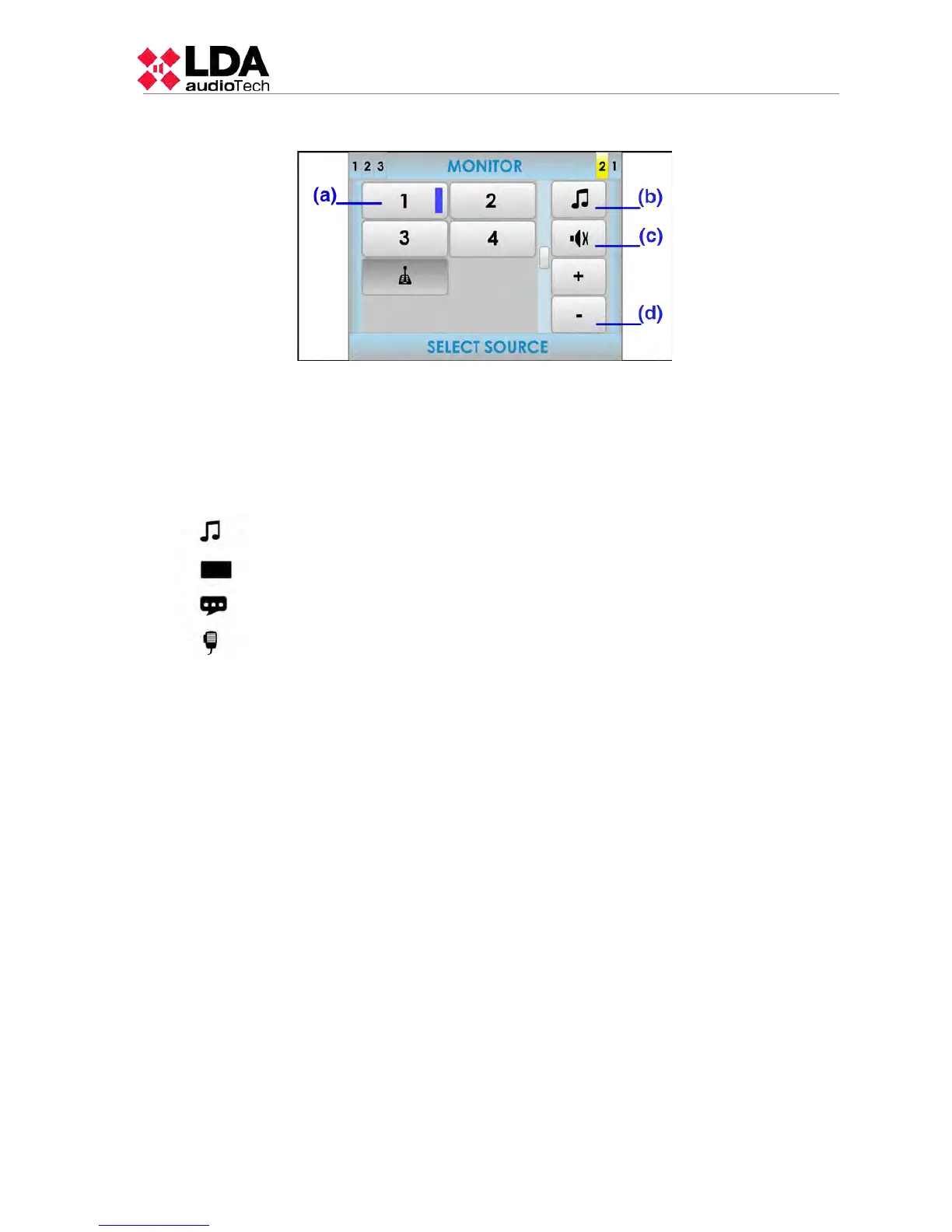
3.5.6 AVANCED OPTIONS. MONITOR
(a) SELECTION BUTTONS
On the left side of the screen there are buttons for selecting the element to be monitored. Click
on the desired item. If the progress indicator is shown (see 2.2.6) use the scroll control to display
the rest of elements available.
(b) TYPE OF MONITORING BUTTON
The type of monitoring button, allows to select what kind of elements are to be monitored. Press
until you find the desired item type:
Music source
Zone
Pre-recorded message player 1 or 2
Emergency microphone
(c) MUTE BUTTON
The mute button allows a radical decrease of the volume of the input to a minimum. When the
mute is disabled, the input will recover the volume it had before being silenced.
(d) VOLUME ADJUSTMENT BUTTONS
The window has two buttons to adjust volume " +" and "- " , each time you press one of them,
the volume of the monitor speaker will be increased or decreased by 1 dB.
To monitor, select the type of item using the " type of monitoring " button, and then click the
item to be monitored. Adjust the monitor's volume. To finish, press the " BACK" button.
NOTE: If the music source input 5 is being used by an ACSI element such as a MPS-8Z
microphone, this will also be monitored when one of the microphones are paging to any of the
zones of the system.
NOTE: In case the type of item to monitor is a pre-recorded message, press the desired
player to directly access the messages window (see 4.5.1). From this windows it is possible to
start or stop the playback of the desired message. From the message player window, press
the " BACK" button to return to the monitor window.
LDA Audio Tech - Severo Ochoa Nº 31- 29590 MÁLAGA, ESPAÑA. Tlf: +34 952028805
27



 To Next Page