To play a message, first select it in the left side column list and then press the play
button. To pause or stop the playback, press the pause or stop buttons. If you would like to
hear from the speaker monitor the selected message being played, use the monitor controls
placed in the right side of the screen.
3.5.1 ADVANCED OPTIONS. LOAD PRESET
The system allows the use of presets that will instantly modify the parameters of audio
regarding volume, routing, etc. It is possible to create and save new presets in the equipment
from the configuration software. With the use of presets, habitual system's audio adjustments
can be applied very quickly.
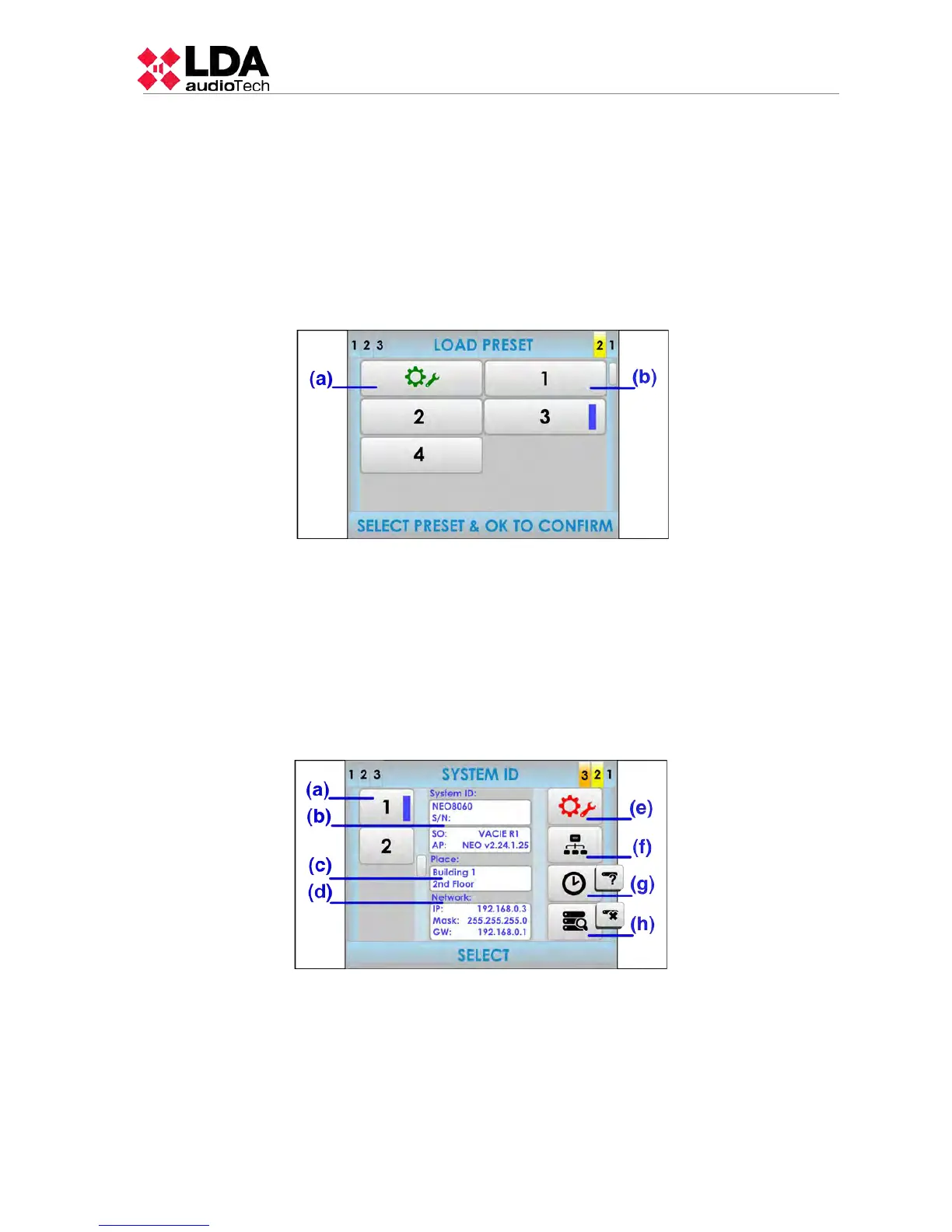
(a) FACTORY PRESET BUTTON
The factory preset button will load the default audio configuration of the equipment. All the
audio configuration that was configured by the user will be replaced.
(b) BOTÓNES DE PRESET
Press over the preset button that you want to load. If the progress indicator is present (see
2.2.6) use the scroll control to display the remaining presets available. To confirm press
the button “OK”.
NOTE: It is possible to create or modify presets from the configuration software.
3.5.2 ADVANCED OPTIONS. SYSTEM
(a) SYSTEM'S EQUIPMENT LIST BUTTONS
The left side of the windows will show the current equipment present in the system. If the
progress indicator is present (see 2.2.6) use the scroll control to display the remaining
equipment units available. Select the desired button in the list of items to show its
information. A selection band will appear in the selected item.
LDA Audio Tech - Severo Ochoa Nº 31- 29590 MÁLAGA, ESPAÑA. Tlf: +34 952028805
29



 To Next Page