Chapter 2. Product overview
This chapter provides basic information to help you get familiar with your computer.
Hardware locations
This section provides information about the locations of your computer hardware.
Front view
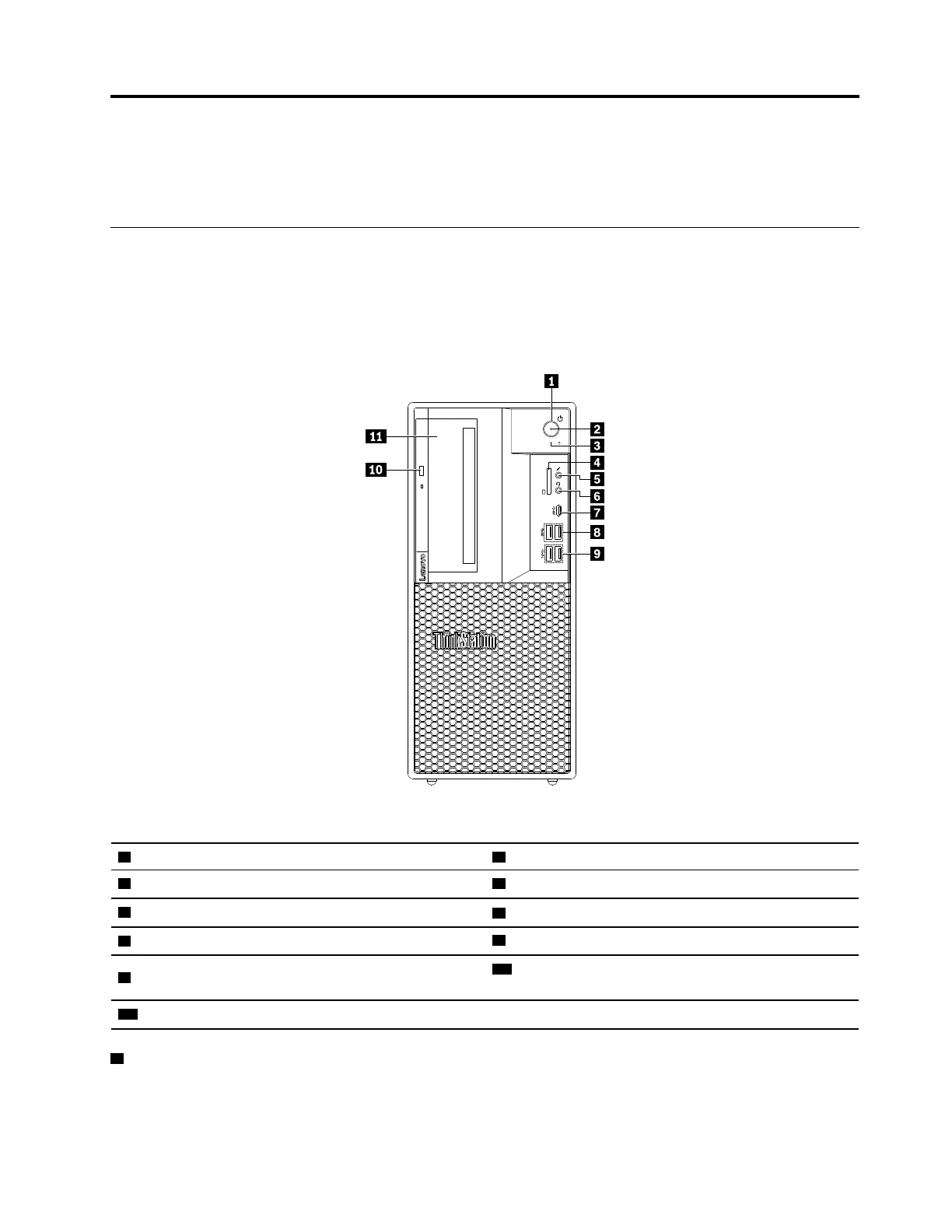
Note: The computer hardware might look slightly different from the illustration.
Figure 1. Front connectors, controls, and indicators
1 Power button 2 Power indicator
3 Storage-drive activity indicator
4 SD card slot (available on some models)
5 Microphone connector
6 Headset connector
7 USB-C connector
8 USB 3.1 connectors Gen 1 (2)
9 USB 3.1 connectors Gen 2 (2)
10 Slim optical-drive eject button (available on some
models)
11 Flex bay (available on some models)
1 Power button
Press the power button to turn on your computer. If your computer is unresponsive, you can turn off the
computer by pressing and holding the power button for four or more seconds.
© Copyright Lenovo 2018, 2020 29







 To Next Page