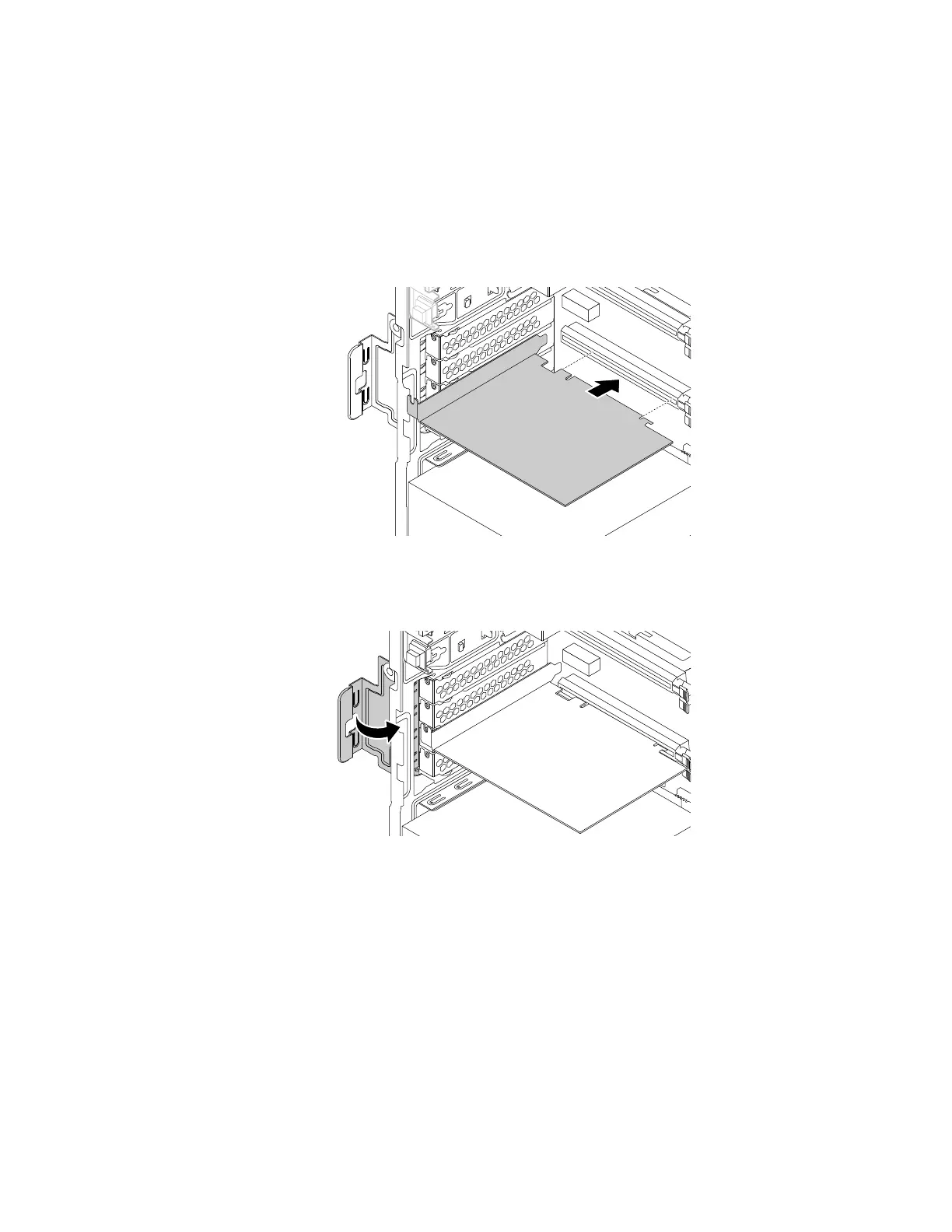
5. To install a new PCIe card, do the following:
a. Remove the new PCIe card from its static-protective package.
b. If necessary, remove the appropriate metal slot cover on the rear of the chassis.
c. Install the new card into the appropriate slot on the system board. See “Parts on the system board”
on page 38.
Note: If you are installing a PCIe x16 graphics card, ensure that the memory-slot retaining clips are
closed before you install the card to avoid any interference during the installation.
Figure 26. Installing a new PCIe card
d. Rotate the PCIe card retainer to the closed position.
Figure 27. Rotating the PCIe card retainer
What to do next:
• To work with another piece of hardware, go to the appropriate section.
• To complete the installation or replacement, go to “Completing the parts replacement” on page 187.
Full-length PCIe card
Attention: Do not open your computer or attempt any repair before reading and understanding the Chapter
1 “Read this first: Important safety information” on page 1.
Your computer has one PCIe x1 card slot, one PCIe x16 card slot (negotiable link width x4), and one PCIe
x16 graphics card slot (graphics card available on some models).
Chapter 9. Hardware removal and installation 105








 To Next Page