What to do next:
• To work with another piece of hardware, go to the appropriate section.
• To complete the installation or replacement, go to “Completing the parts replacement” on page 187.
M.2 solid-state drive
Attention: Do not open your computer or attempt any repair before reading and understanding the Chapter
1 “Read this first: Important safety information” on page 1.
The instructions on how to install or replace a M.2 solid-state drive also apply to the Intel Optane memory.
Before replacing the Intel Optane memory, ensure that you disable the Intel Optane memory from the Intel
Rapid Storage Technology (Intel RST) Console. Otherwise, all data on the storage drive will be lost. For more
information, see instructions on
https://www.intel.com/content/www/us/en/support/articles/000023989/
memory-and-storage/intel-optane-memory.html
.
An M.2 solid-state drive can be installed on the system board or an M.2 solid-state drive PCIe adapter.
M.2 solid-state drive on the system board
To remove or install an M.2 solid-state drive on the system board, do the following:
1. Prepare your computer. See “Preparing your computer” on page 98.
2. Locate the M.2 solid-state drive slot. See “Parts on the system board” on page 38.
3. Untie the cables that prevent your access to the M.2 solid-state drive slot from the cable clip.
4. To remove an M.2 solid-state drive, do the following:
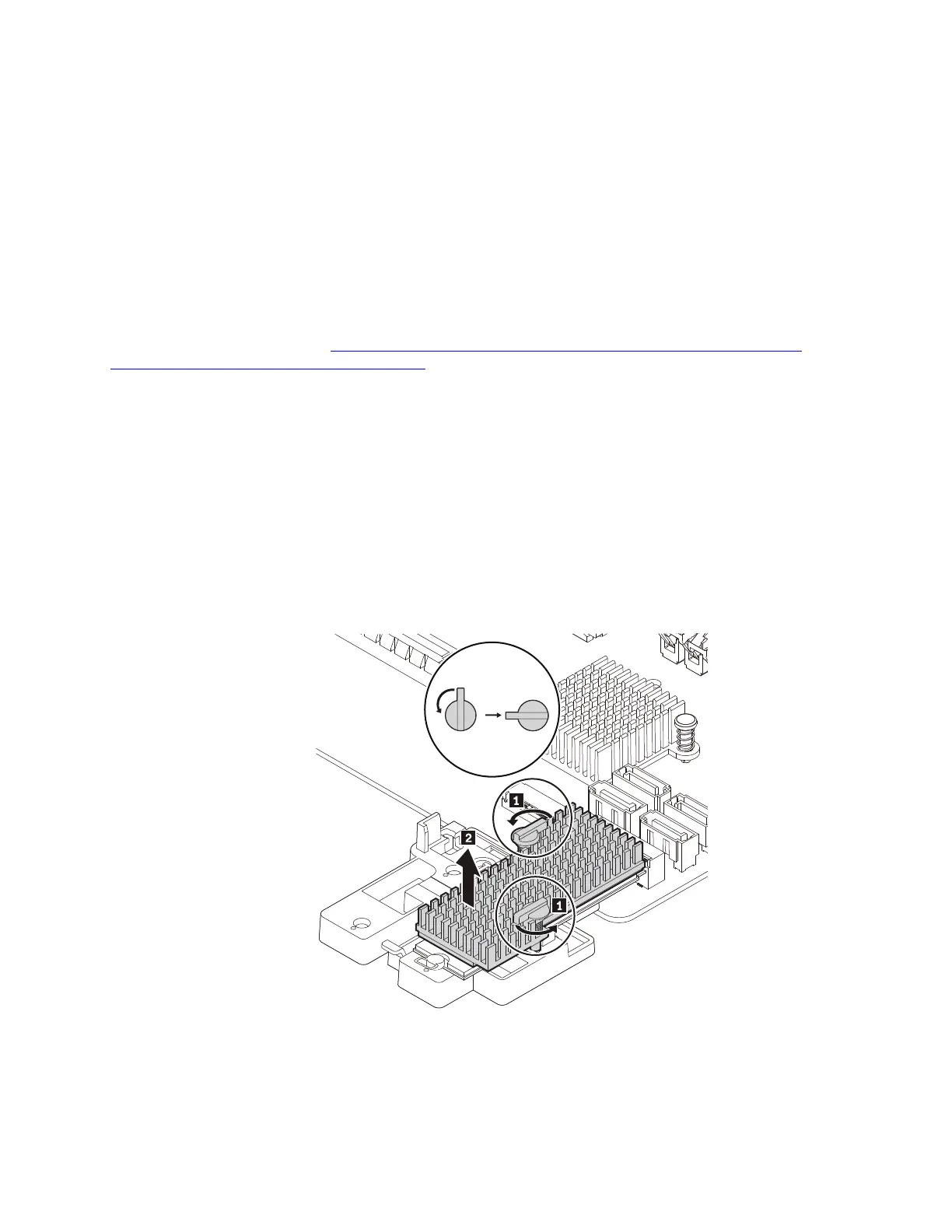
a. Turn the two mounting studs 90-degree counterclockwise to release the heat sink. Then, lift the heat
sink off the plastic holder.
Figure 35. Removing the heat sink from the plastic holder
Chapter 9. Hardware removal and installation 109











 To Next Page