53
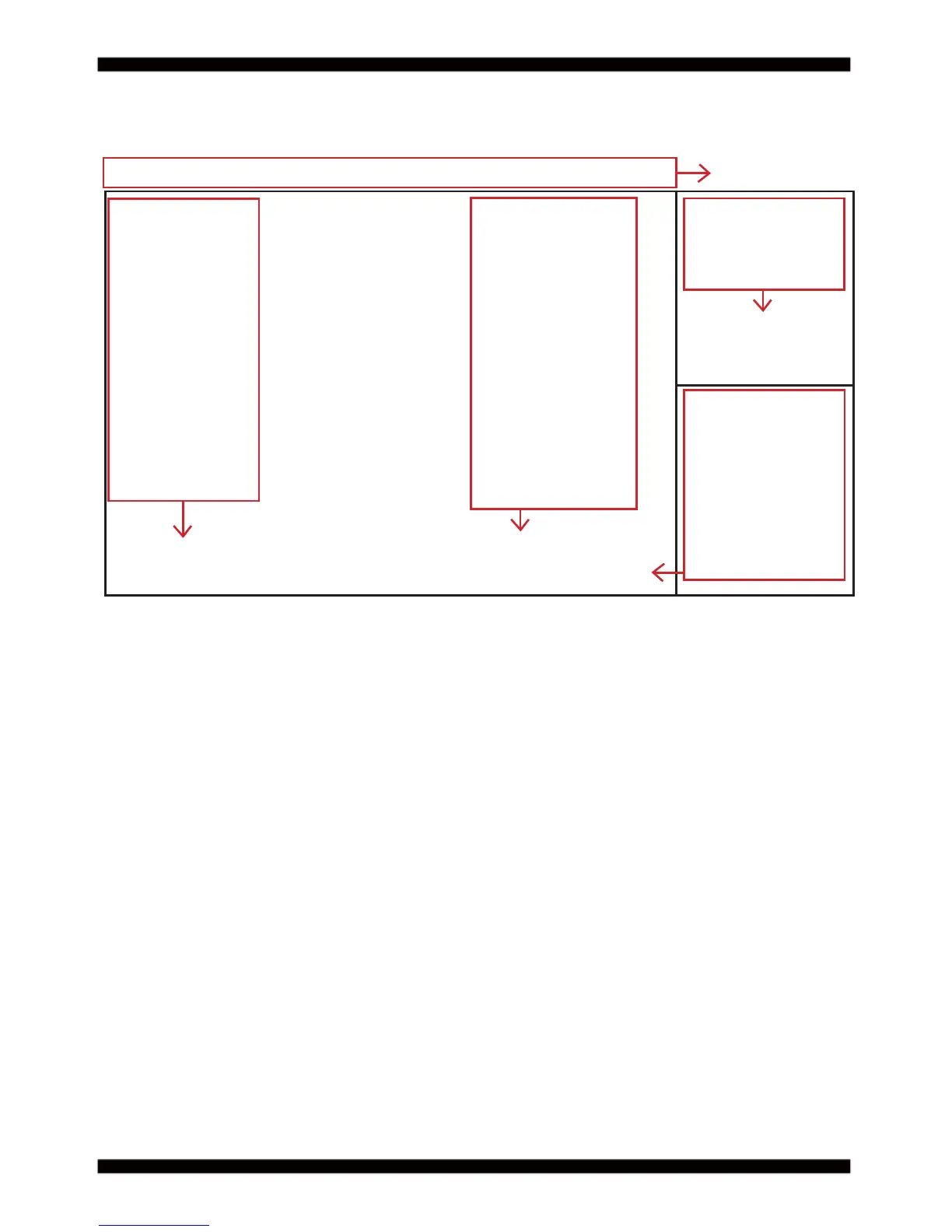
The following diagram show a general BIOS menu screen
Version 2.14.1219. Copyright (C) 2011 American Megatrends, Inc.
In the above BIOS Setup main menu of, you can see several options.
We will explain these options step by step in the following pages of this chapter,
but let us fi rst see a short description of the function keys you may use here:
●
Press ←→ (left, right) to select screen;
●
Press ↑↓ (up, down) to choose, in the main menu, the option you want to confi rm or to modify.
●
Press <Enter> to select.
●
Press <+>/<–> keys when you want to modify the BIOS parameters for the active option.
●
[F1]: General help.
●
[F2]: Previous value.
●
[F3]: Optimized defaults.
●
[F4]: Save & Reset.
●
Press <Esc> to quit the BIOS Setup.
Main Advanced
BIOS Vendor CI770C/A
Processor Information
Name IvyBridge
Brand String Intel(R) Core(TM) i7
Frequency 2300 MHz
Total Memory 2048 MB (DDR3)
Memory Frequency 1333 MHz
System Date [Tue 01/15/2013]
System Time [19:28:51]
Set the date. Use Tab
to Switch between
date elements.
Menu Bar
General Help Items
Current Setting Value
Menu Items
Function Keys
→←: Select Screen
↑↓: Select Item
Enter: Select
+/-: Change Opt.
F1: General Help
F2: Previous V
alues
F3: Optimized Defaults
F4: Save & Exit
Esc: Exit
Chipset
Boot
Security
Save & Exit
4-2 BIOS Menu Screen
4-3 Function Keys



 To Next Page